New article
Recently updated
The Mobile App - Offline Functionality for Work | Manuals and Audits

1. Welcome

1. You need to be online to first download manuals and policies for offline use.
In this video, I'm going to show you how to enable offline access to your manuals
policies and audits on our mobile app and how it looks when internet access is
unavailable. When you first log into the app and have an Internet connection
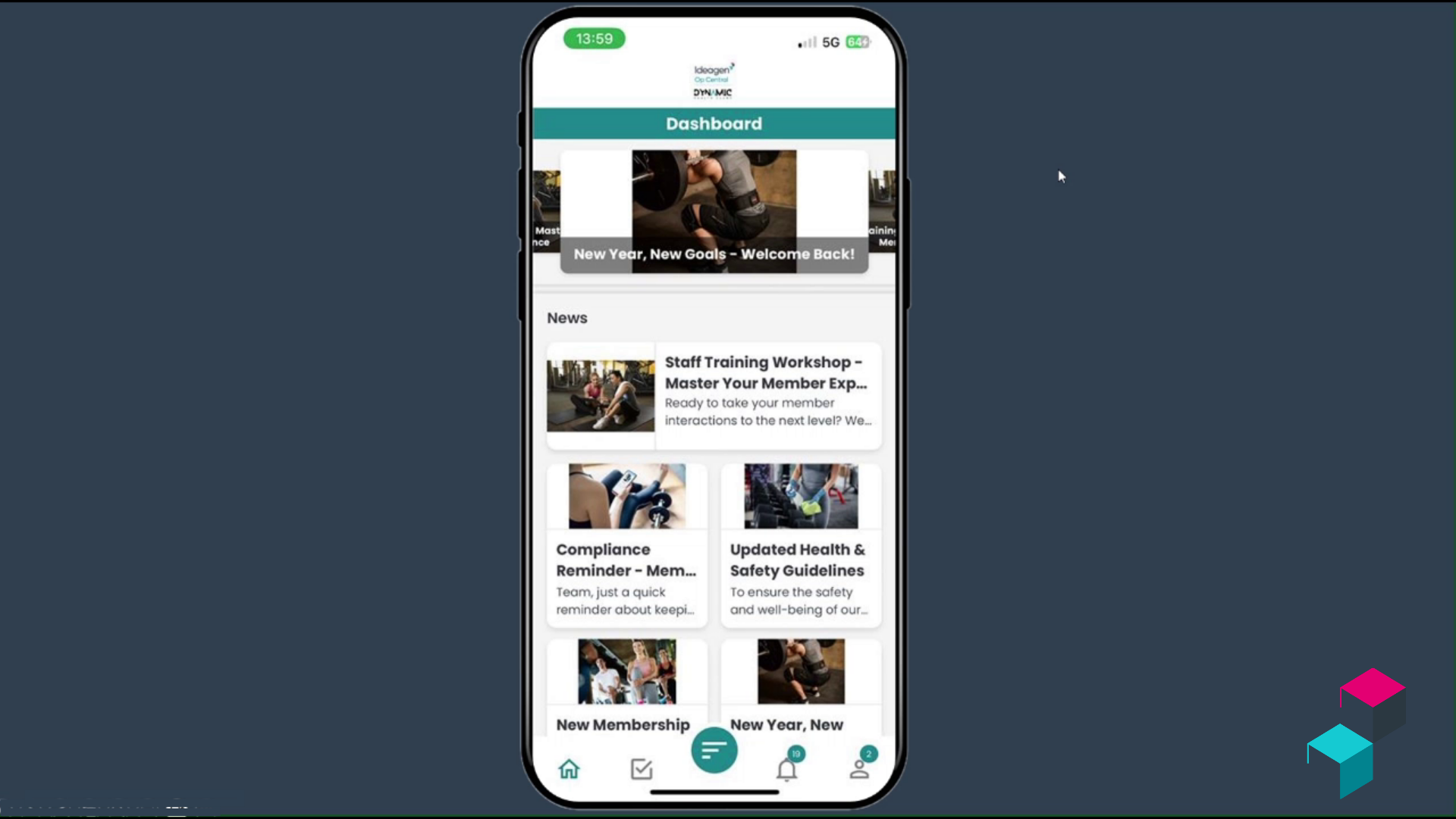
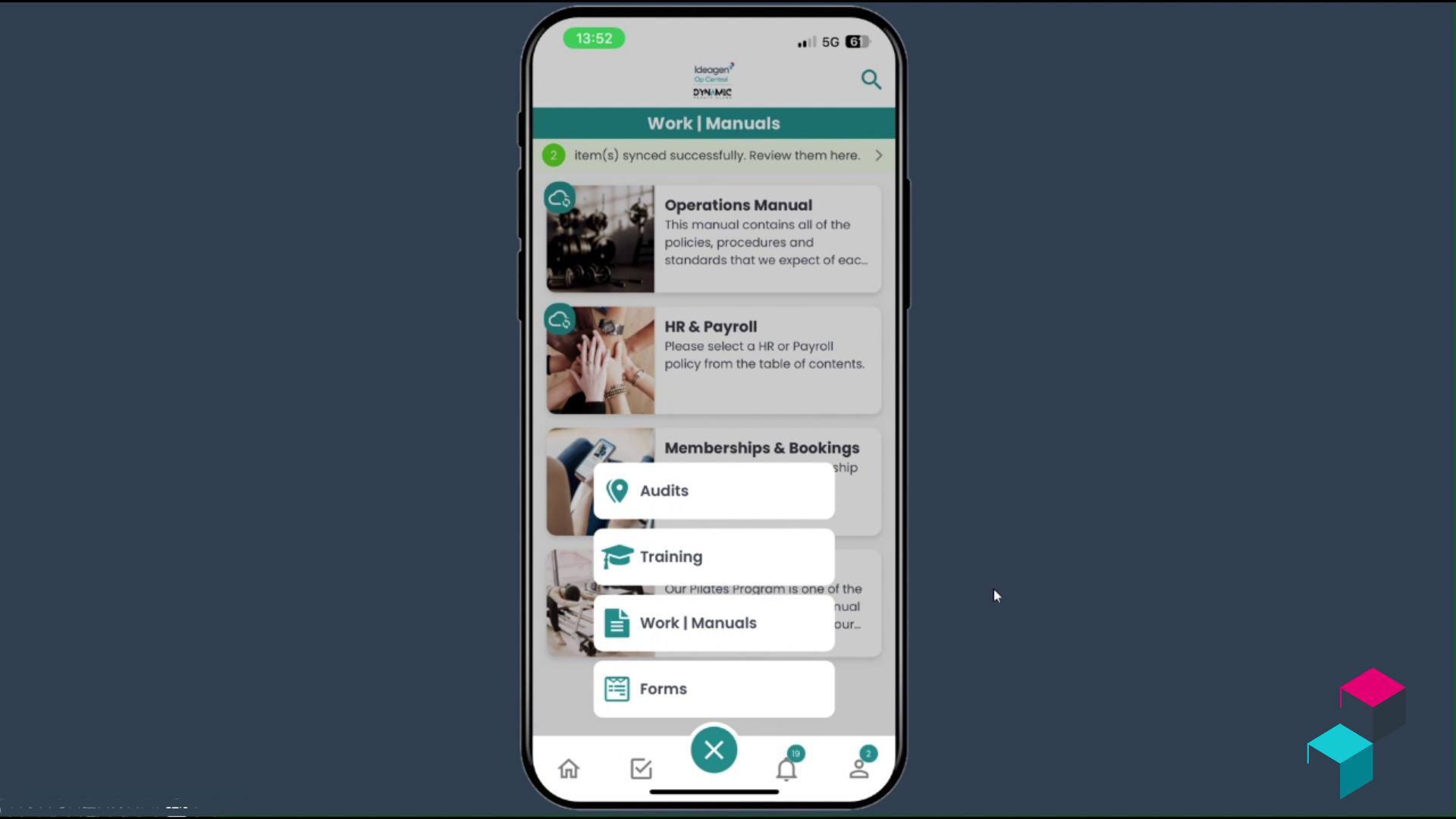
you'll see the dashboard. Select the menu button from the bottom navigation.
Choose work slash manuals here. You'll now see all of the manuals policies and
procedures and guides that you have available. Select your desired manual. You'll
now see a download for offline option. Select the button and you will be prompted
to continue. The manual will now be downloaded to your device once complete.
You'll also have an option to delete the downloaded version if required.
2. Follow this process for audits.
For Audits, select the Audits option from the main menu. When online, this page
will load all the audits currently assigned to you. Select the Cloud icon at
the top right. This will open your "Sync Offline Audit" page. Select the audit
or questionnaire you would like to download. Once the download is complete the
green dot indicates the audit is up to date.
3. Now, see how the app looks when in offline mode and access your Manuals and policies
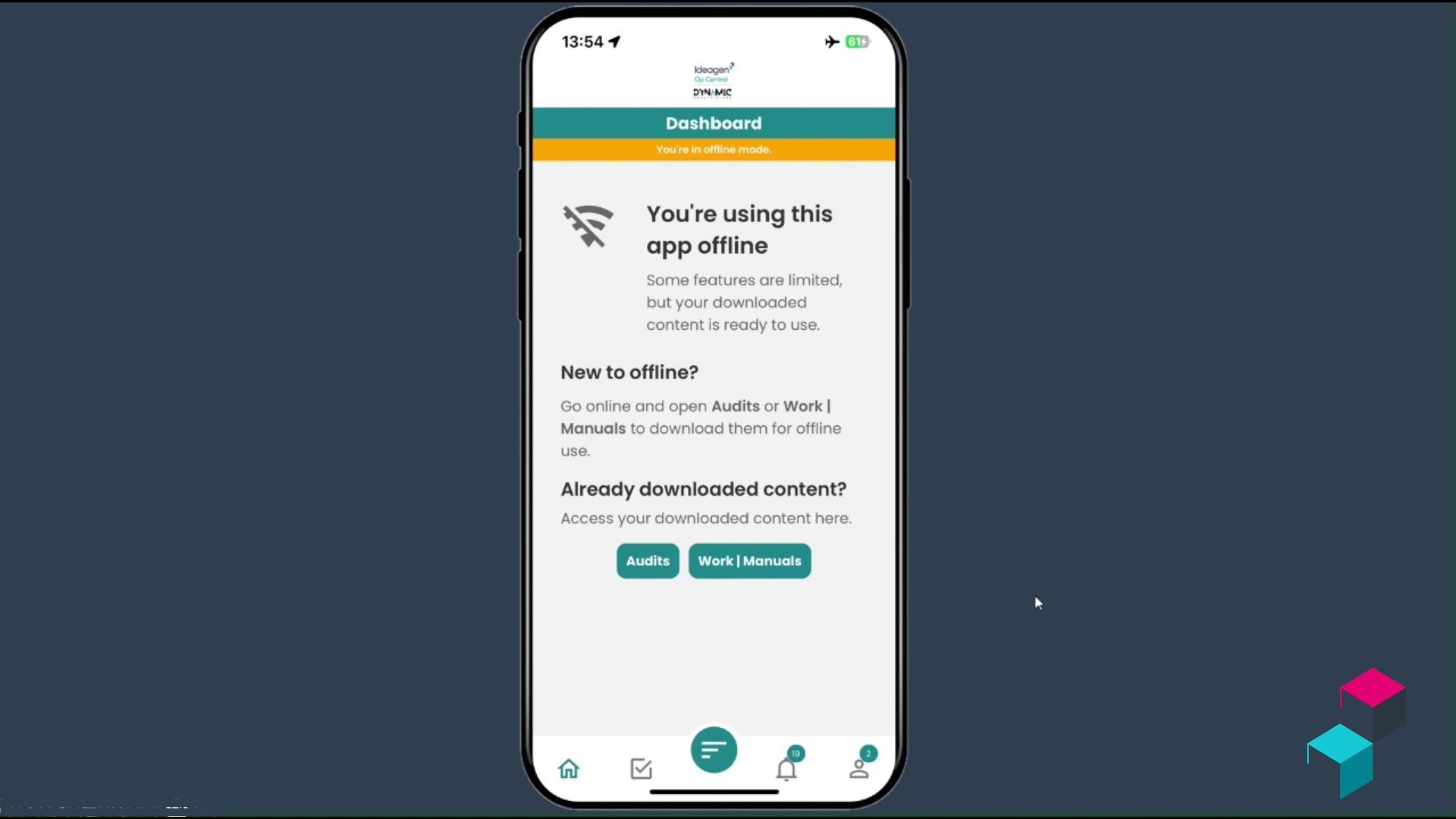
Now let's pivot to when you're actually offline with no internet connection.
The first thing you should notice is that there is now a banner at the top of
the app. This tells you that you're in offline mode, and as the dashboard is
the homepage of the app, you will now see new information regarding offline use
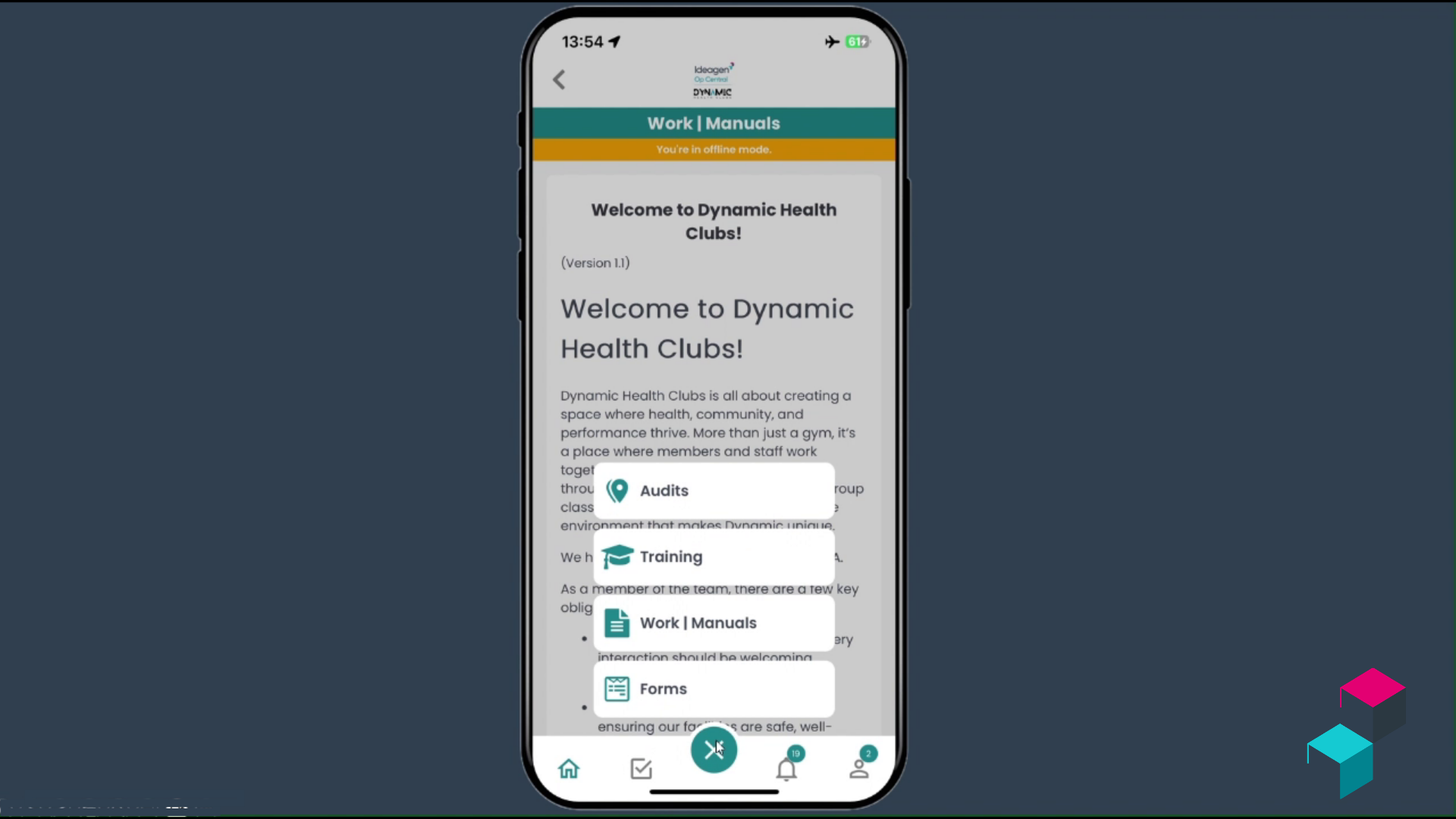
of the app. To start, I'm going to select on the Work slash Manuals option. Remember
you are still offline but can now see the two manuals that have been downloaded
for offline use. Select the manual of your choice. Navigate through the table
of contents to find the policy, procedure or guide you are looking for.
4. Follow these steps to view your offline audits.
For Audits, you can return to the Dashboard using the home button or via the
main menu. You will be reminded you're in offline mode and by selecting view,
you will be able to see the audit that you downloaded for offline use. Press
view again and you will now have access the audits assigned to you and can choose
one to commence offline. When your device regains an internet connection, any
completed audits will automatically sync back to the server. The app will notify
you when this has occured. You now have full visibility of how to enable work
slash manuals and audits for offline use with the mobile app.
7. Thanks for watching