New article
Recently updated
Policy Management: How a user approves (or rejects) a policy in a workflow

Learn how a user assigned in a workflow can approve or reject policies within Work Central.
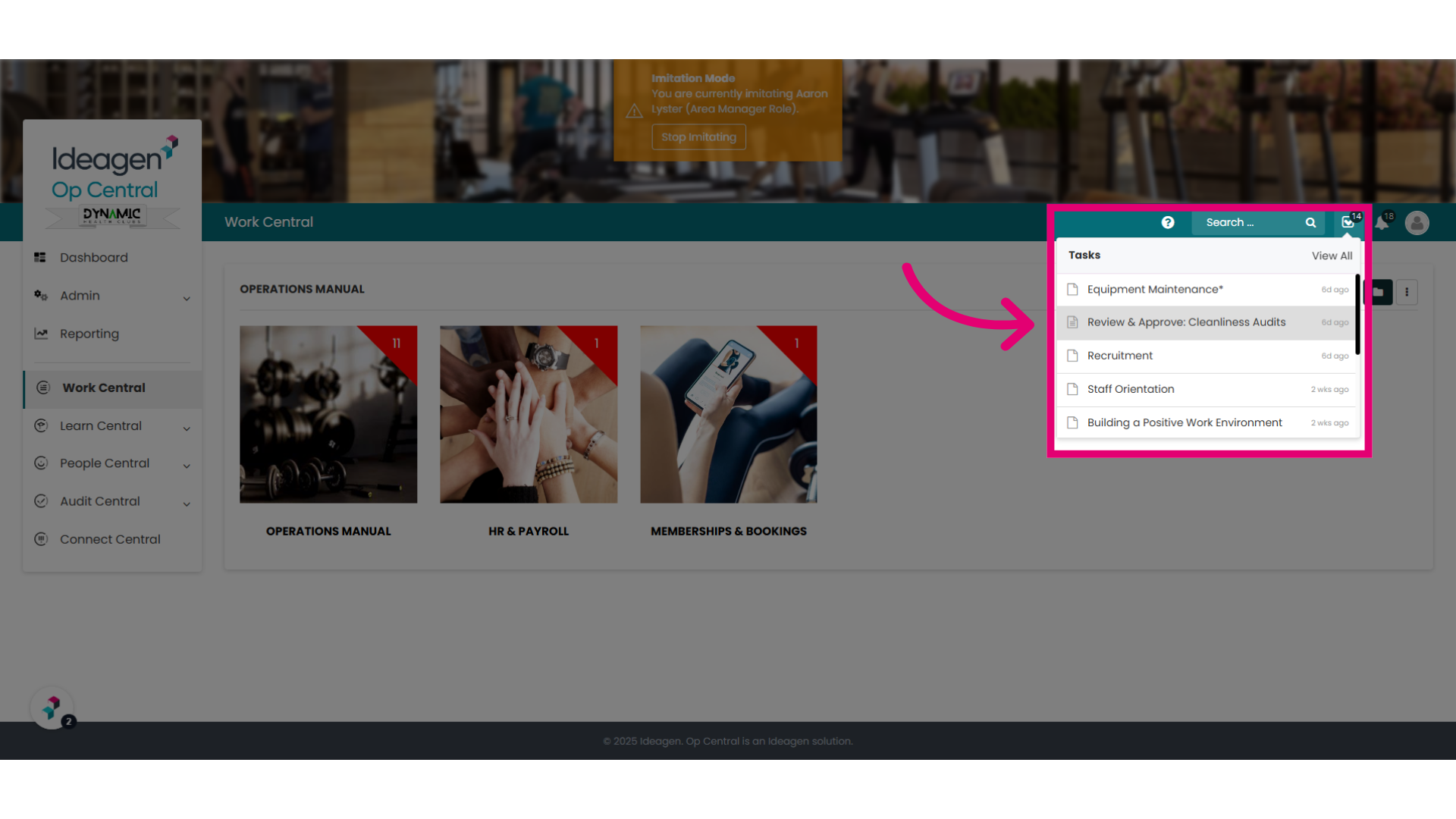
1. Policy Reviews will appear under the Task button.
If a user has been assigned to review a policy as part of a workflow and it has been set as a "Required Task", their review will appear in their Task list, available in the top navigation bar. If the user has the "Outstanding Tasks" Widget on their dashboard, the review will appear here as well. This is the quickest way to action the review.
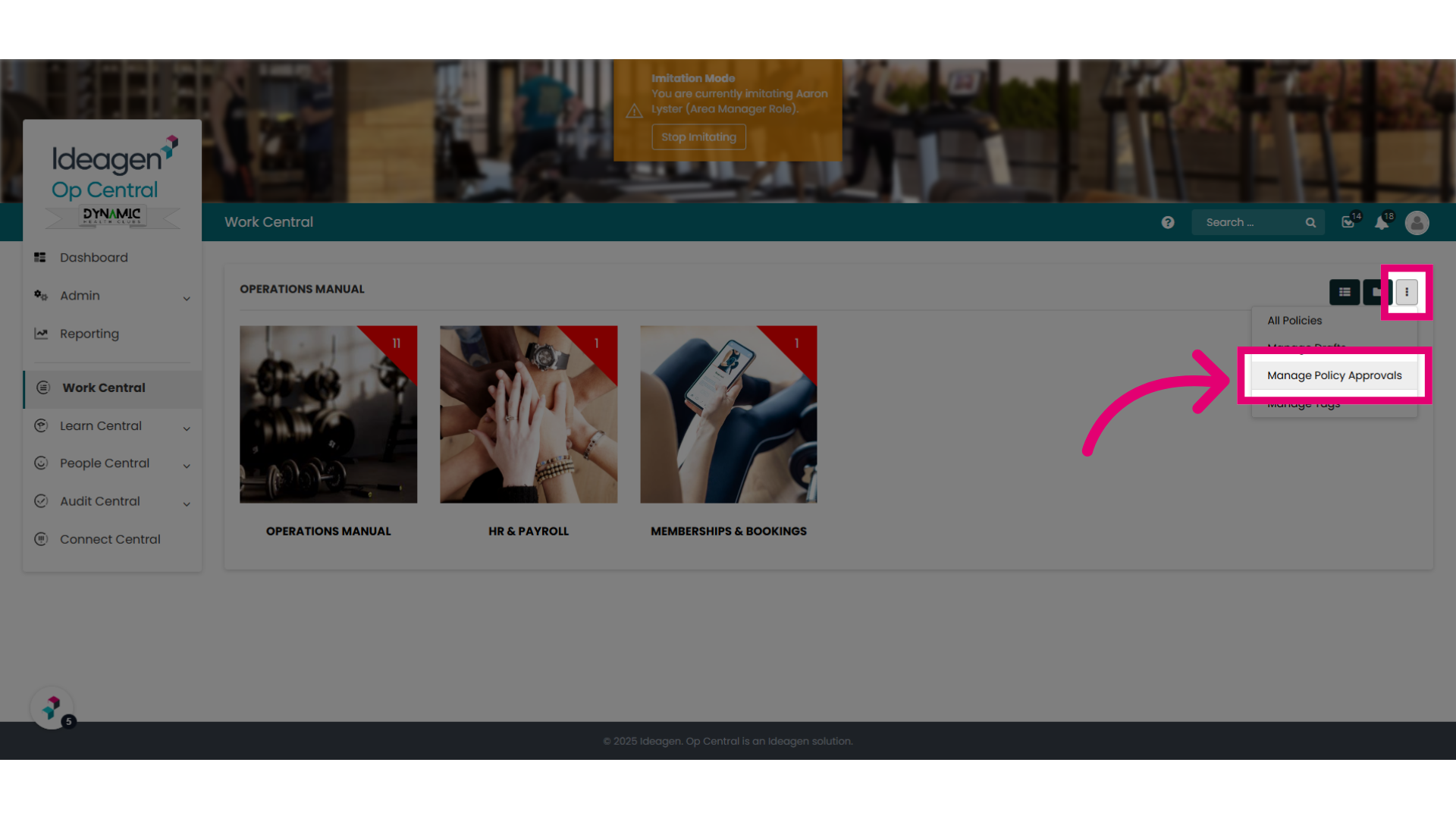
2. Or they can access the task via Work Central
In addition, users can also navigate to the Manage Policy Approvals page in Work Central and see what they have been assigned to complete. Simply select the ellipses and choose "Manage Policy Approvals".
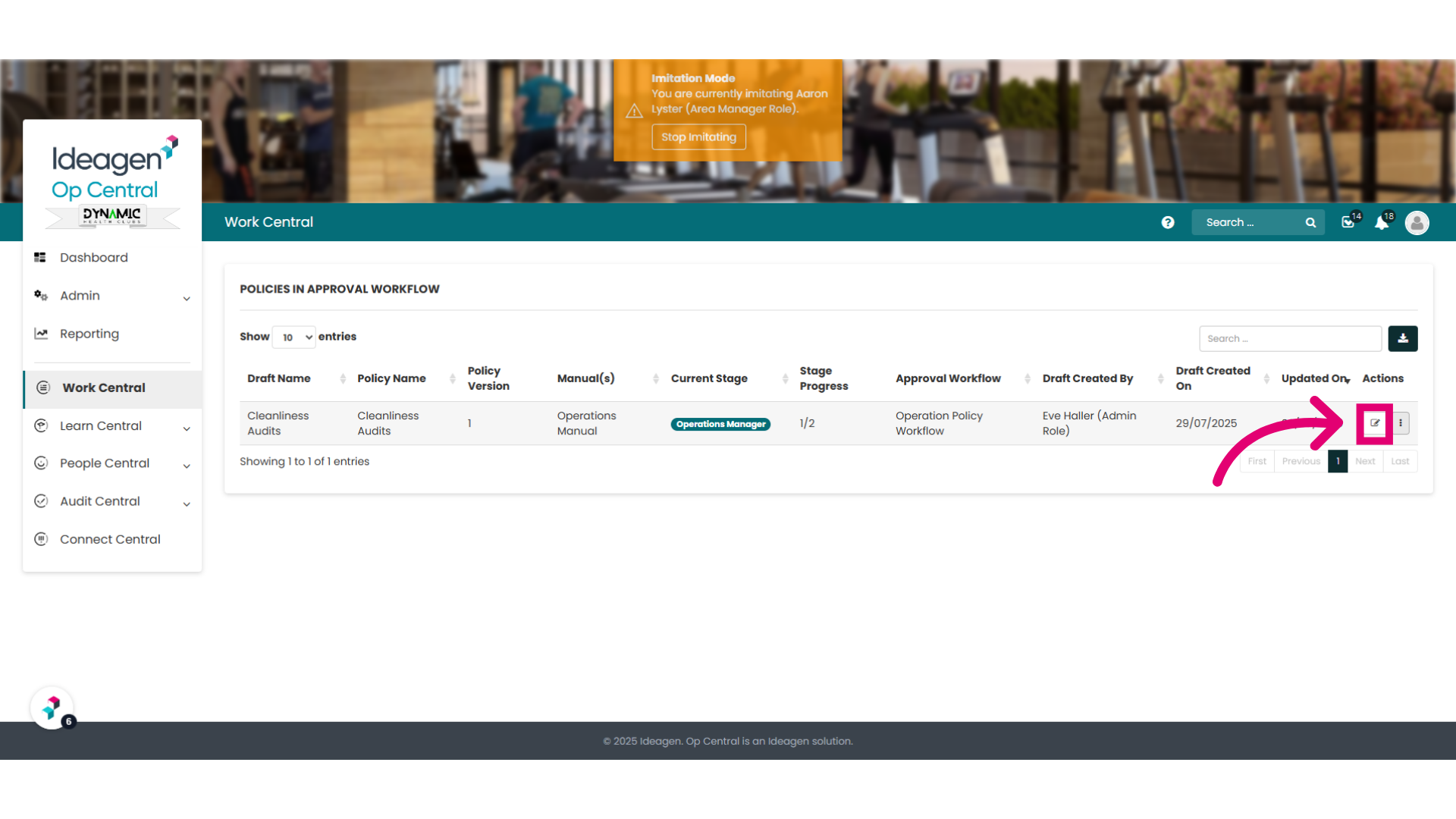
3. "Policies in Approval Workflow" page
This "Policies in Approval Workflow" page will appear. The a user will be able to select the edit button to open the policy.
4. The Policy "Edit" screen
Upon loading the "Edit" policy page, users will immediately notice a new box at the top of the screen. This box displays comments submitted by the person who submitted the policy, or, if the policy is further along in the workflow, it will show comments from the most recent reviewer. If users wish to view more details, they can click the 'View All' button to access the complete Workflow History Log.
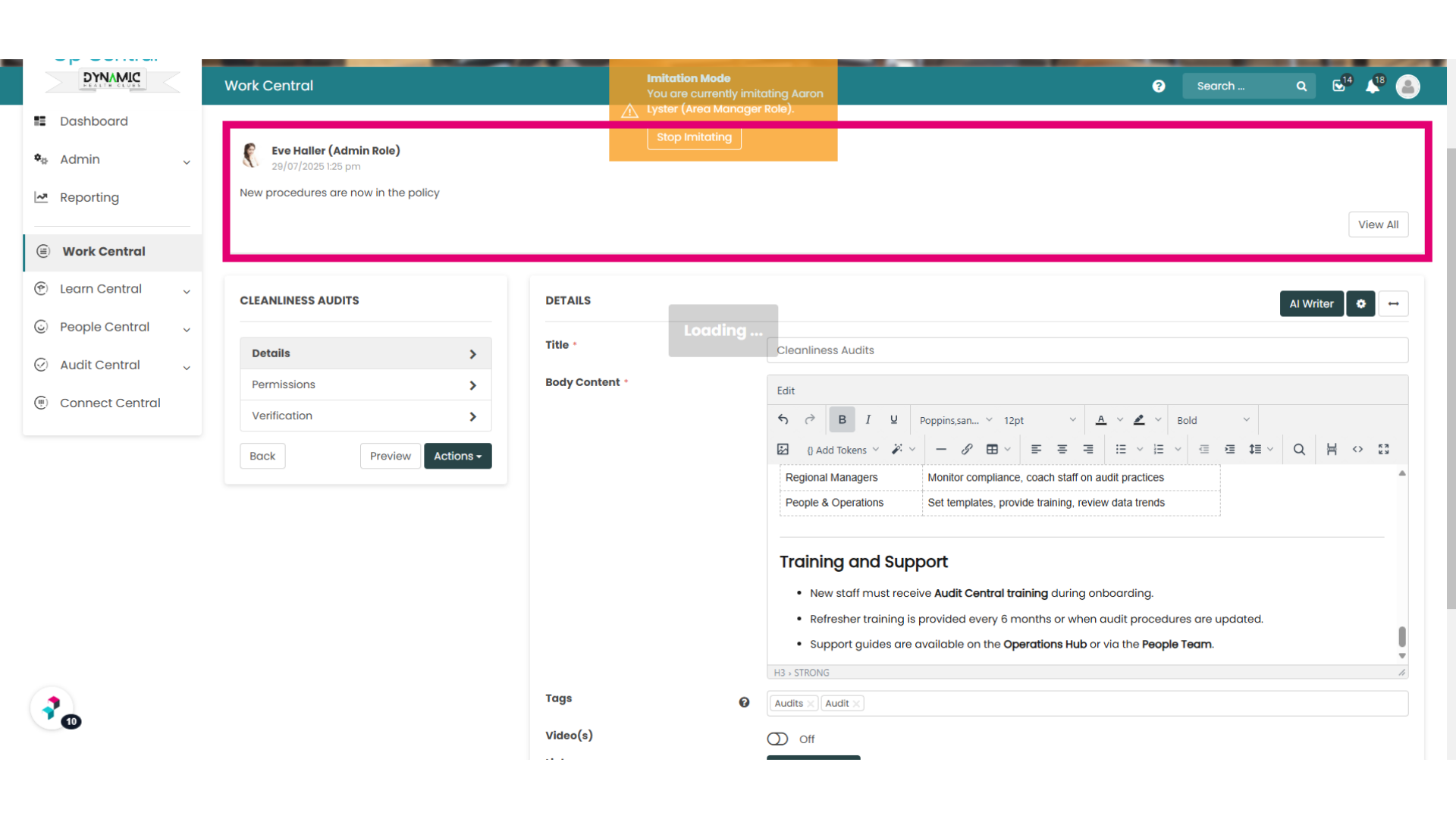
5. Review, Edit or update policy settings
Once the user has reviewed, edited or updated the policy settings, they should select "Actions".
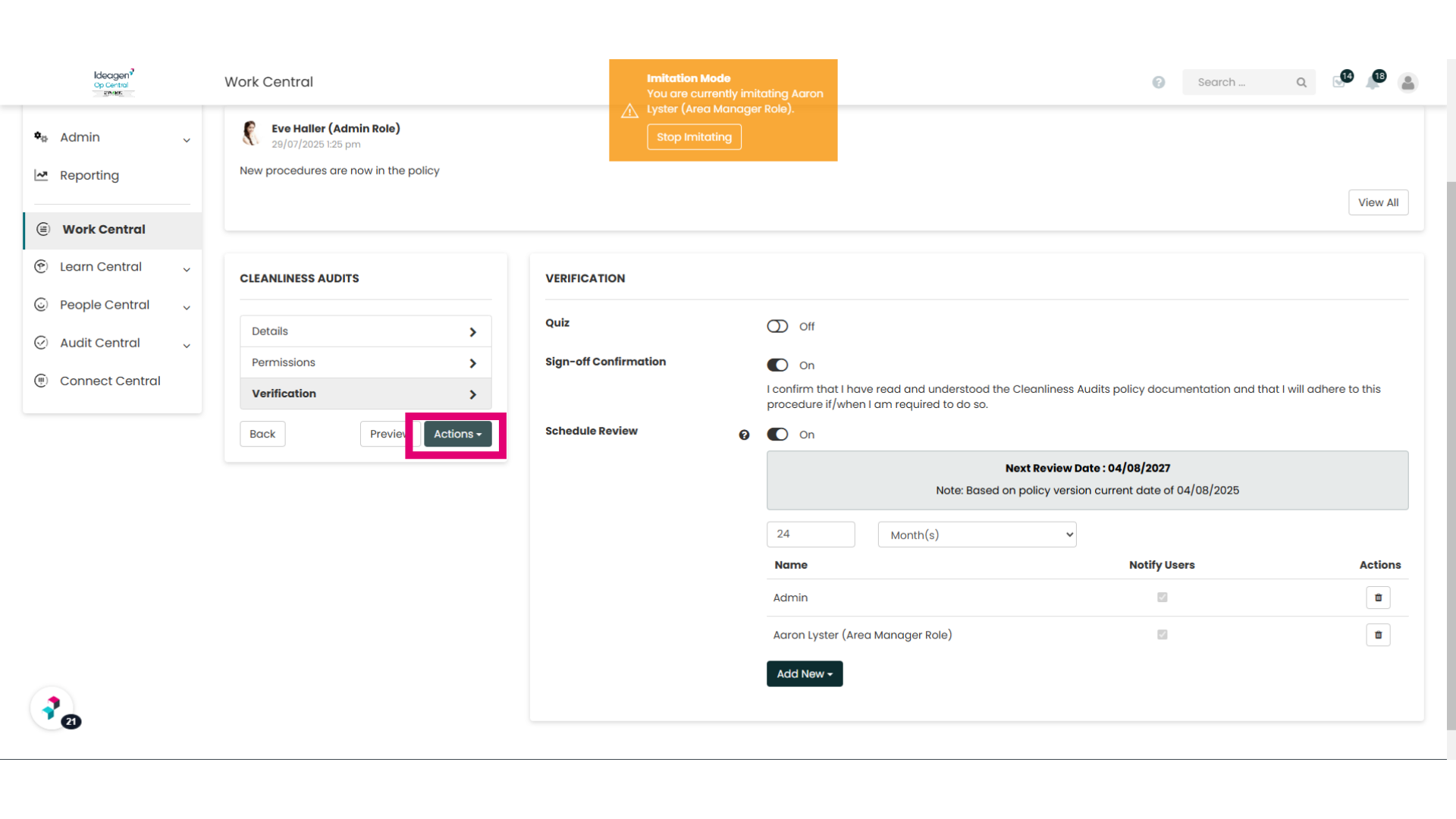
6. "Actions" Button
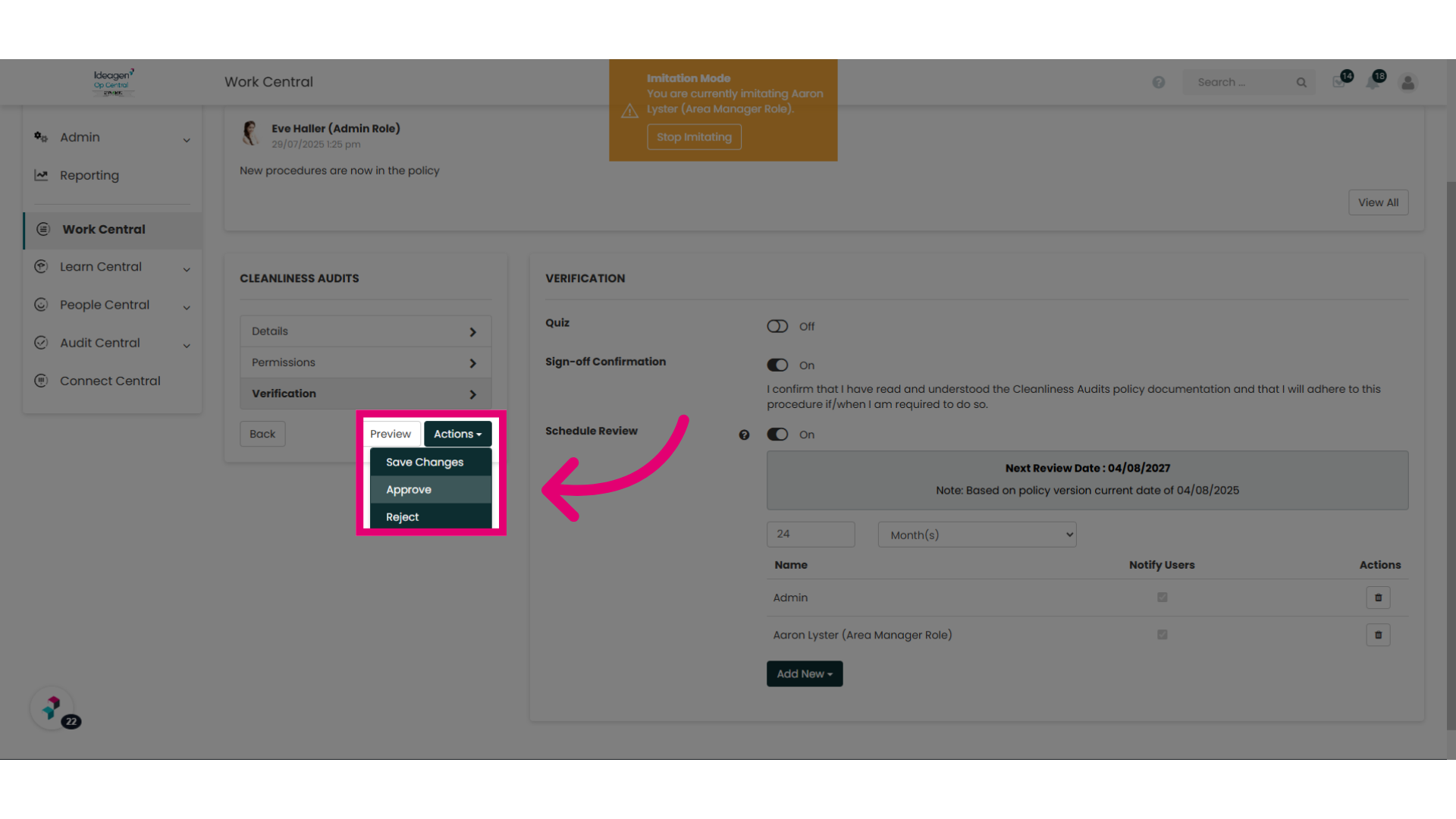
Here, the user can save their changes and come back to the workflow at a later date, Approve the policy or Reject it. For this example, we will select "Approve"
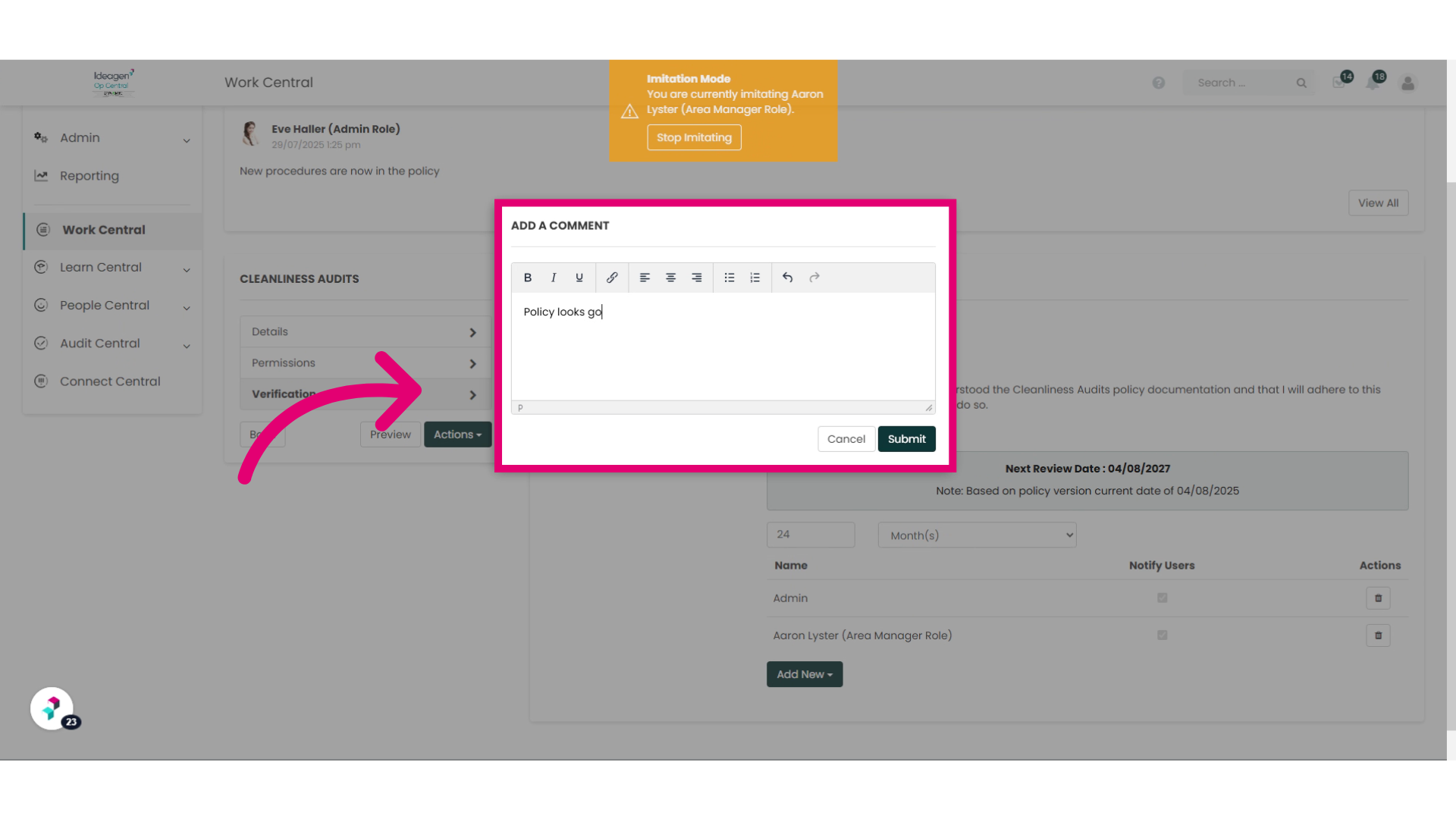
7. Leave a comment for the Workflow History Log and Submit.
The user who is reviewing the policy will be prompted to leave comments about what actions they took as part of their review. These comments will be visible to subsequent users in the workflow (for example, the Stage 2 Approver) and it will also be documented in the Workflow History Log. If the policy is rejected, the user's comments will show to the user who submitted the policy (for example, the drafter or the previous stage approver) which they can then review and re-submit. This is all the user needs to do to complete their review.
8. Reviewing the status of a policy in a workflow.
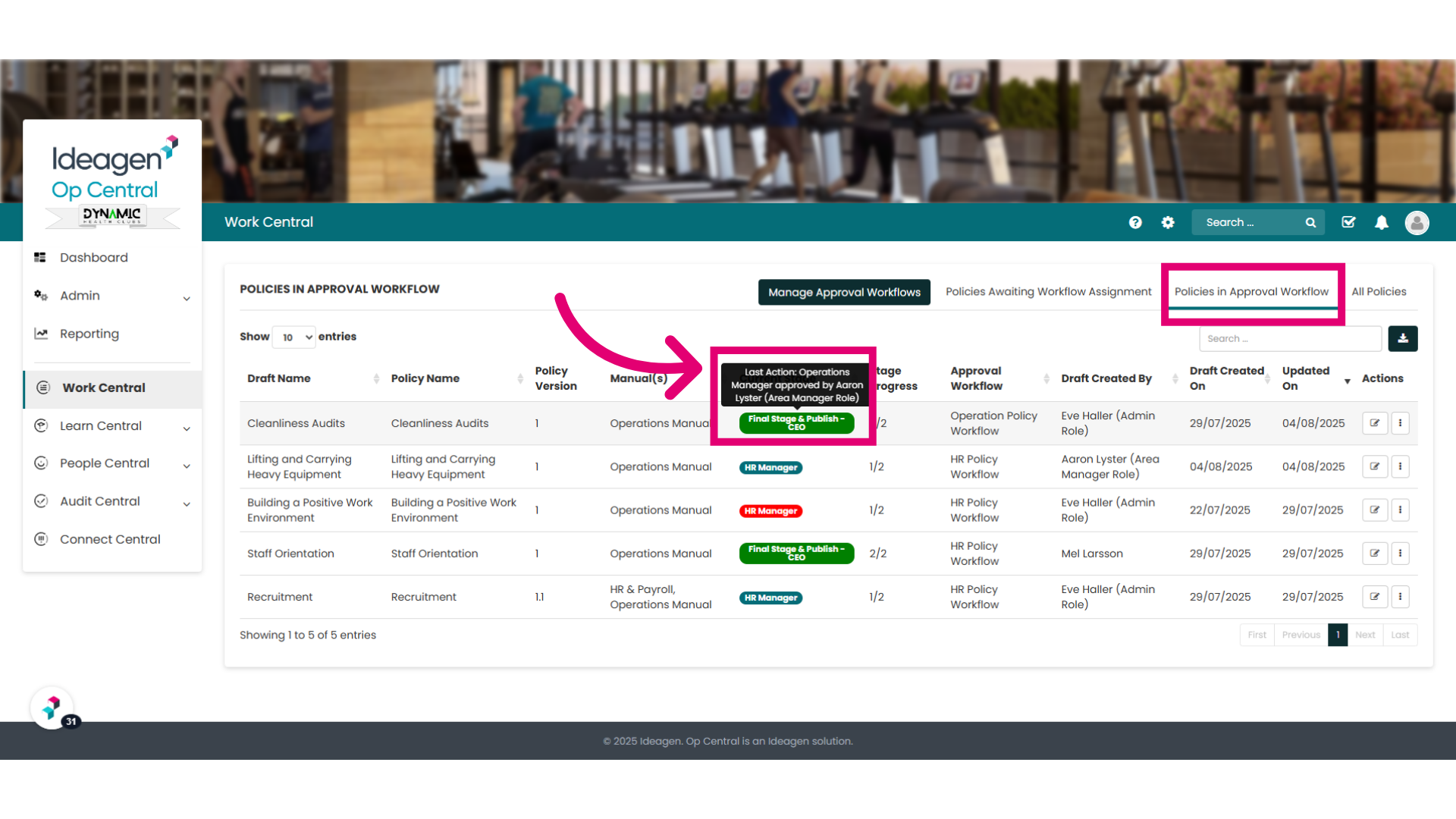
Admins and users with "Can Publish" permissions can monitor the status of a policy within a workflow, by navigating to Work Central.
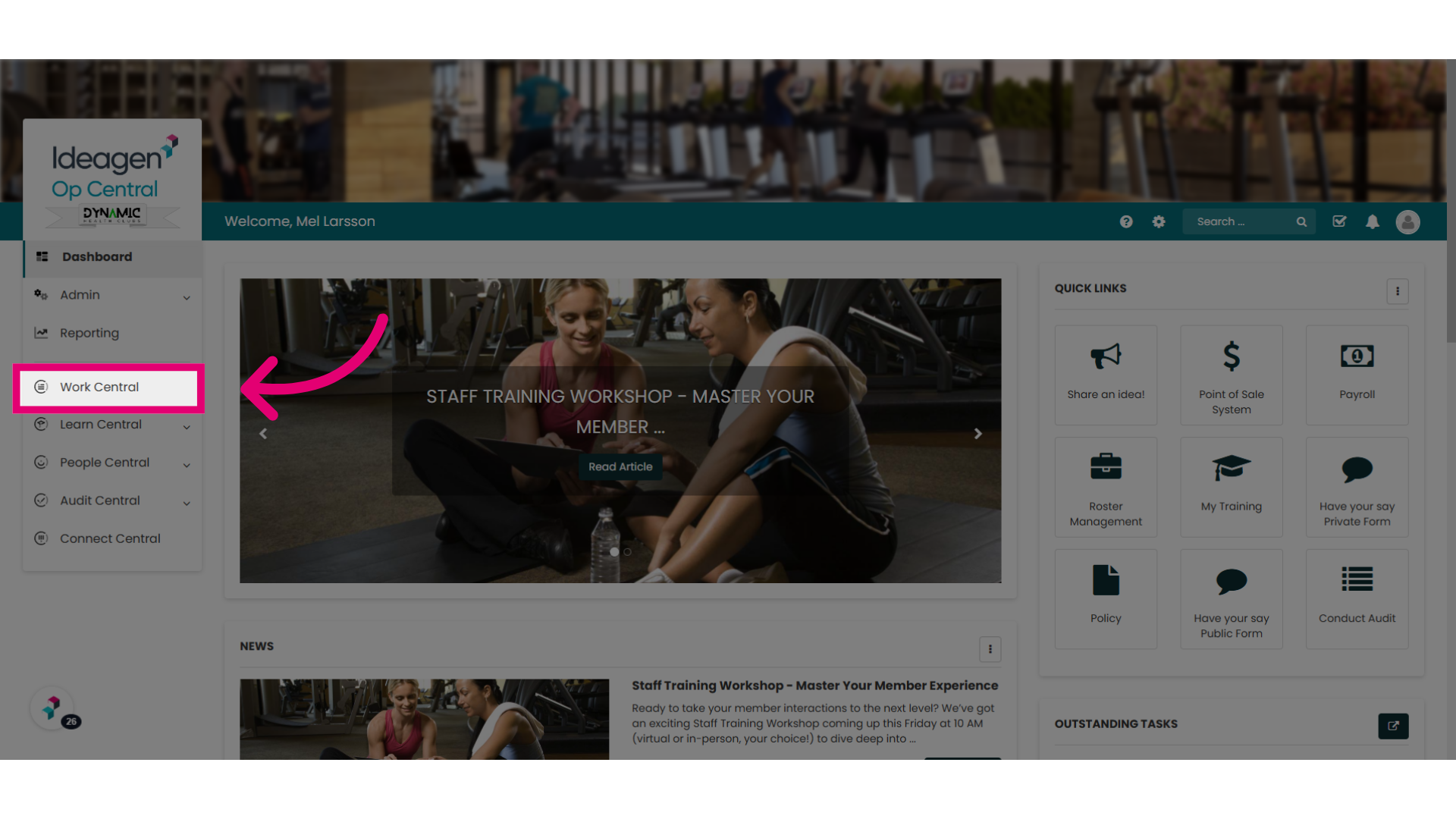
9. Ellipses Options
Select the ellipses and choose "Manage Policy Approvals".
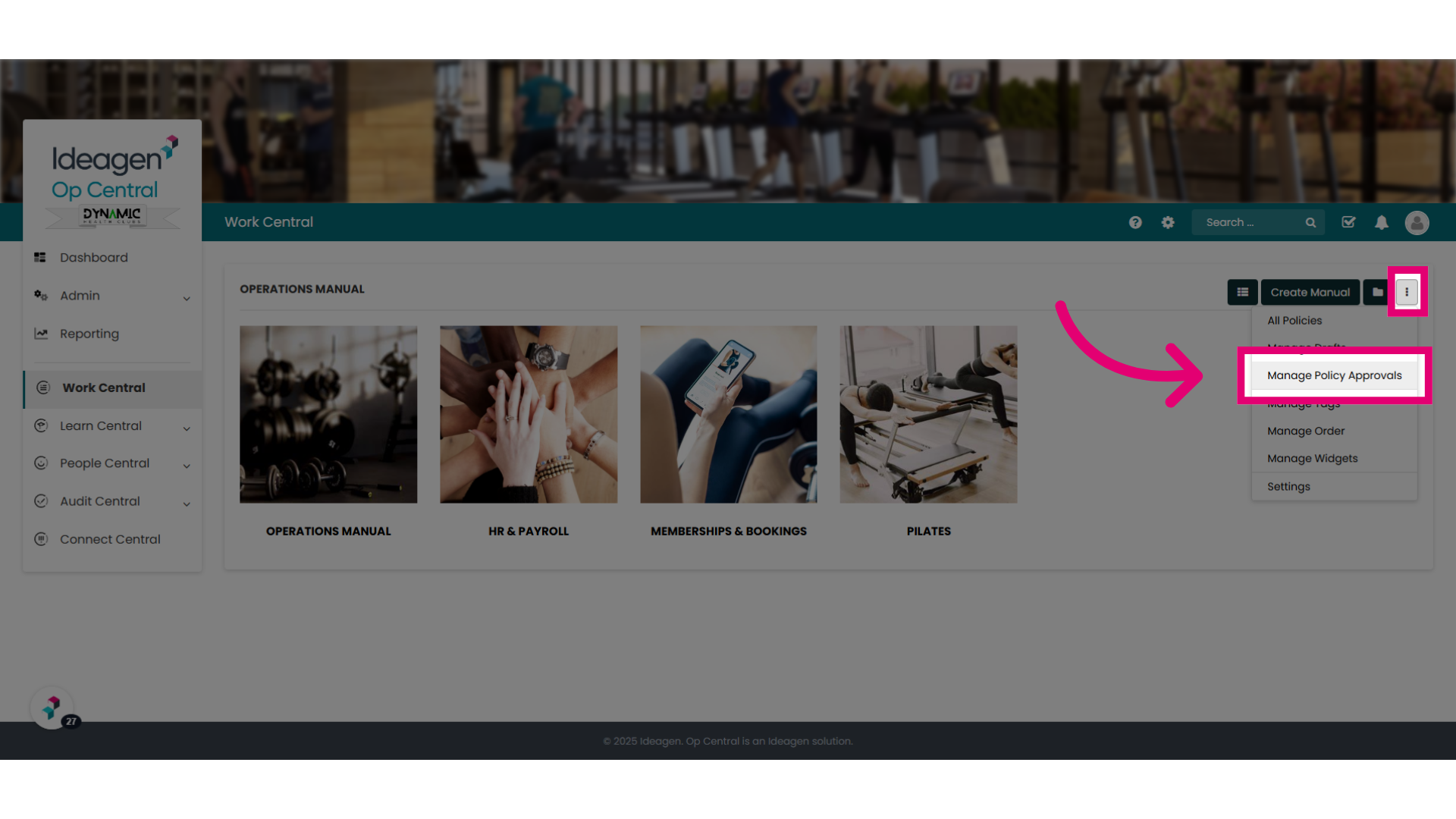
10. "Policies in Approval Workflow" tab
In the "Policies in Approval Workflow" tab, users can easily check for any additional policies assigned to them. If this screen appears empty, it indicates that there are no further actions required. For Admins and users with "Can Publish" permissions, comprehensive oversight of the workflow is available. A green status indicates that the policy has been approved and has progressed to the next stage. Conversely, a red status signifies that one of the approvers at the current stage has rejected the policy, causing it to revert to the previous stage. To gain more insight into the last action taken, simply hover over the workflow status for more information, as seen on the screen.
As with all functionalities in Ideagen Procedure Management, Admins have the ability to edit policies at any time and can override the workflow if necessary, including acting on behalf of another user.