New article
Recently updated
Policy Management: How to bypass a workflow and "Publish now" (Admin and users with "Can Publish" access

Learn how to bypass the workflow and publish policy updates instantly if approvals workflows has been enabled. This guide is for Admins and users with "Can Publish" access.
1. Introduction
This guide provides step-by-step instructions on how to publish a policy immediately after it has been edited.
2. Navigate to the "Edit" screen for the policy you need to update
In this video, we will begin by demonstrating how to edit a policy, a task familiar
to most Admins. If you require a comprehensive guide on the entire process of
policy editing, please refer to our other help articles. As you have done
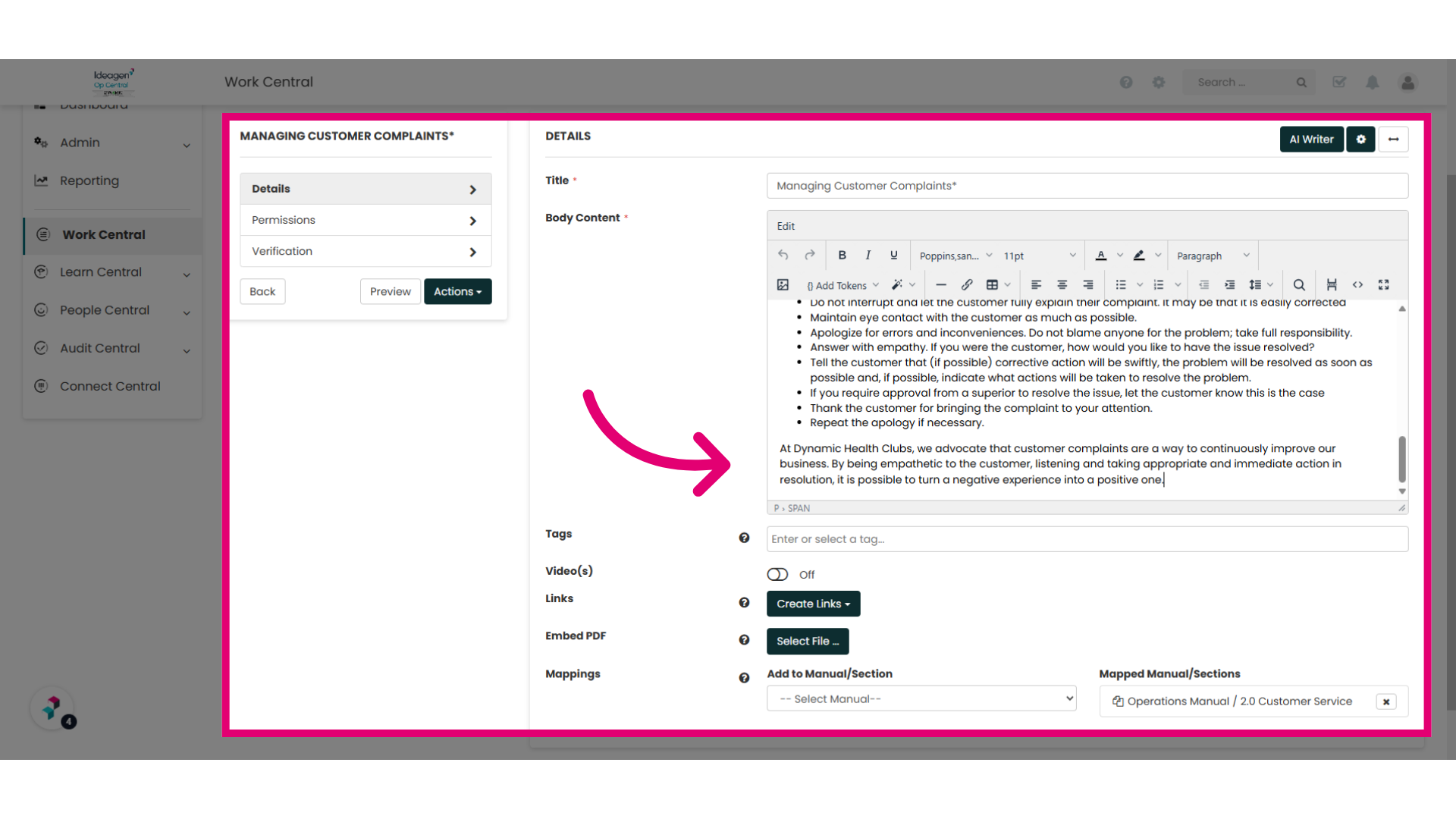
in the past, simply navigate to the policy editing screen, update the text, permissions,
or verification settings as needed.
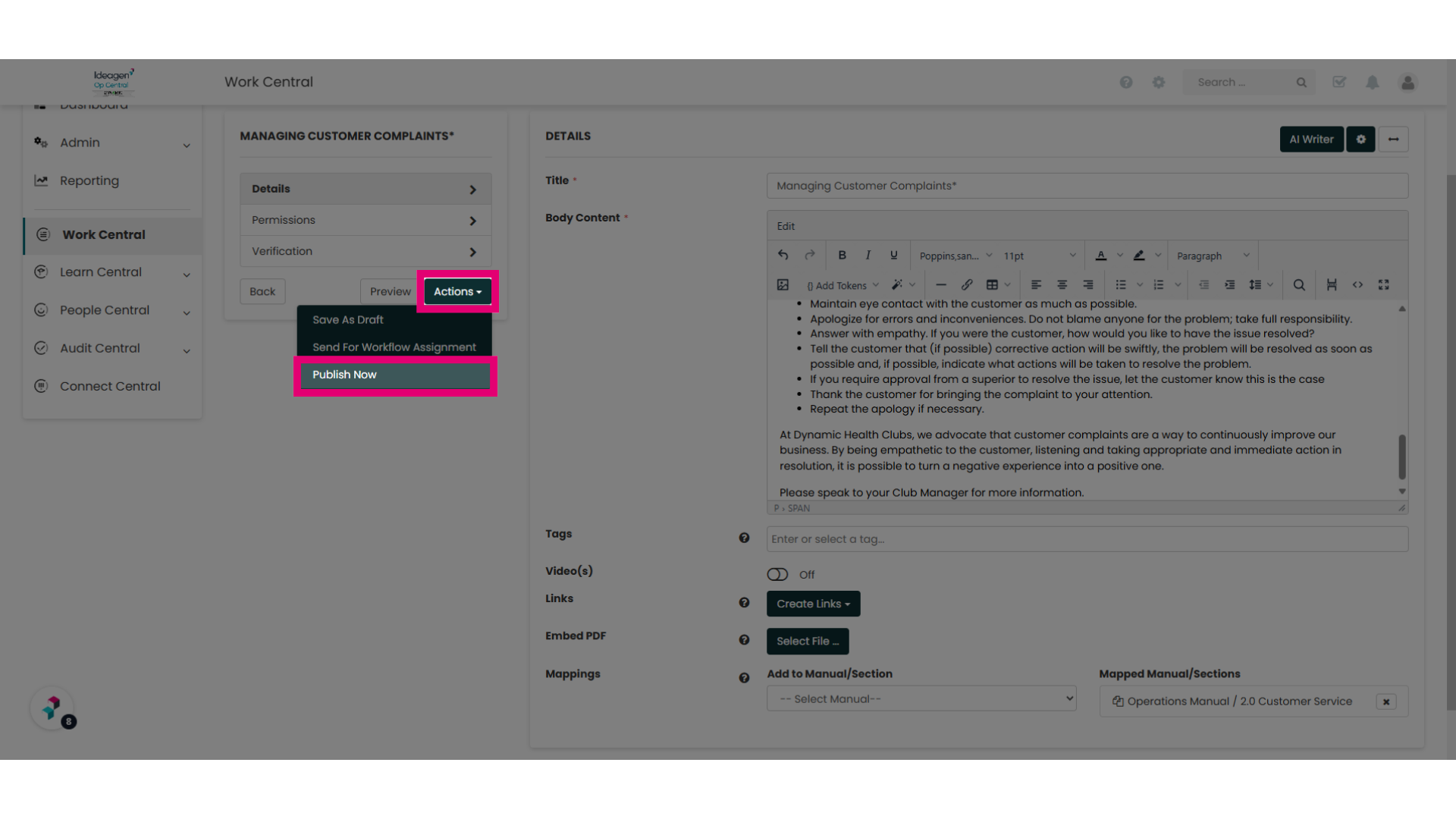
3. When editing is complete select "Actions" and "Publish Now
Once you've finished editing, click the "Actions" button and select "Publish Now" to skip the assigned workflow and instantly publish your changes.
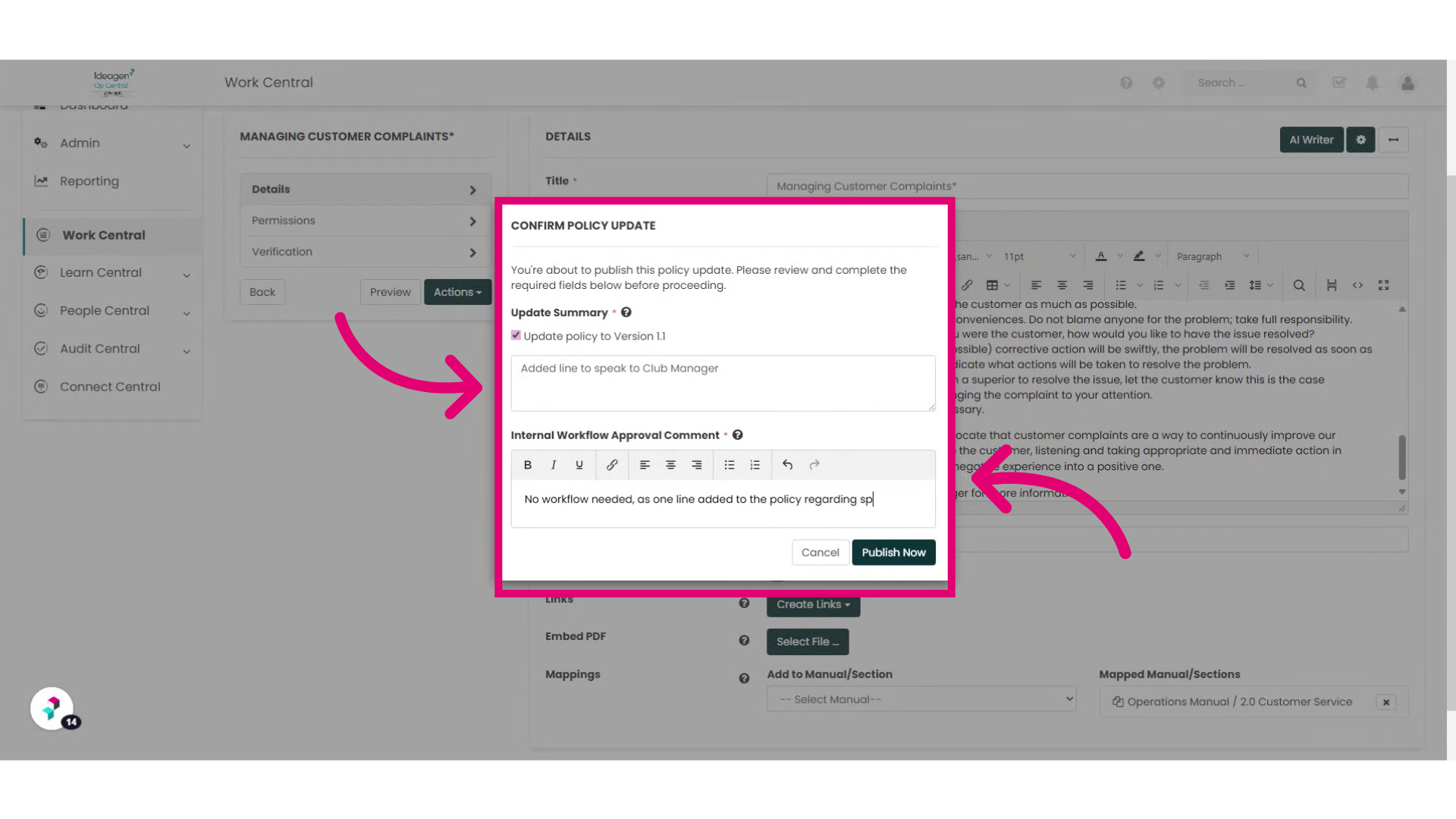
4. Complete the Policy Update information required to publish
You will be prompted to provide details regarding your updates. You have the option to update the policy version and leave a public comment that all users can view as part of the policy's version control. Additionally, for compliance purposes, you are required to include an internal comment explaining the rationale behind the immediate publication of the policy which will appear in the internal Workflow History Log. Select Publish Now when finished.
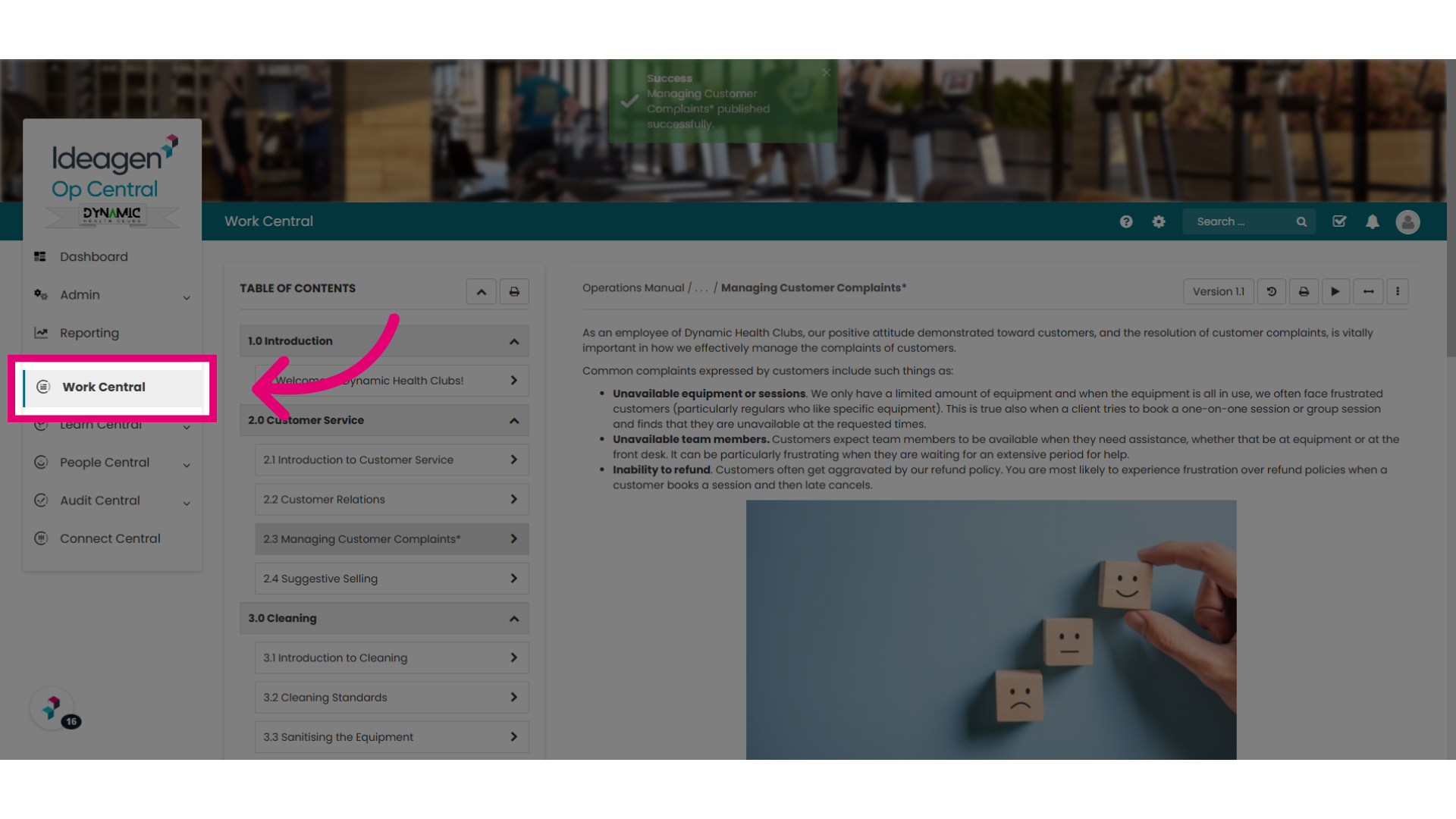
5. How to view the comment in the Workflow History Log
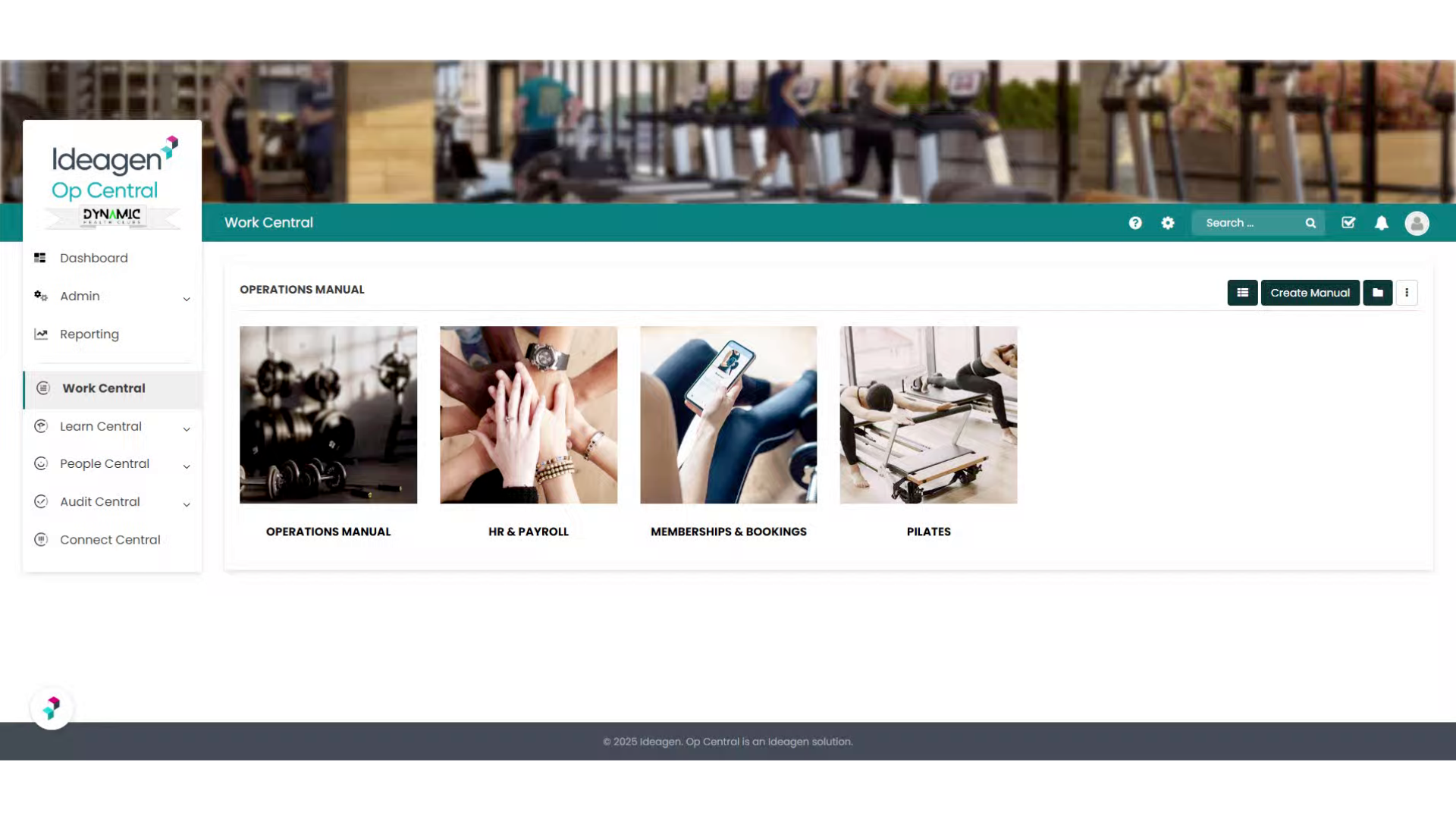
To access the Workflow History Log after a comment has been recorded and the policy published, simply navigate back to the landing page by selecting 'Work Central.'
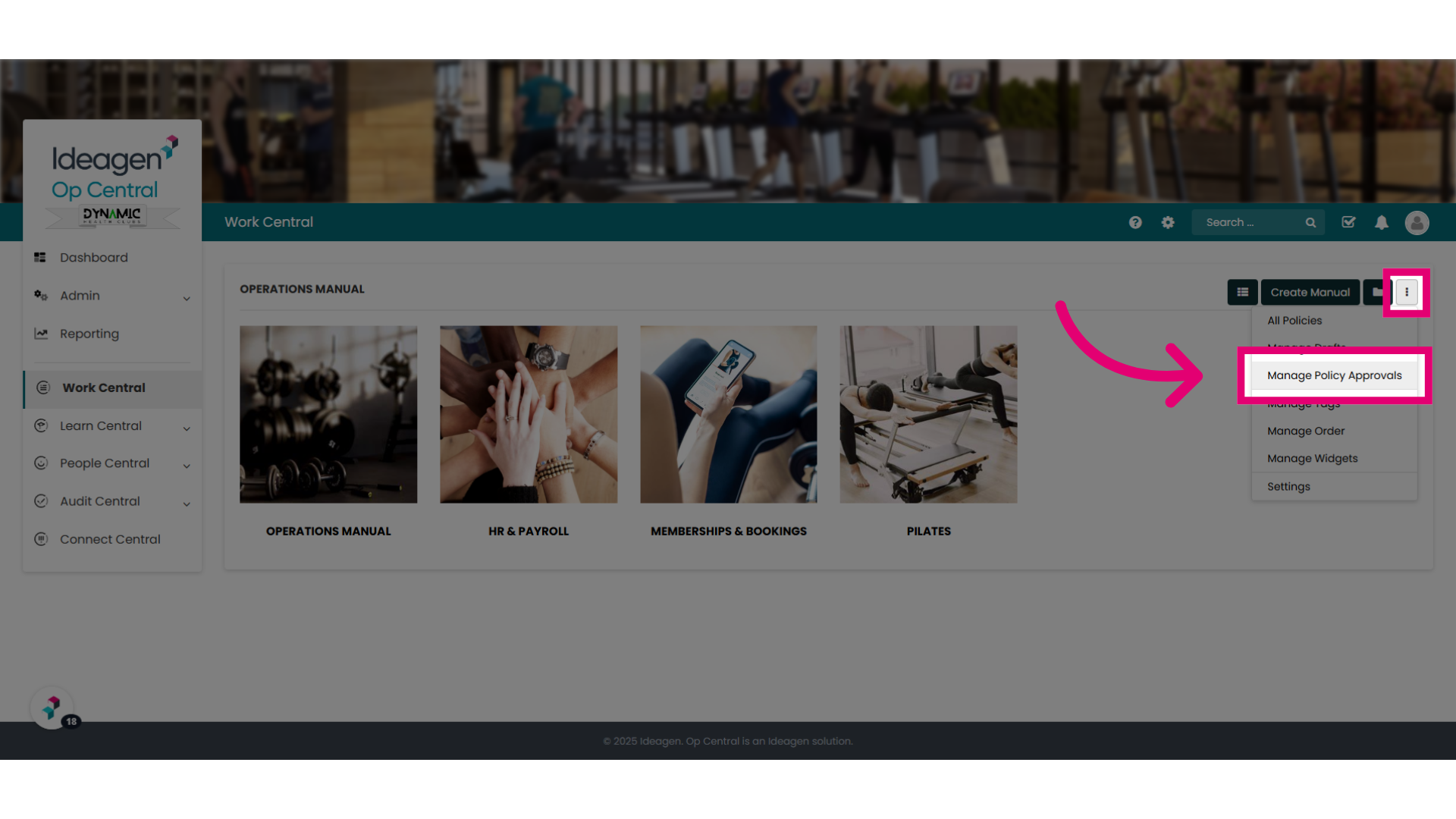
6. Ellipses Options
Select the ellipses and choose "Manage Policy Approvals".
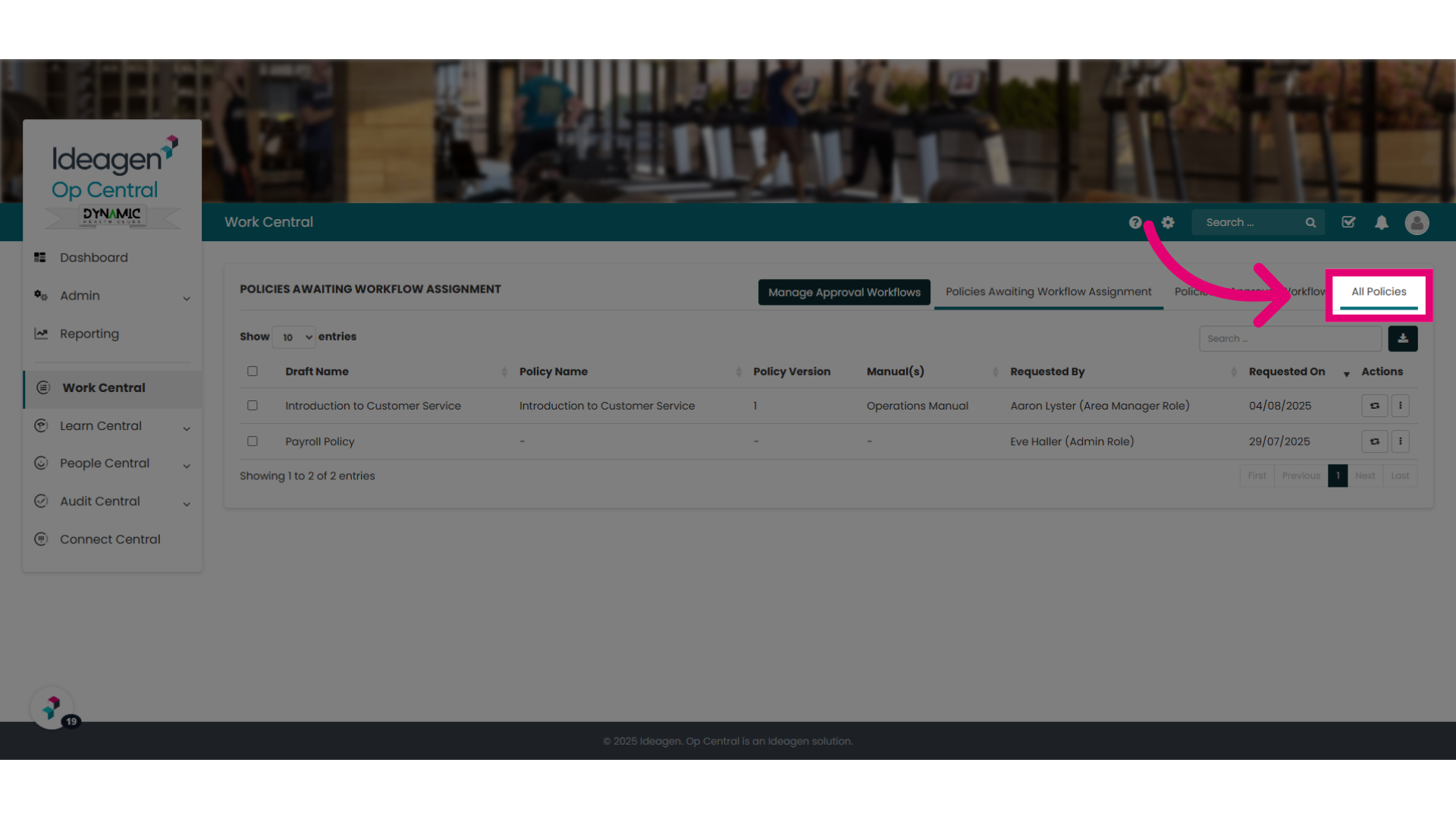
7. Navigate to the "All Policies" tab
Go to the "All Policies" tab to view the complete list of policies.
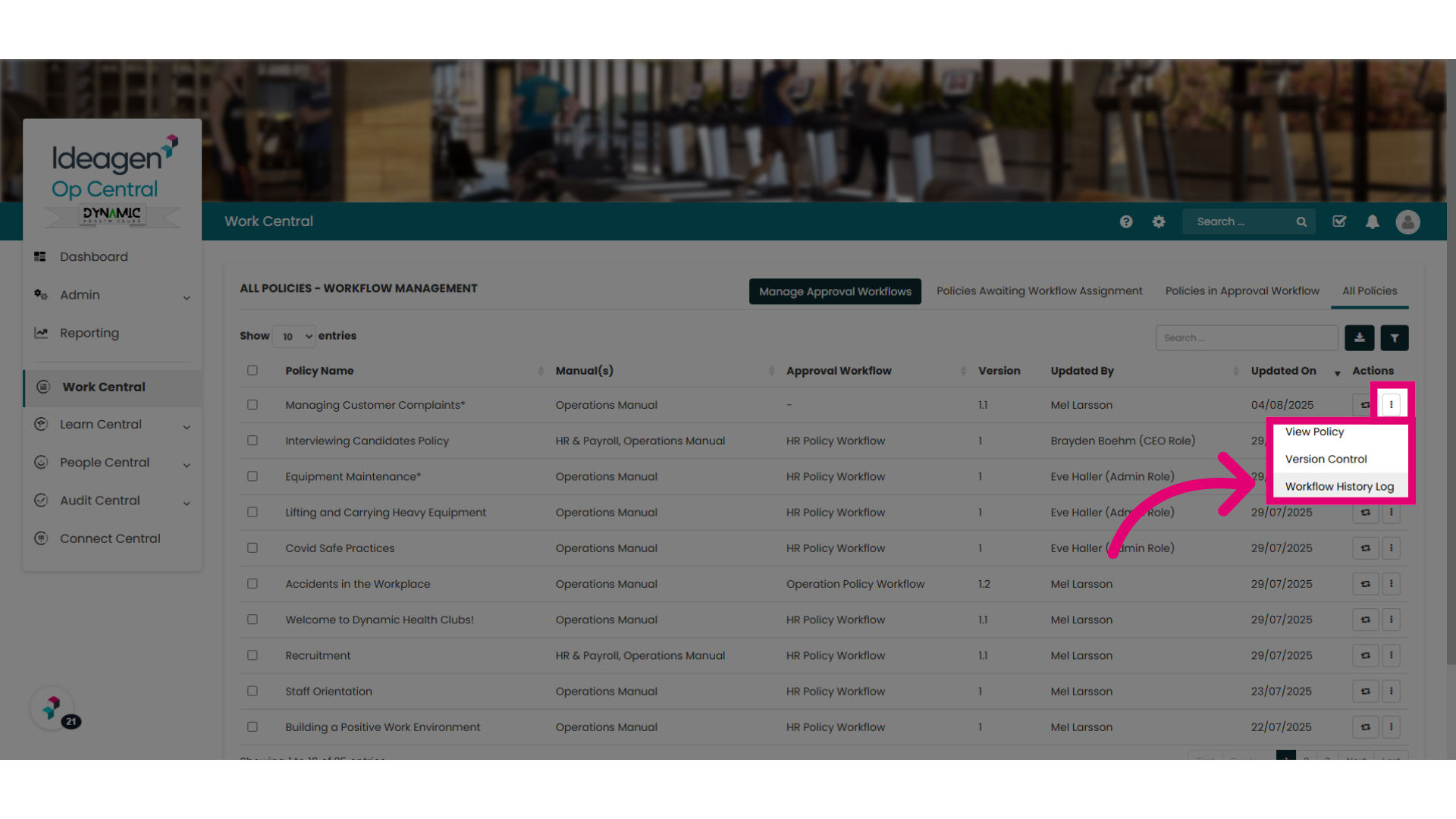
8. Find the relevant policy and select the "Workflow History Log"
Locate the policy you recently updated. Click on the ellipsis next to the policy and then choose "Workflow History Log" from the dropdown menu.
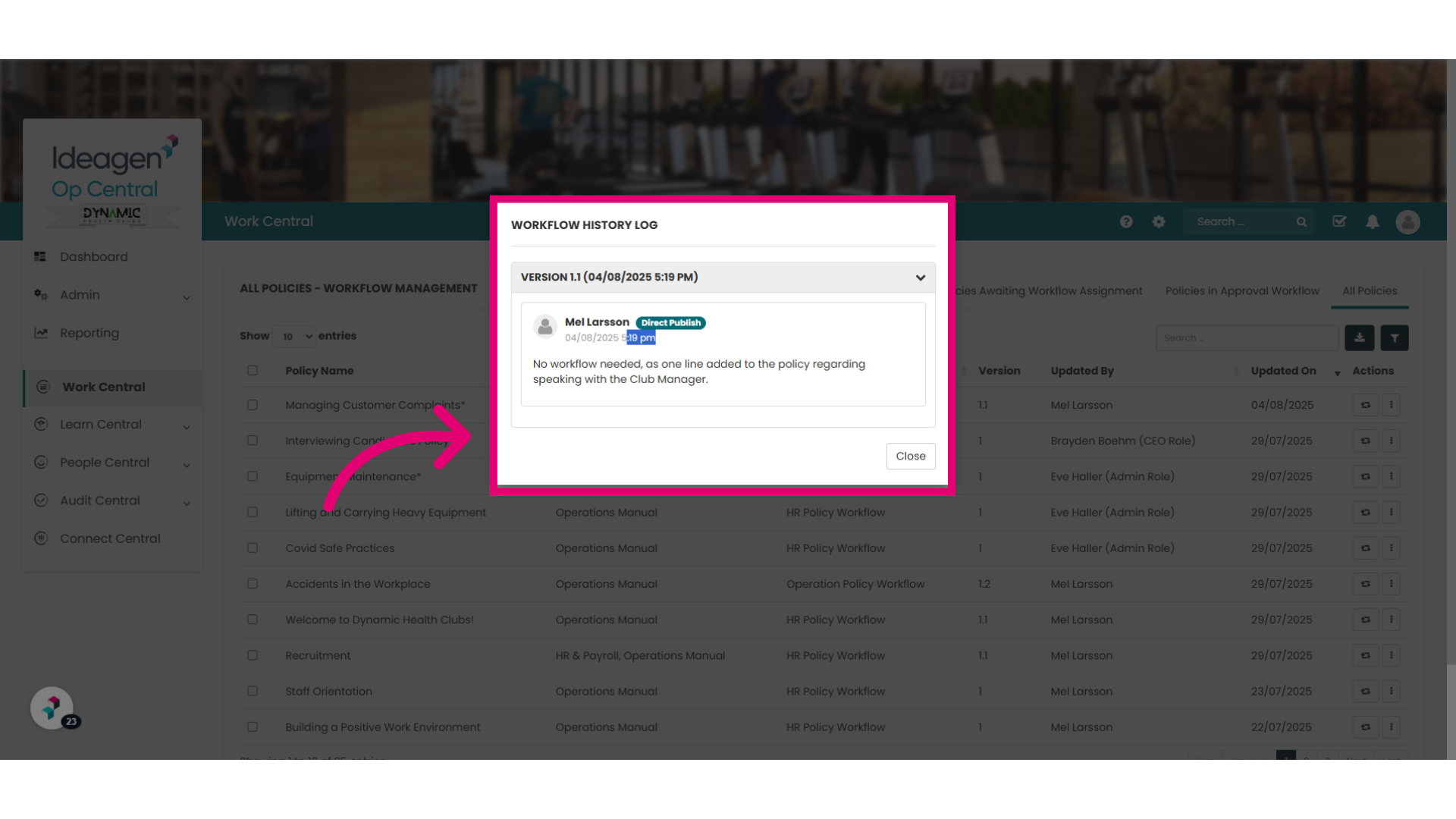
9. The "Workflow History Log"
Here is the Workflow History Log. This log provides essential details, including the policy version number, the date and time of publication, and the individual who edited the policy. In this example, you will see that the policy was directly published, along with a comment for Admins to review. With this information, you are now equipped to perform a direct publish of a policy when Approval Workflows are enabled.