New article
Recently updated
Policy Management: Ideagen Procedure Management - How to suggest an edit to a policy and submit for approval (User Role with "Can Manage Drafts" enabled)

Learn how to suggest an edit and submit a policy for approval via a Manual in Ideagen Procedure Management. This article applies to users who have "Can Manage Drafts" enabled in their User Role settings.
1. Introduction
This step-by-step guide ensures you can confidently suggest edits to policies.
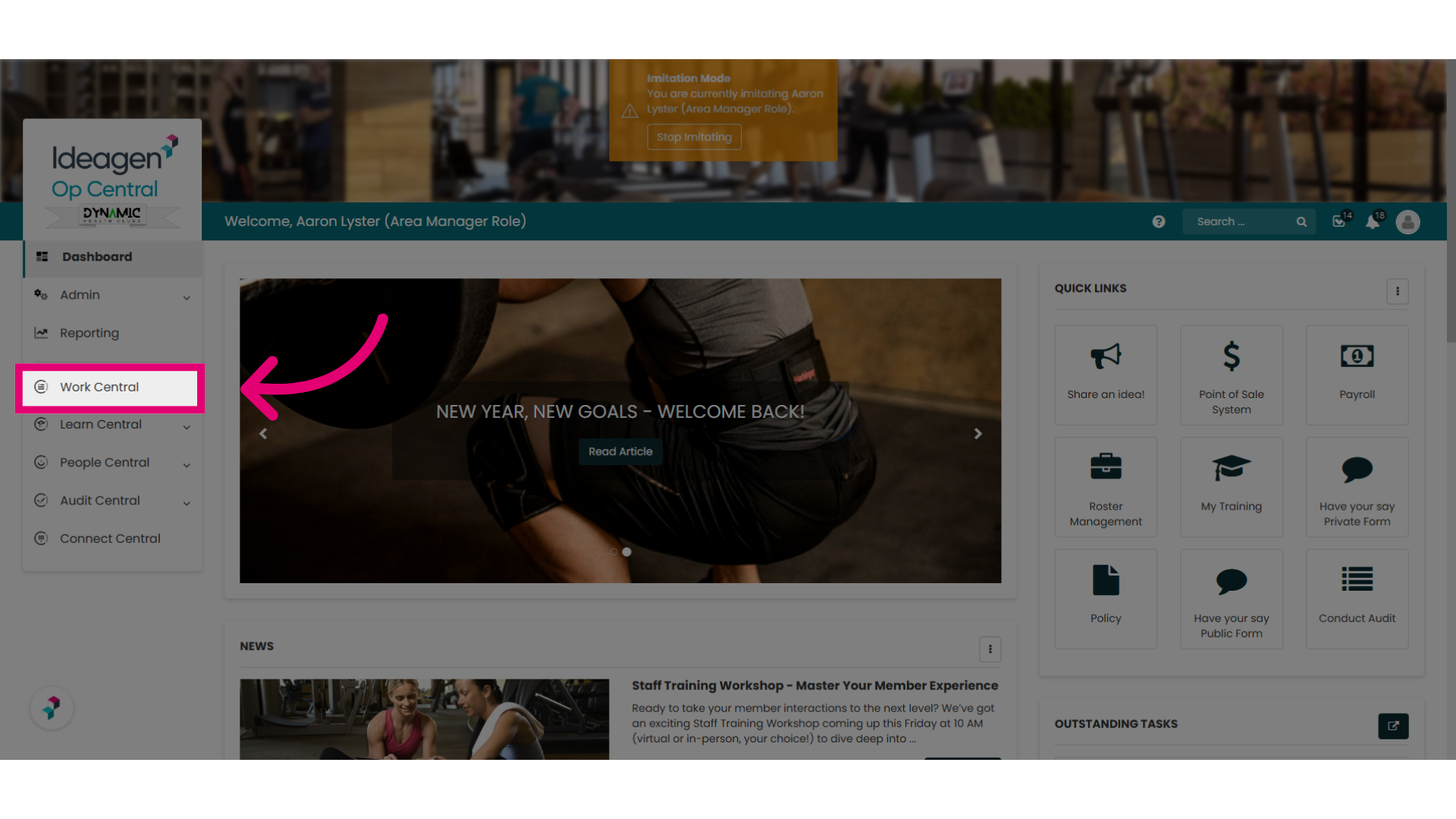
2. Navigate to "Work Central"
To begin, select Work Central from your left hand menu. This may be called Operations Manual or something similar based on how your Ideagen Procedure Management instance has been configured.
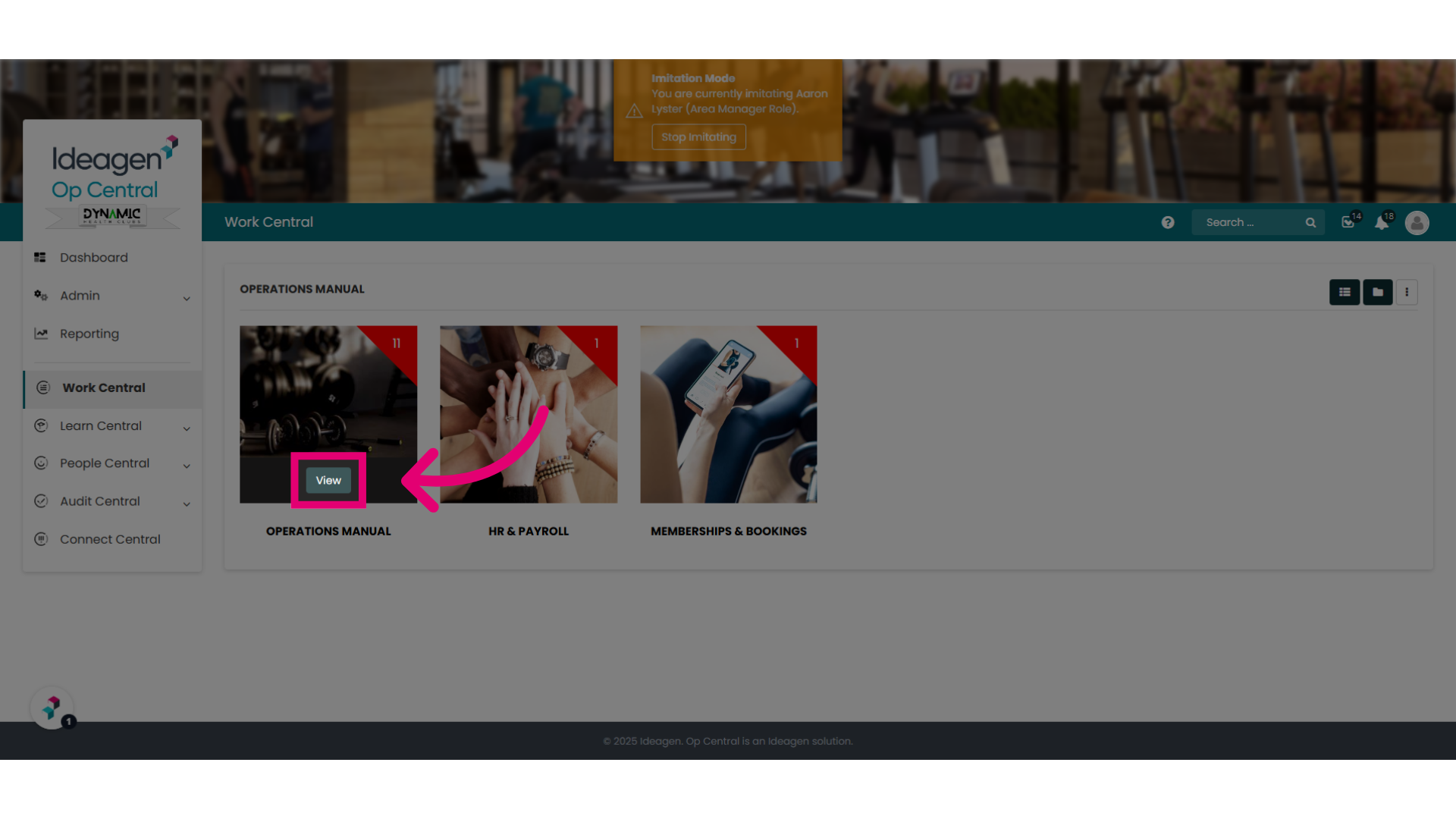
3. View the relevant Manual
Select View on a Manual where you want to see the policies and procedures.
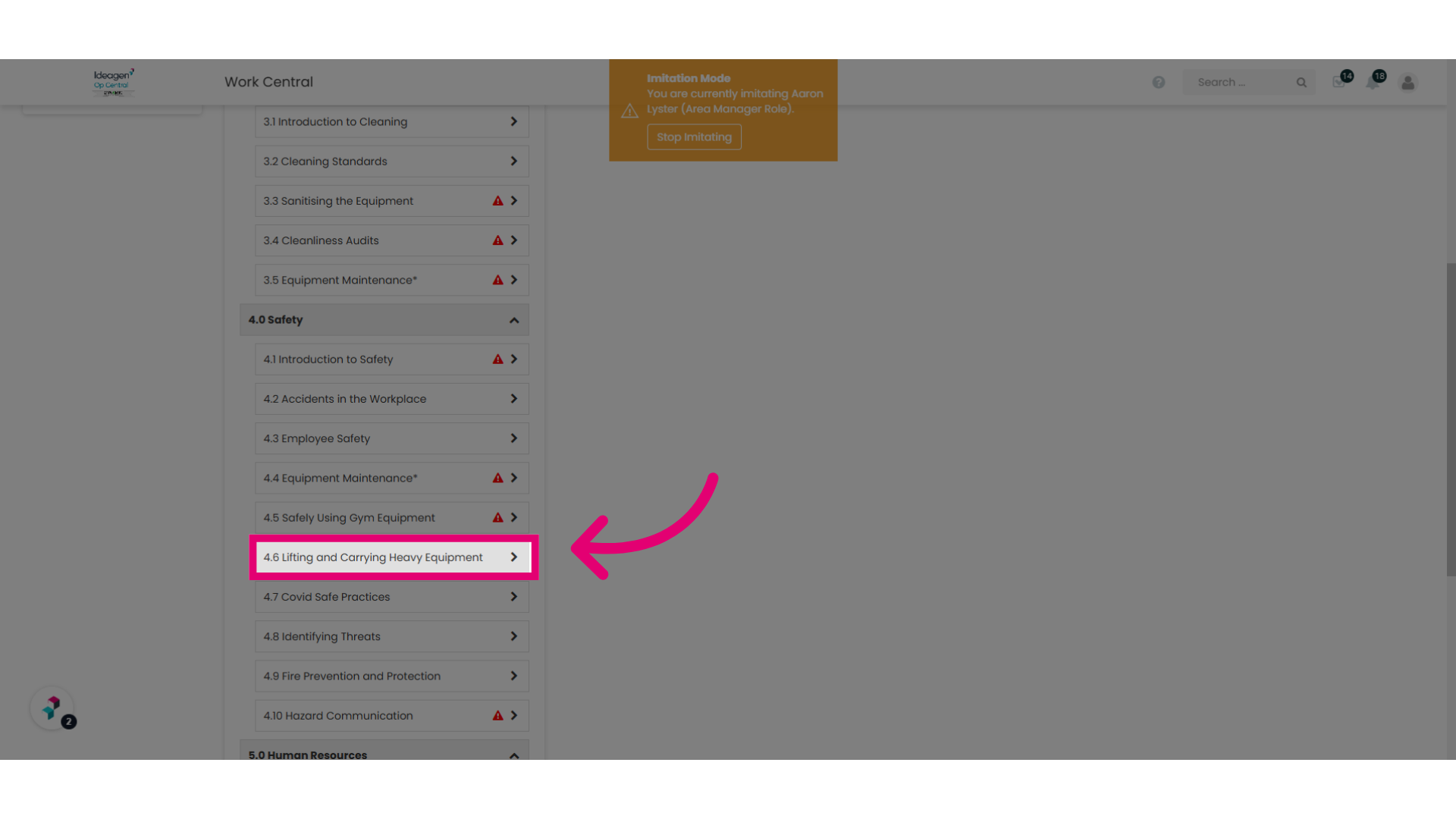
4. Select the policy you want to edit.
Find and open the specific policy you wish to edit.
5. Ellipses Options
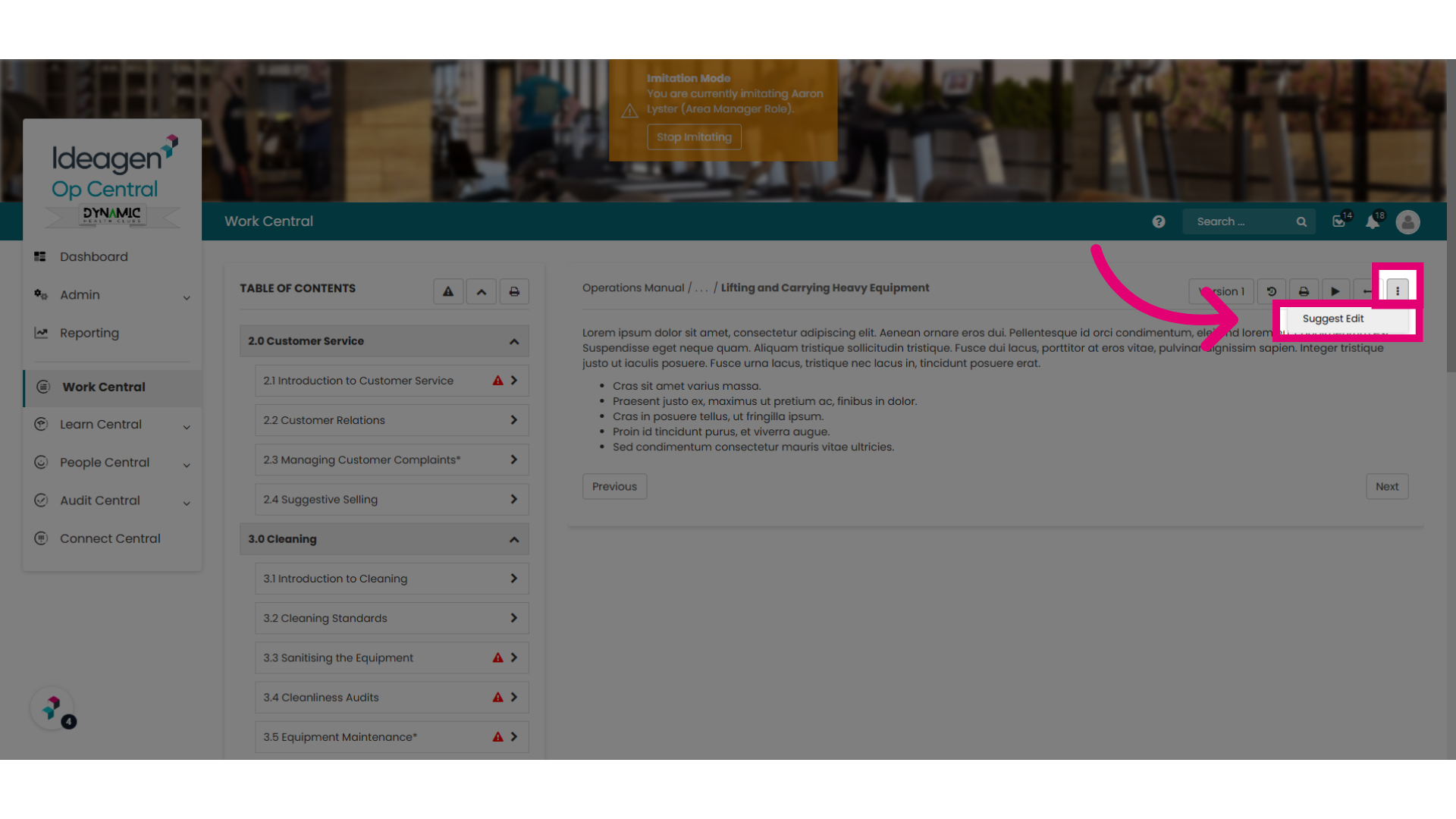
With the policy now visible, click on the ellipsis and select the "Suggest Edit" button.
6. You may see a pop up if a draft of this policy already exists
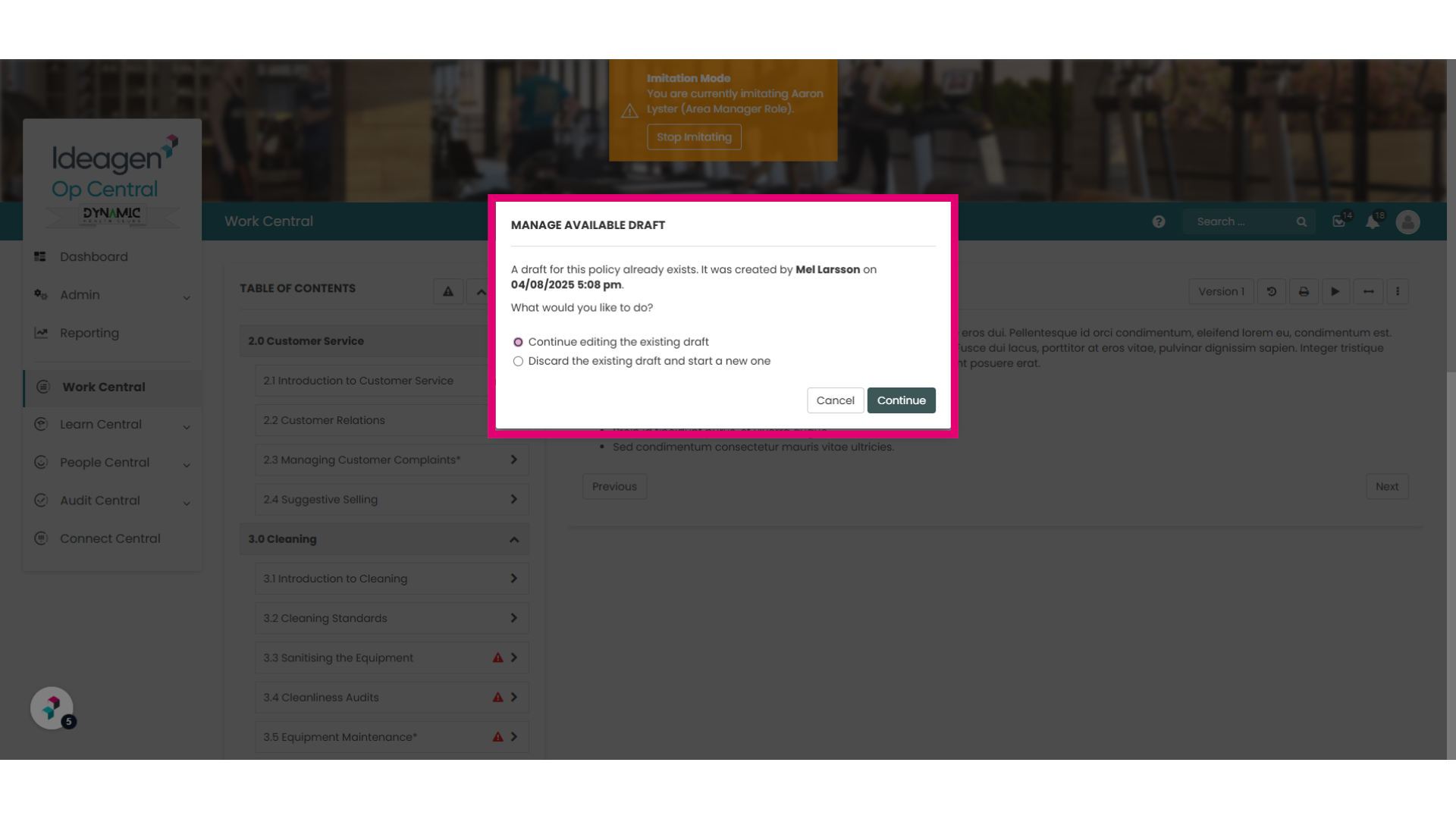
If a draft of the policy is already available, a pop-up will appear. Please select the option that best fits your circumstances and click 'Continue.'
7. Edit the policy and submit for approval
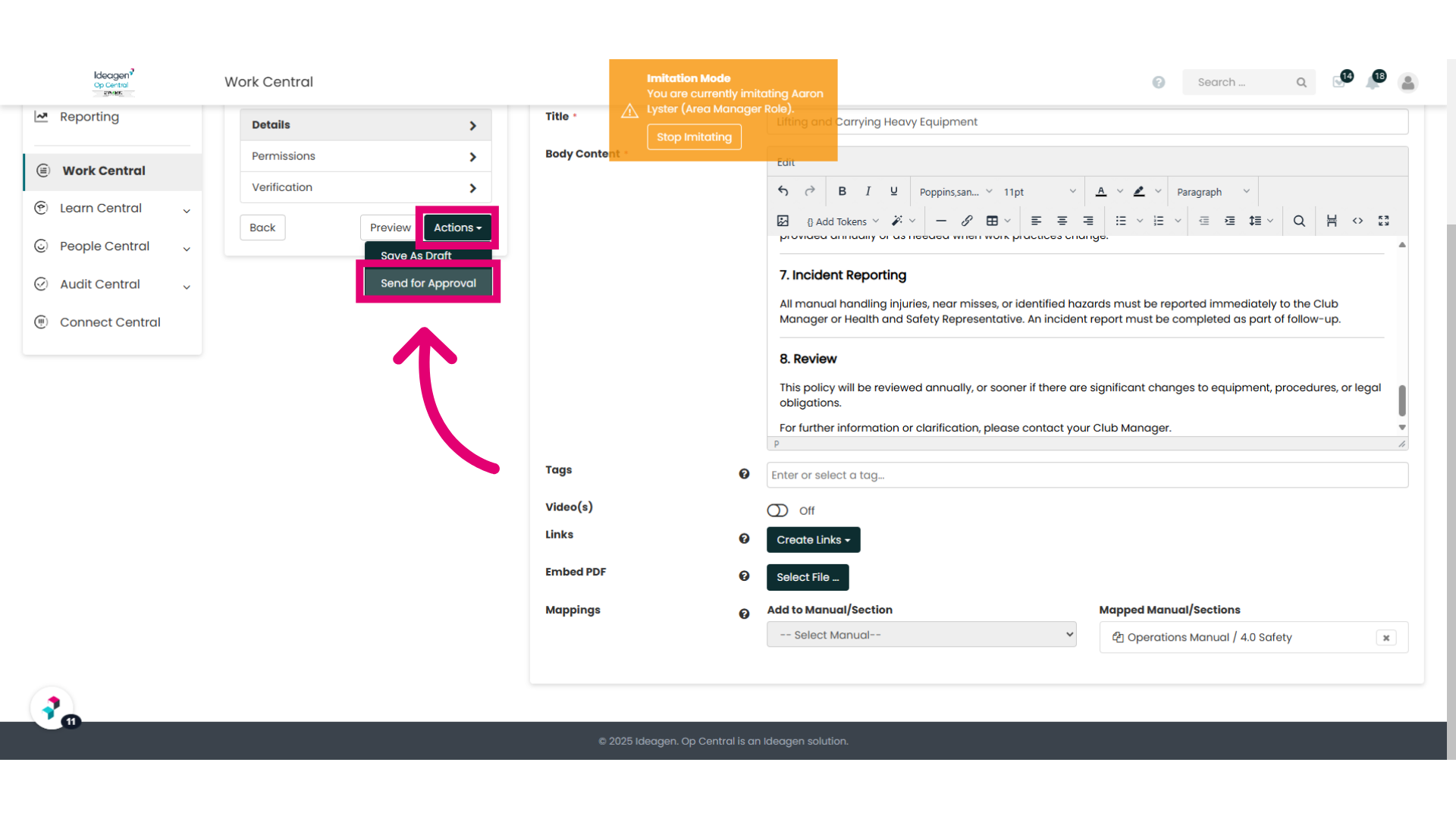
Make your desired changes to the policy. This can include updating permissions and verification settings as well.
Once you have completed your edits, click on "Actions" and then select "Submit for Approval."
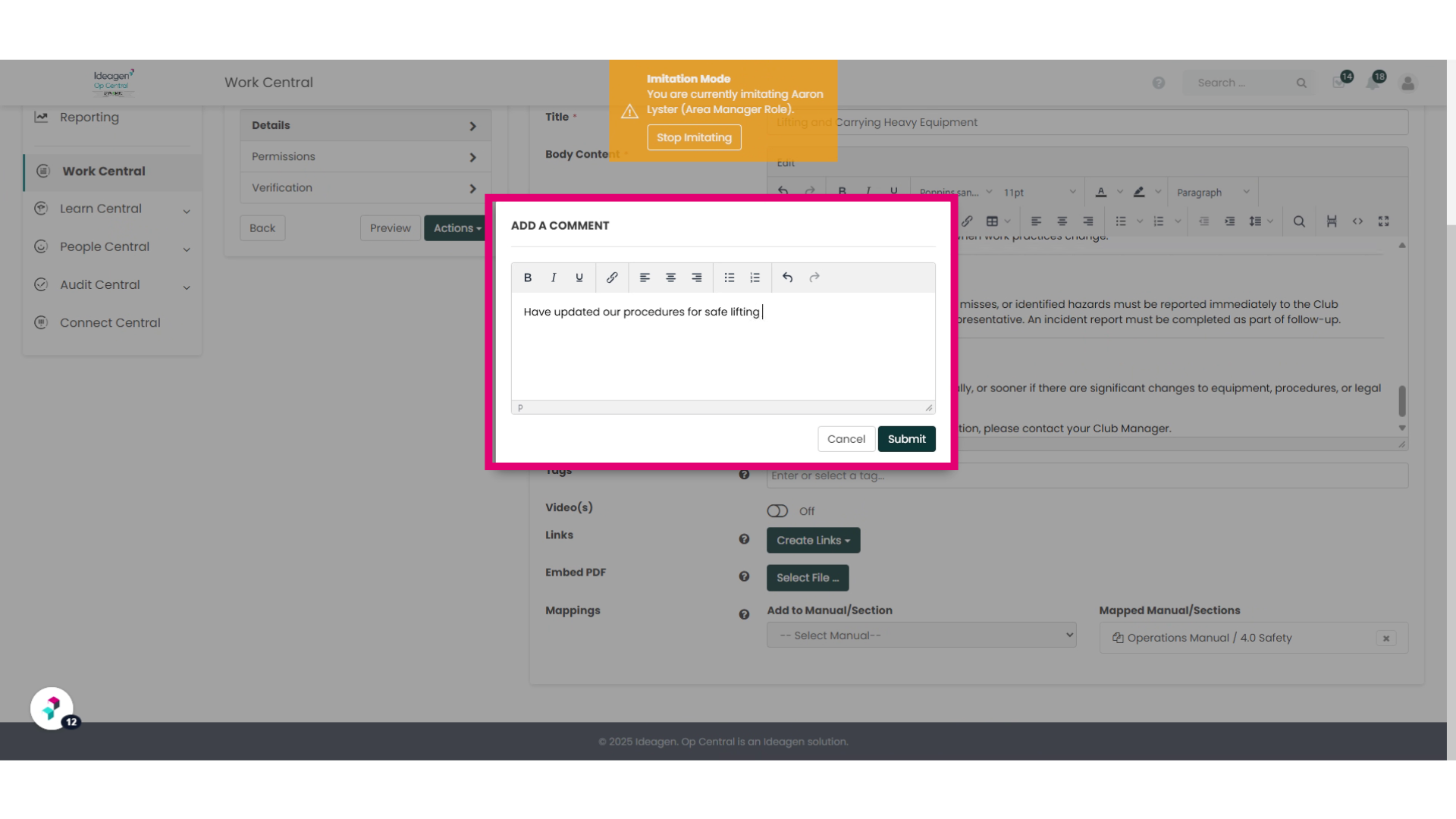
8. Add a comment
Please include a clear and concise comment detailing the updates made to the policy. This comment will be recorded in the Workflow History Log and will be visible to users who are approvers in the workflow. Press submit when finished.
You have now submitted a suggested edit to a policy.
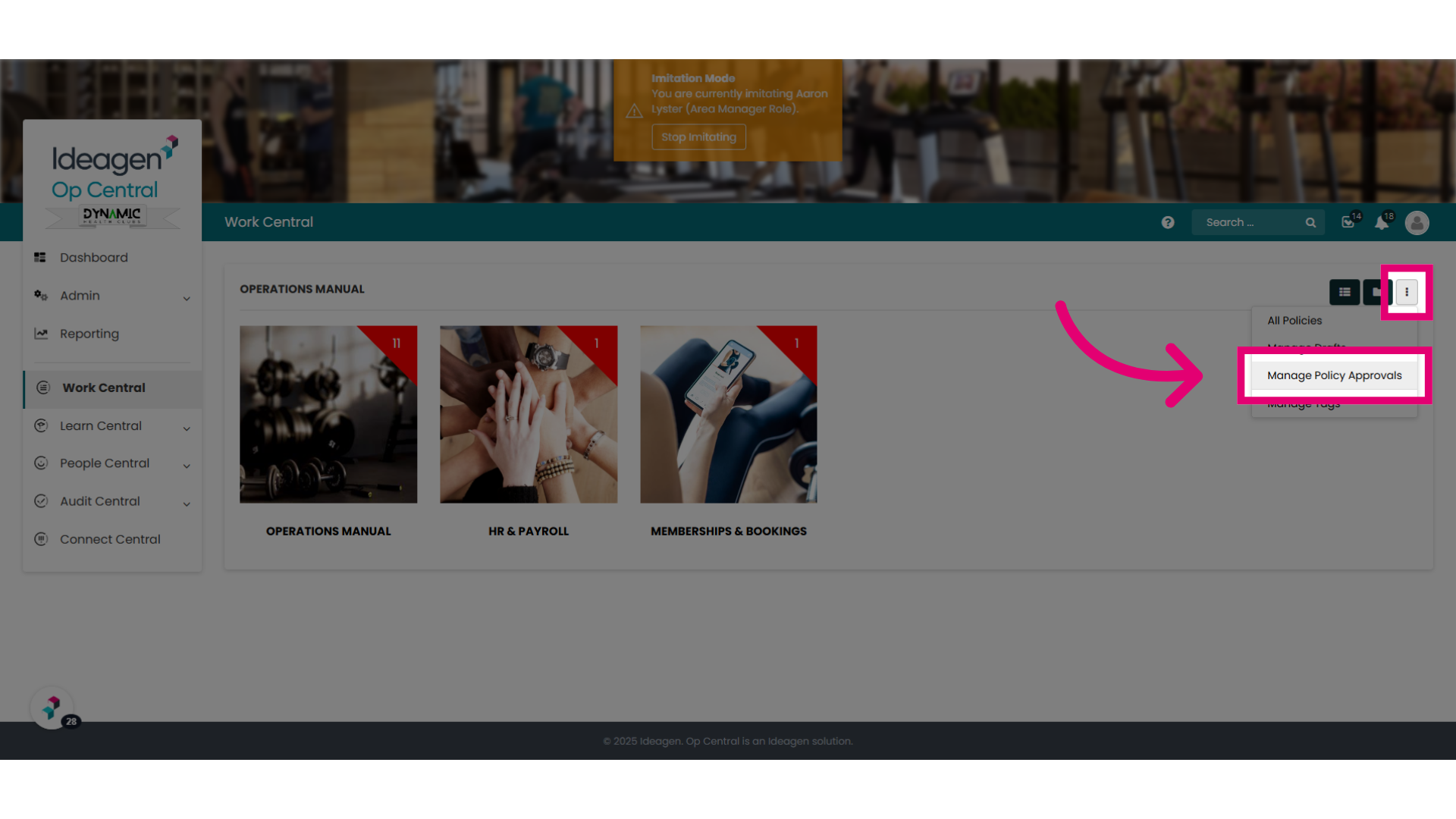
9. Reminder: Where to find the "Manage Policy Approvals" pages and menus
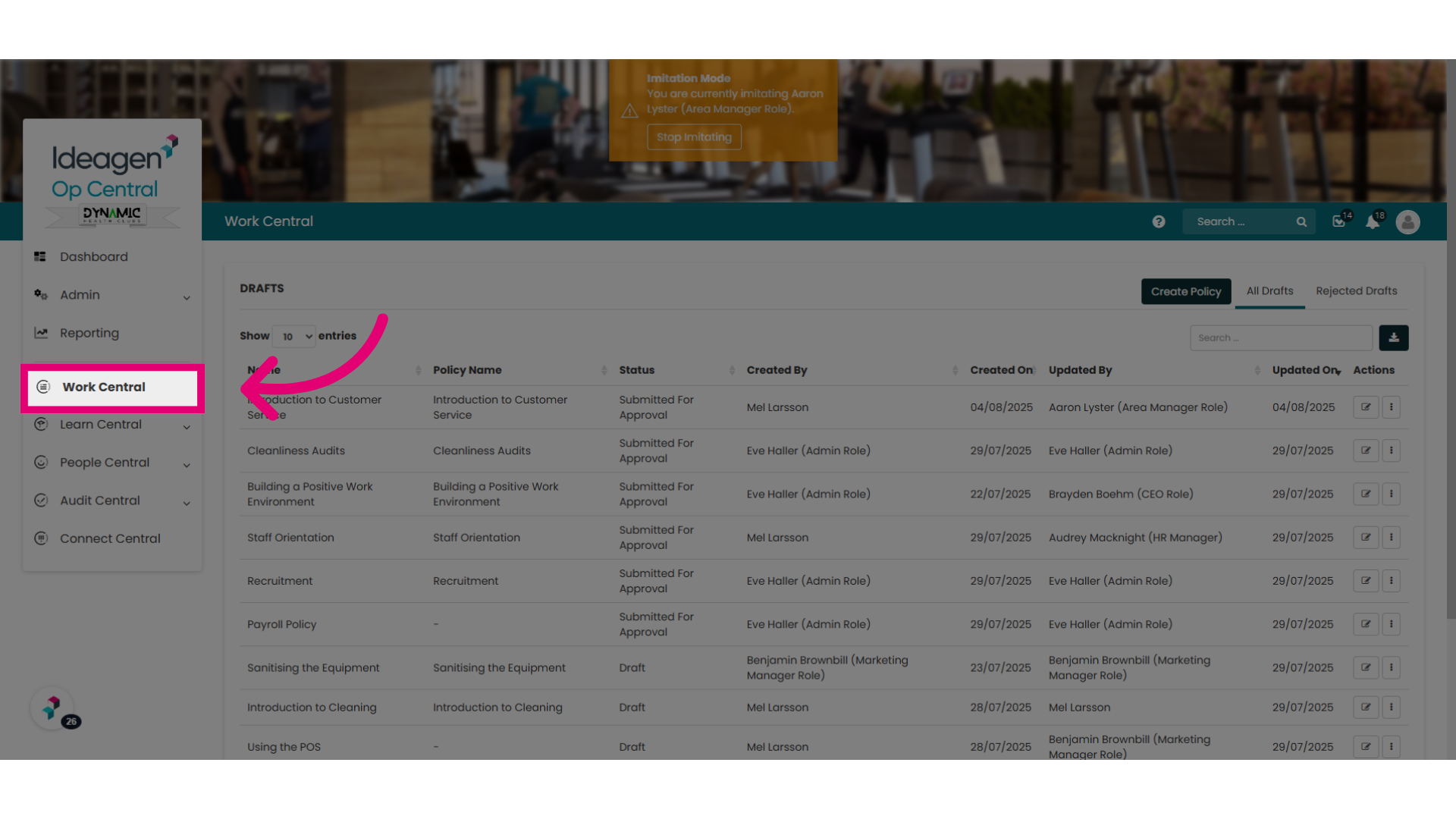
Before we finish, just a reminder that if you are looking for the Manage Policy Approvals pages and menus you can access by selecting "Work Central".
10. Ellipses Options
Select the ellipses and choose "Manage Policy Approvals". The content available to you on these pages will dependent on your user role. Our other help articles provide further guidance regarding the Manage Policy Approvals pages and menus.