New article
Recently updated
Policy Management: How to create or edit a draft policy for workflow approval (Admins and User Roles with "Can Manage Drafts")

Learn how to submit a policy draft for workflow assignment or approval using
Ideagen Procedure Management. This may be a video you'd like to share with users who have
"Can Manage Draft" access based on the user role permissions you have set up.
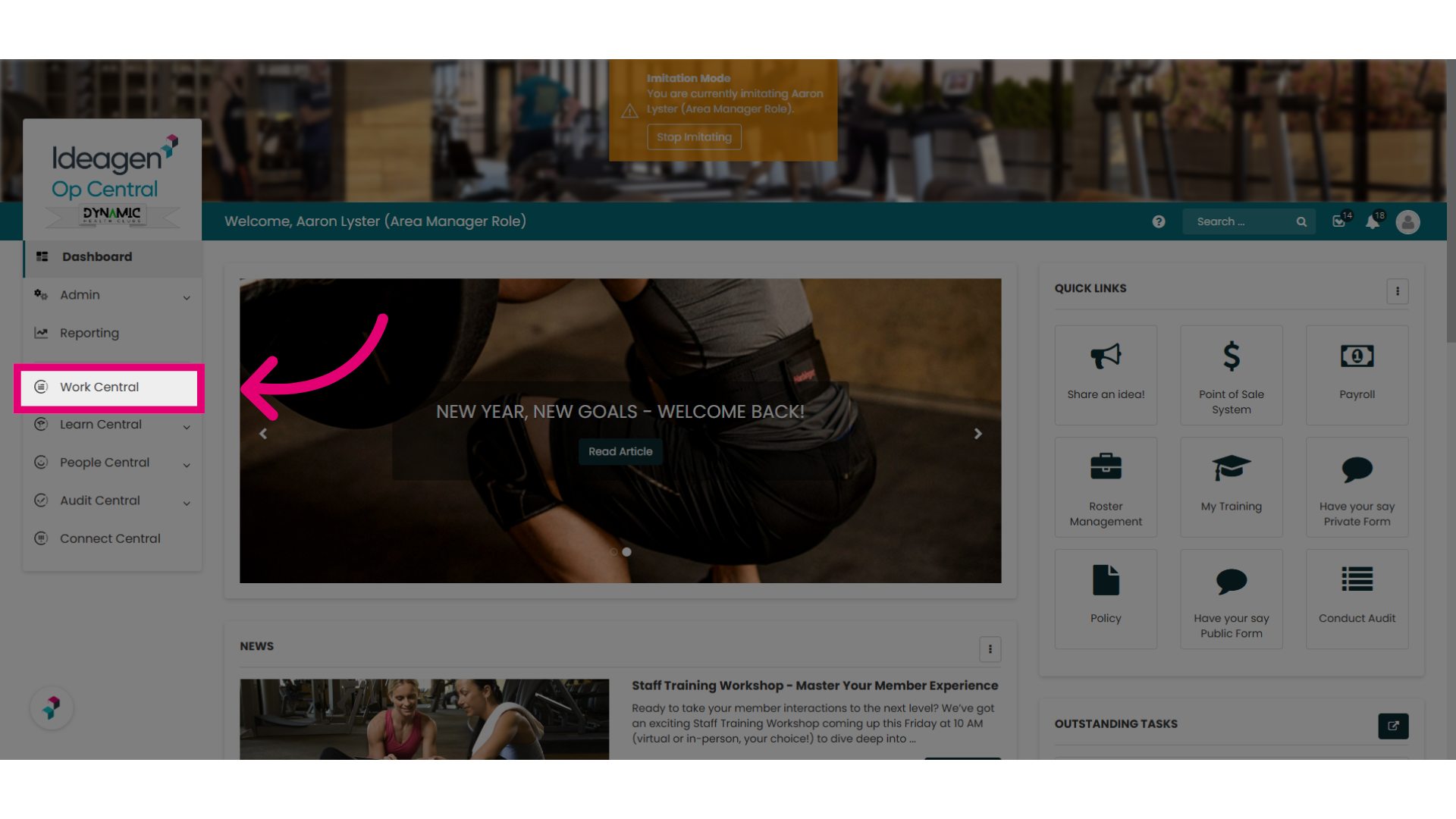
1. Navigate to "Work Central"
Navigate to the Work Central module. This may be called Operations Manual or
something similar depending on how your Ideagen Procedure Management instance has been configured.
2. Ellipses Options
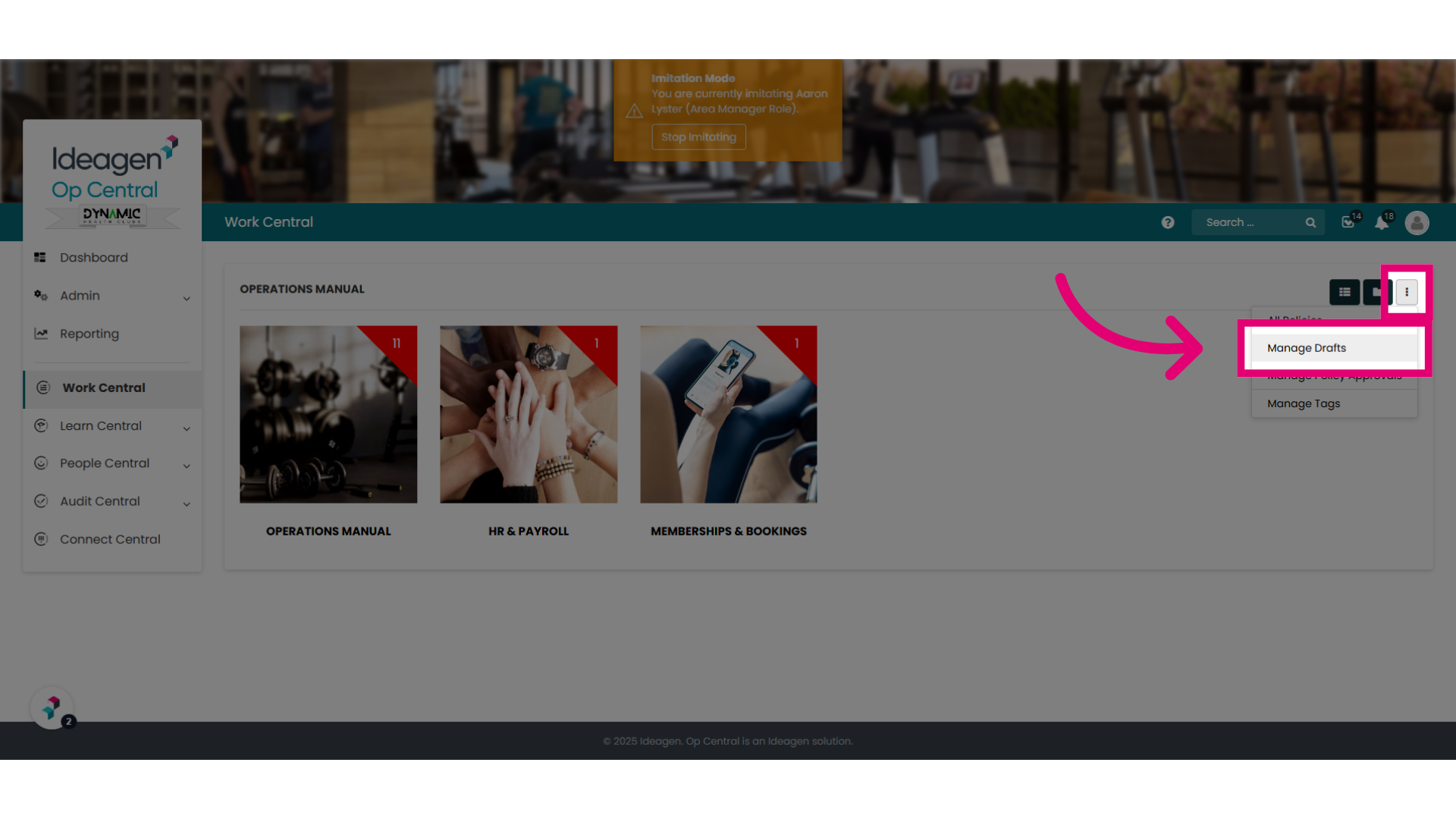
Select the Ellipses and choose "Manage Drafts".
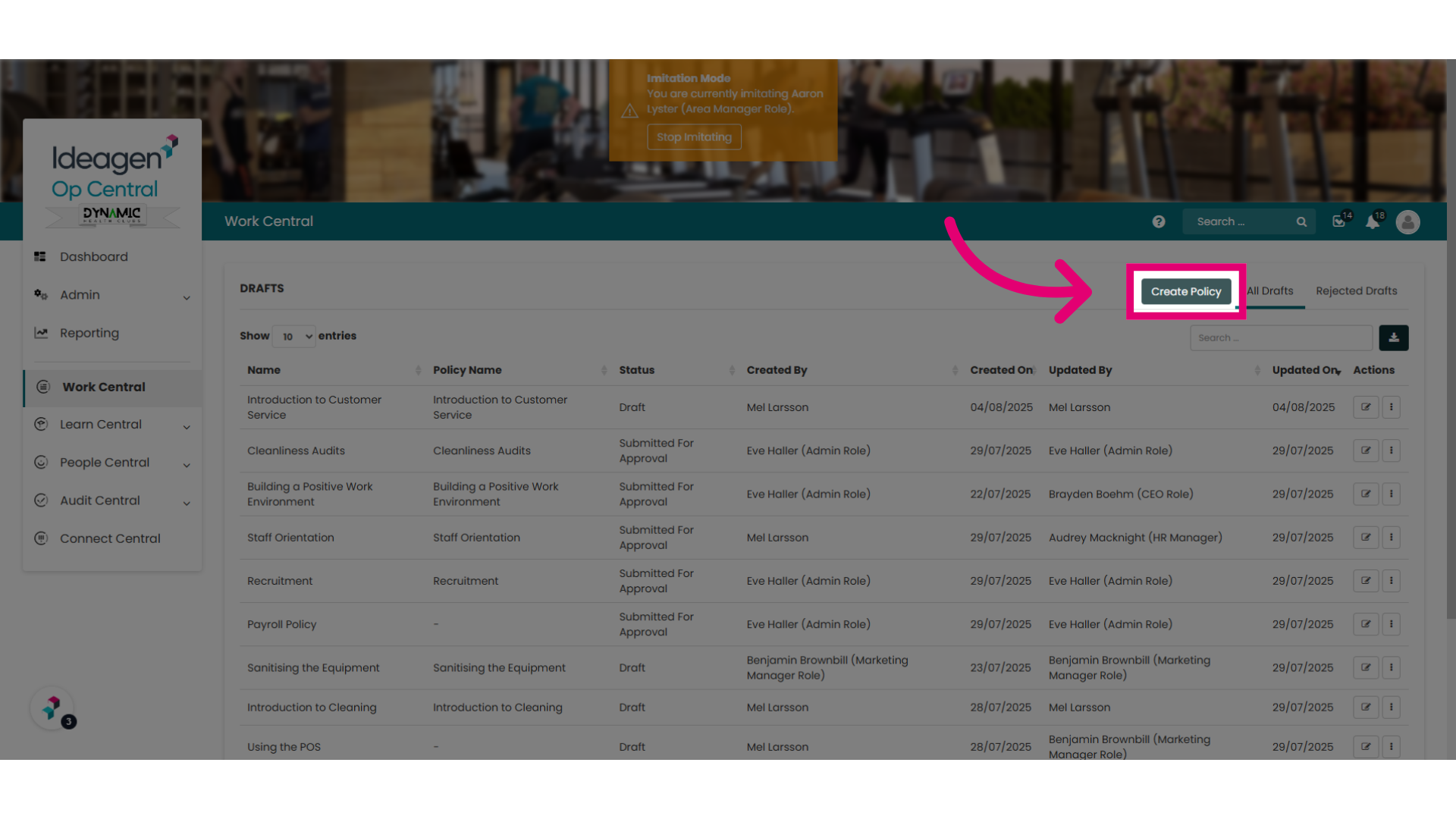
3. Option 1: "Create Policy"
Initiate the creation of a new policy by selecting the Create Policy option.
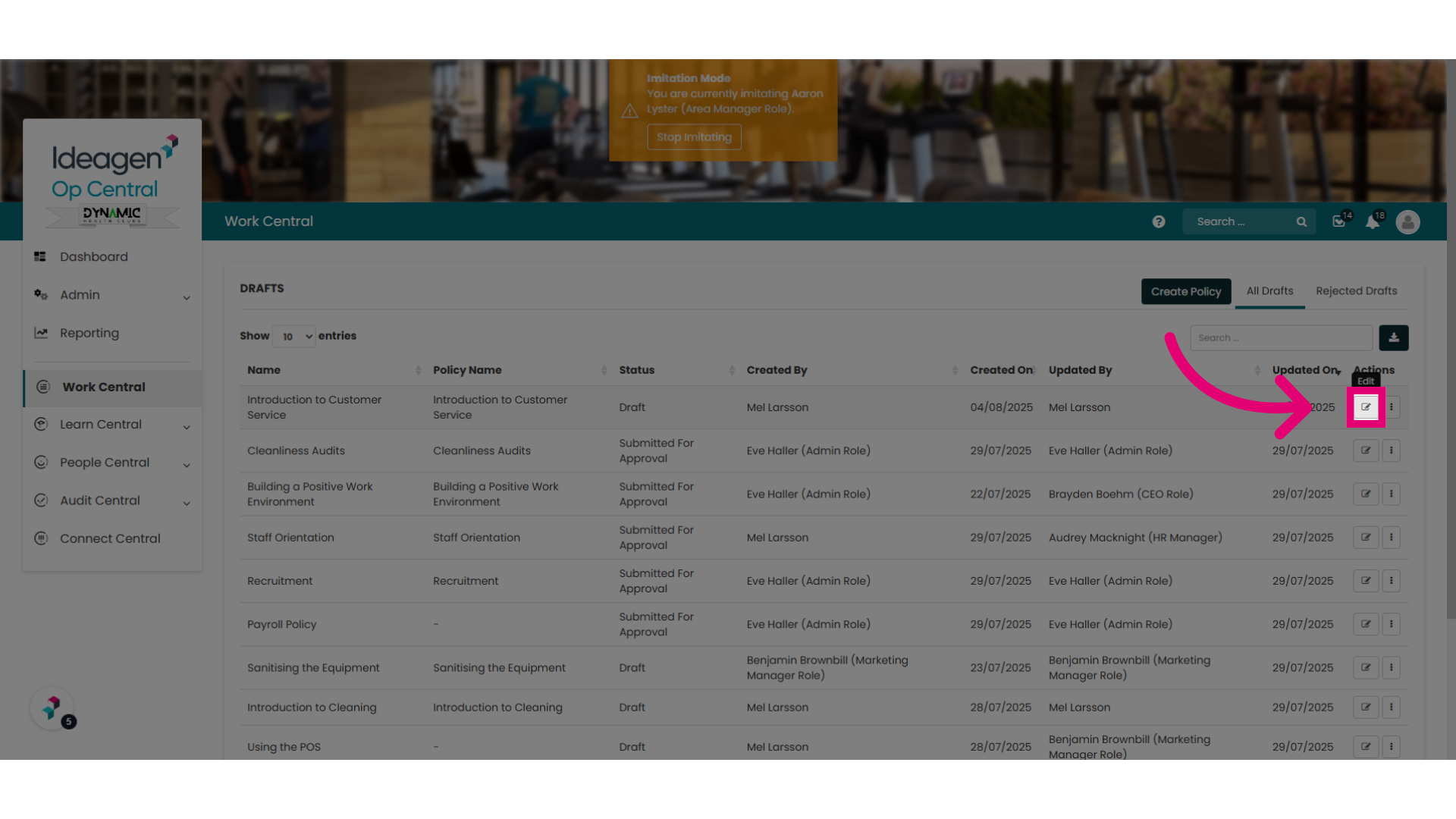
4. Option 2: Edit an existing draft
Or you can edit a policy draft that has already been created.
5. Edit the Policy
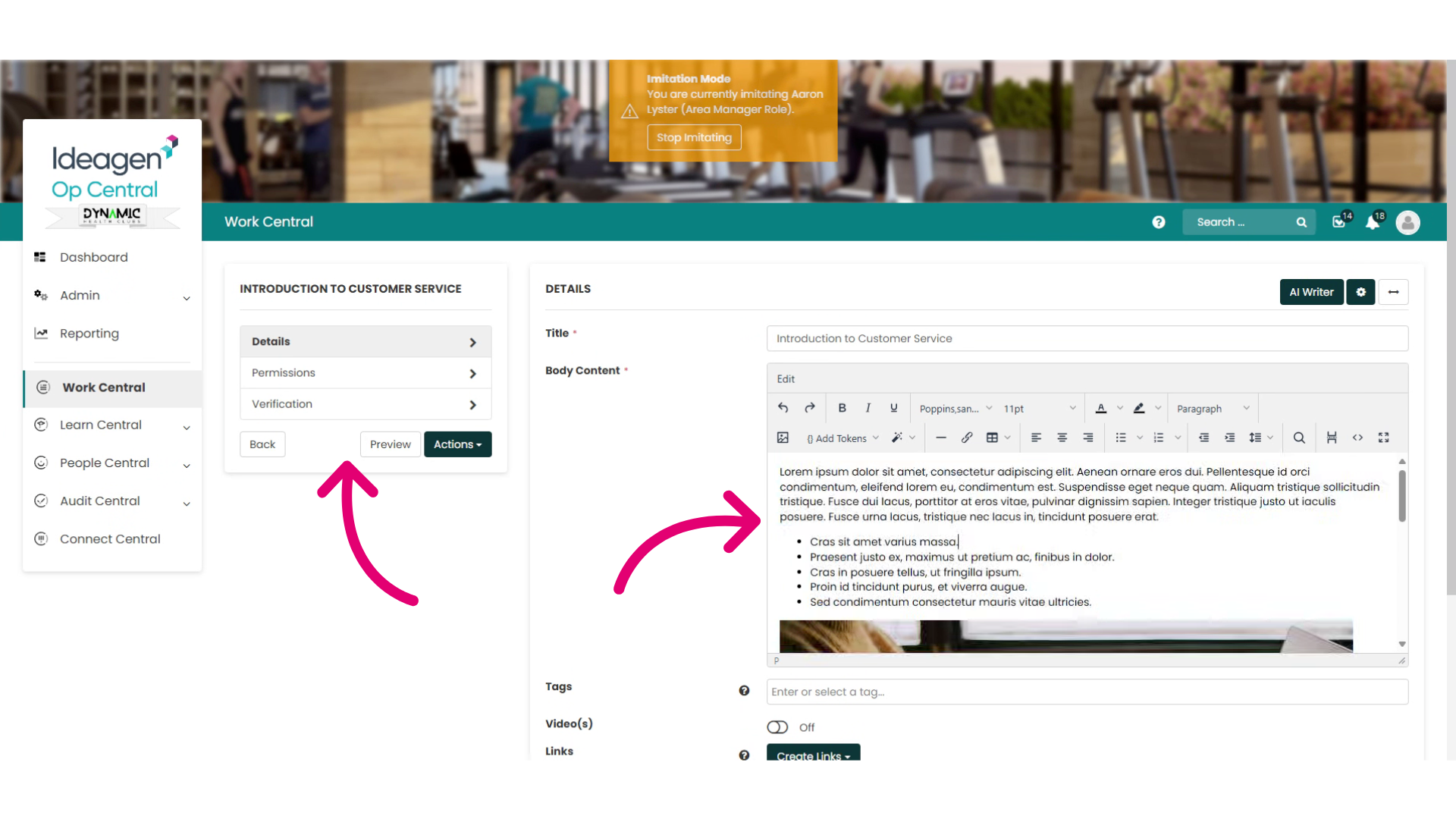
Edit your policy or update your permission and verification settings.
6. When finished editing, select the "Actions" button
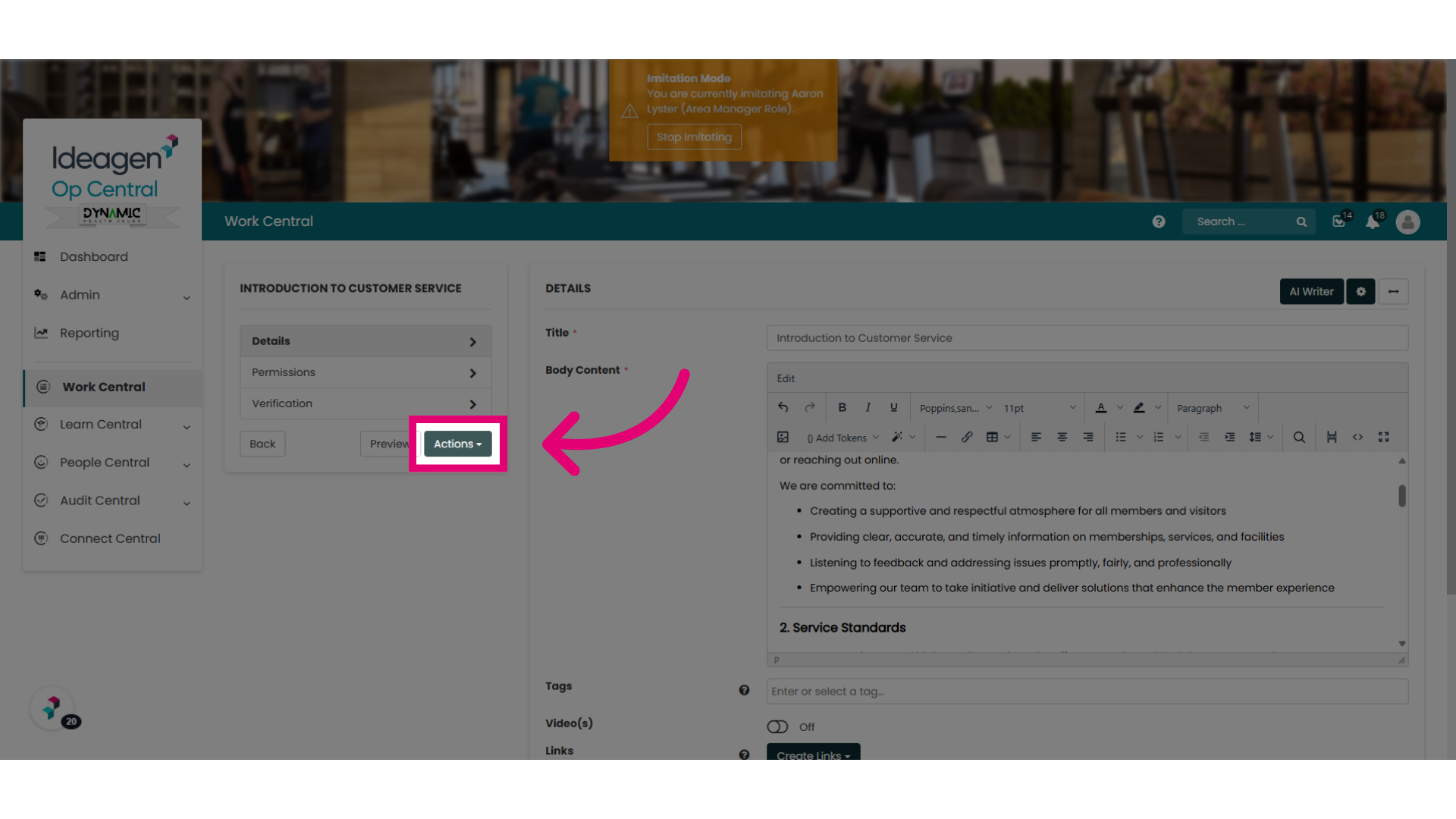
When finished, select the "Actions" button. This menu allows you to save your draft or submit the policy for a workflow assignment or approval.
7. Click "Send For Workflow Assignment"
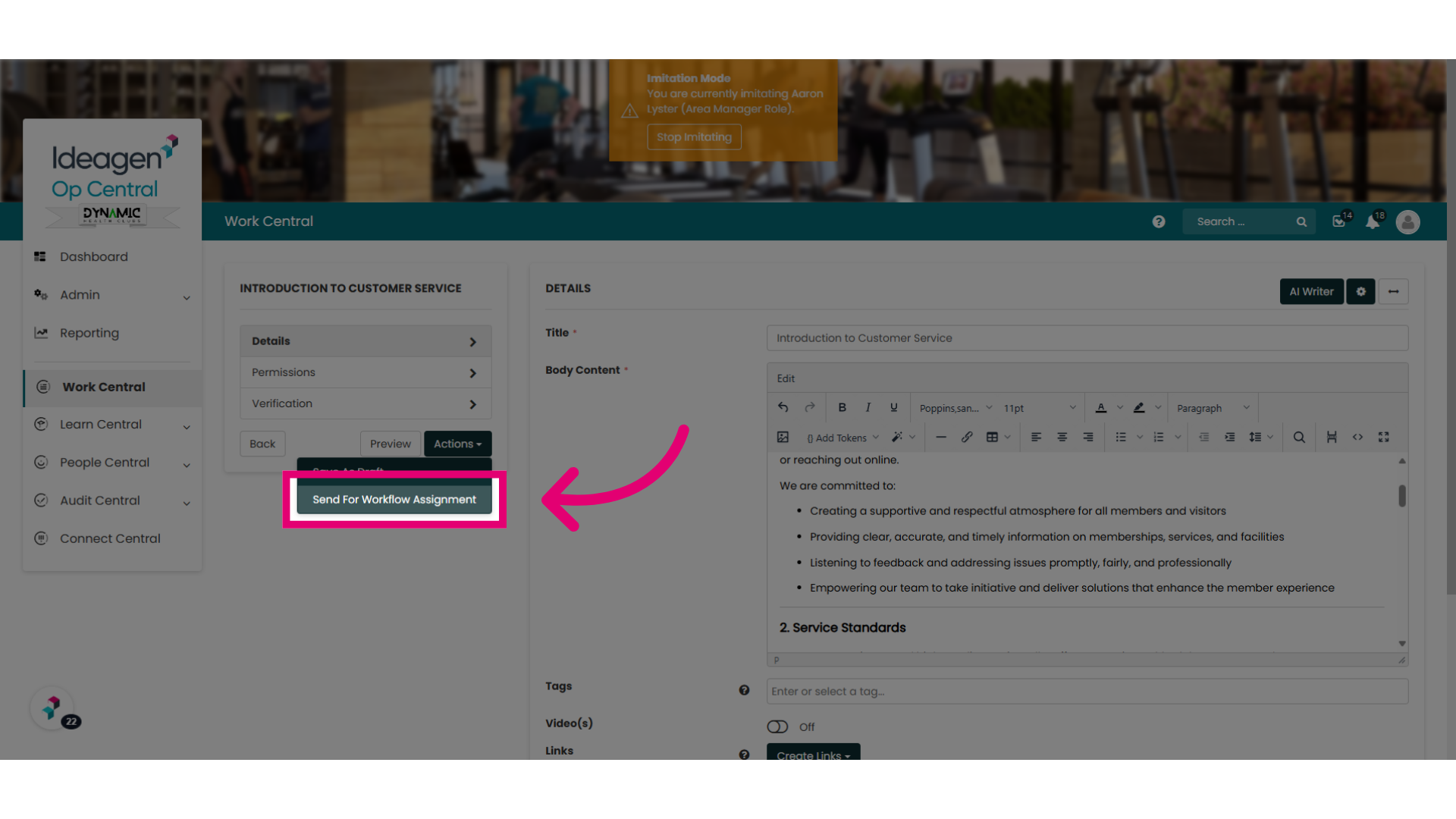
For this example, as this policy does not have a workflow assigned yet, you will be prompted to Send For Workflow Assignment to initiate the approval process. If a workflow has already been assigned this button will say "Send for Approval" instead.
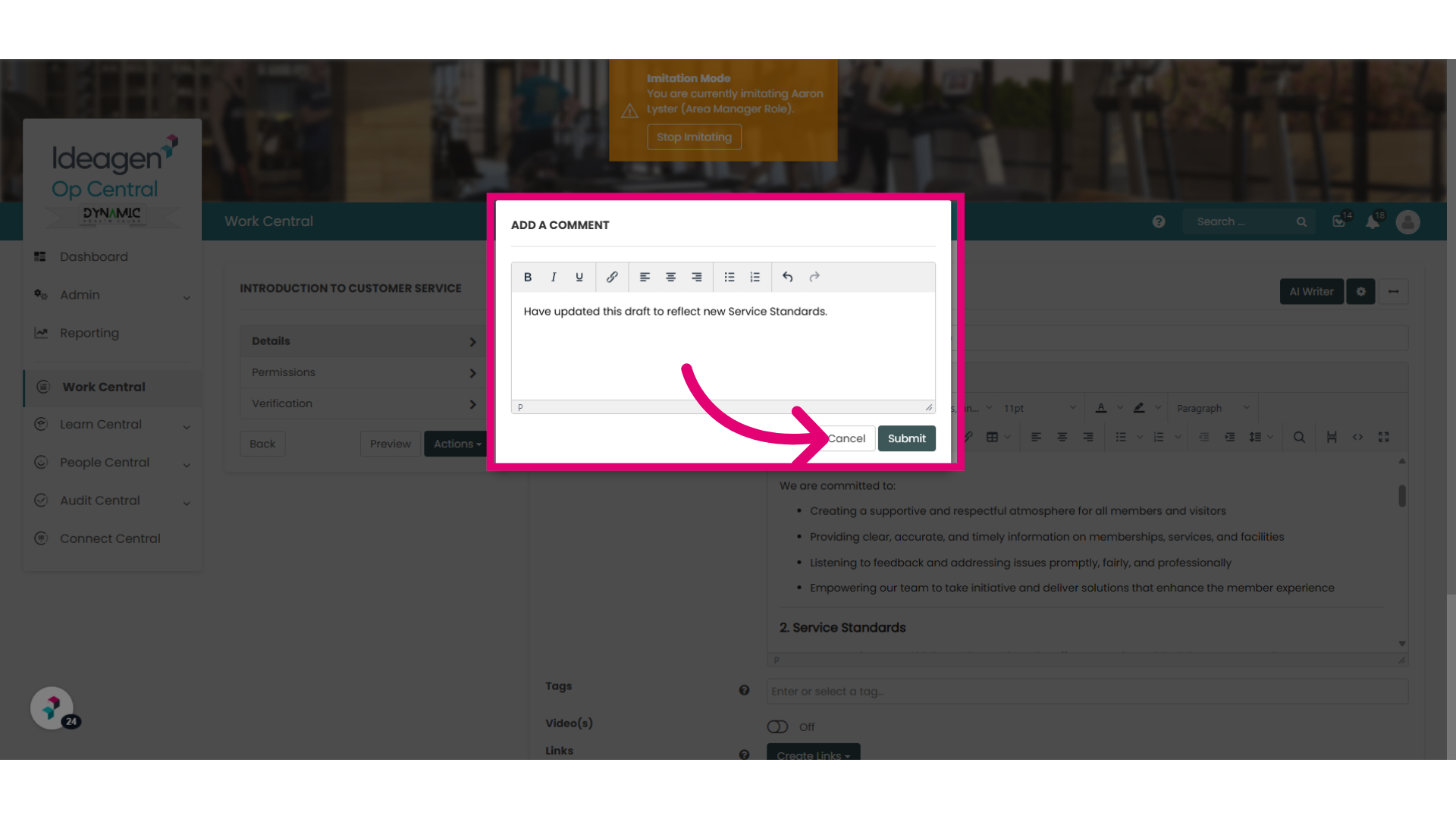
8. Leave a comment and submit
To help track the workflow history, you will be required to leave a comment for the approvers. Click Submit when done. This is the end of the process for a user who submits for approval.
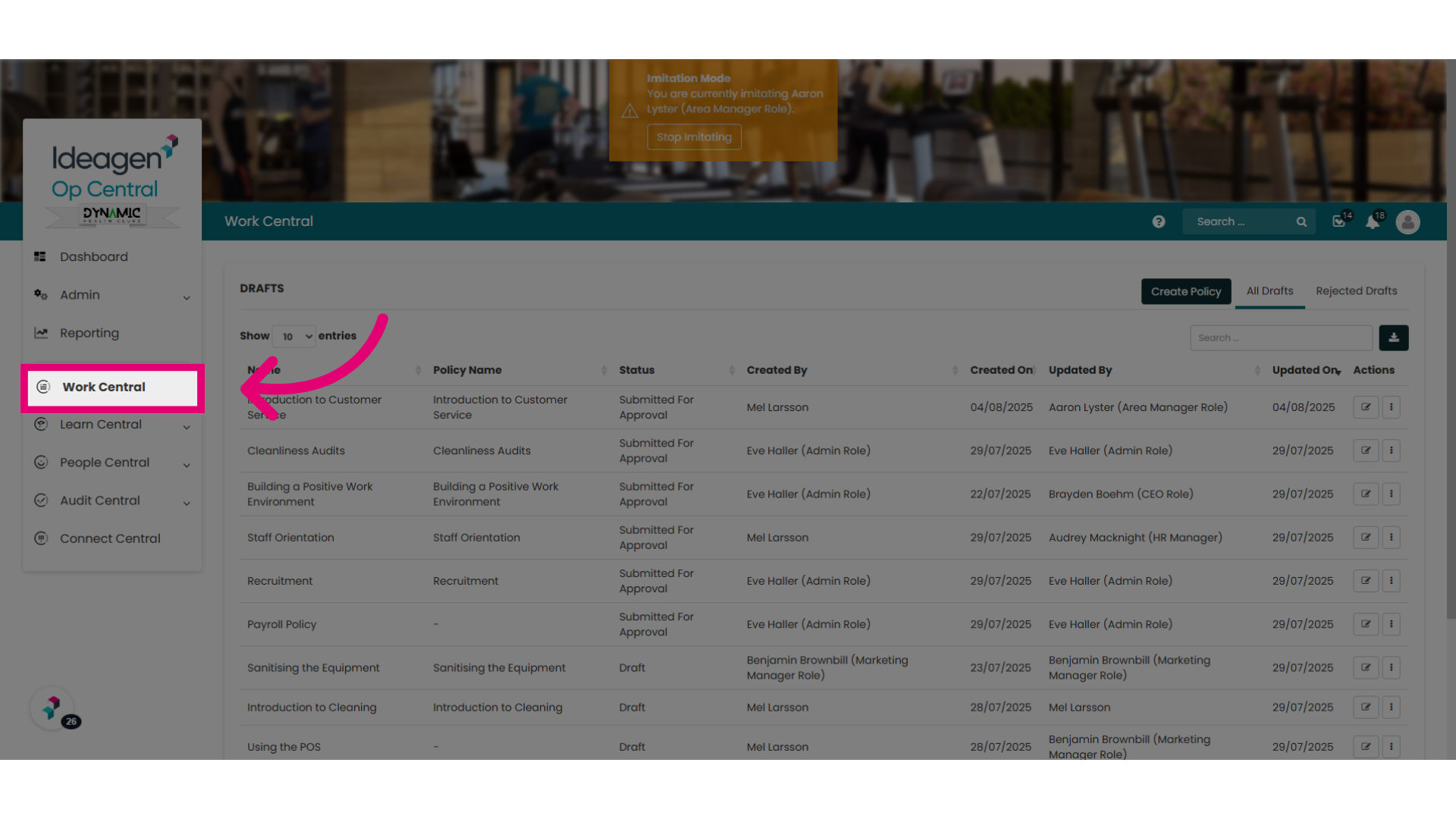
9. Reminder: Where to find the "Manage Policy Approvals" pages and menus
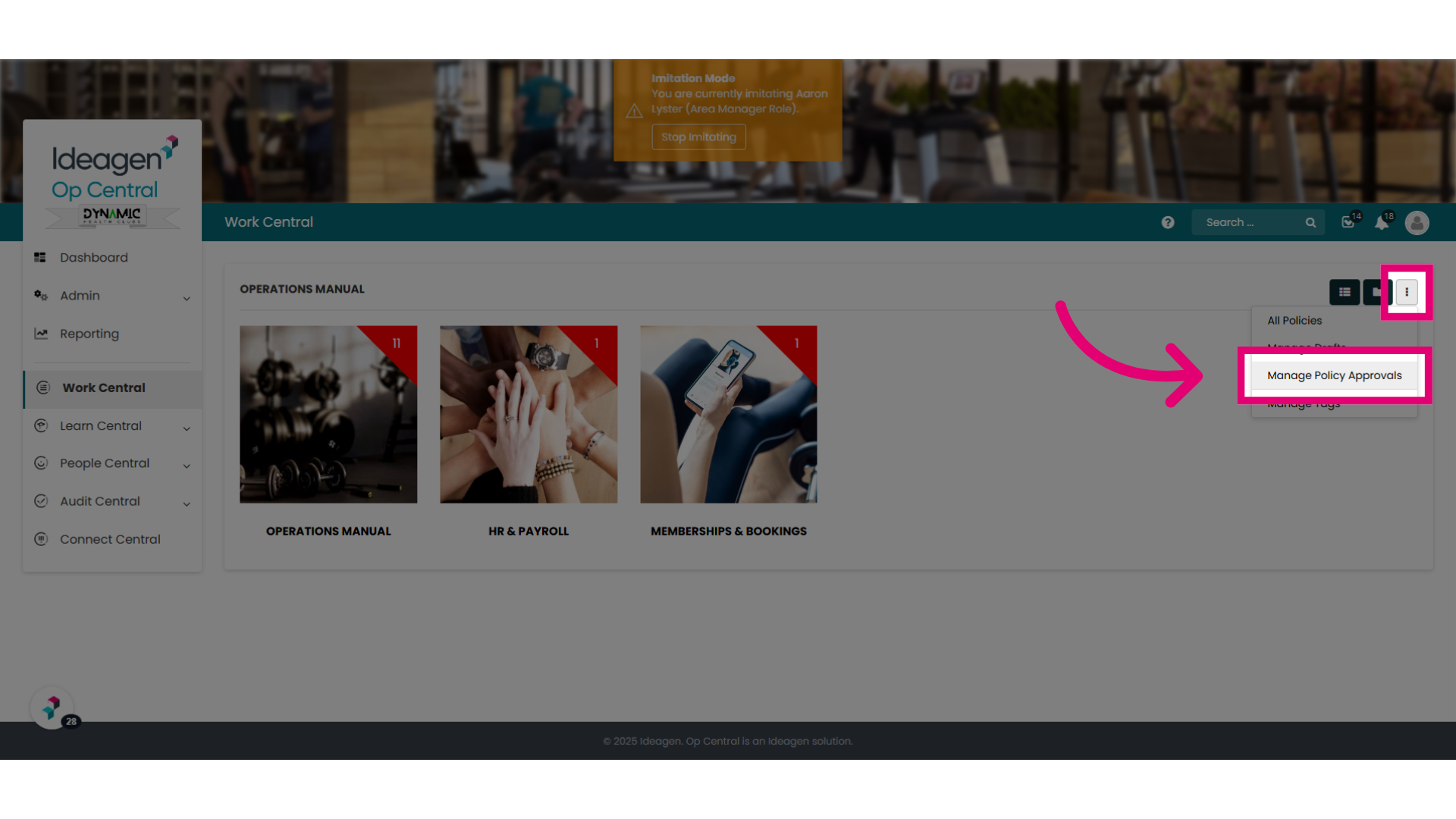
Before we finish, just a reminder that if you are looking for the Manage Policy Approvals pages and menus you can access by selecting "Work Central".
10. Ellipses Options
Select the ellipses and choose "Manage Policy Approvals".
Our other help articles provide further guidance regarding the Manage Policy Approvals pages and menus.