New article
Recently updated
Policy Management: Navigating the new workflow pages for Admins or users with "Can Publish" enabled.

Explore how to navigate Ideagen Procedure Management's Workflow pages and menus designed for admins or users with "Can Publish" Access.
1. Introduction
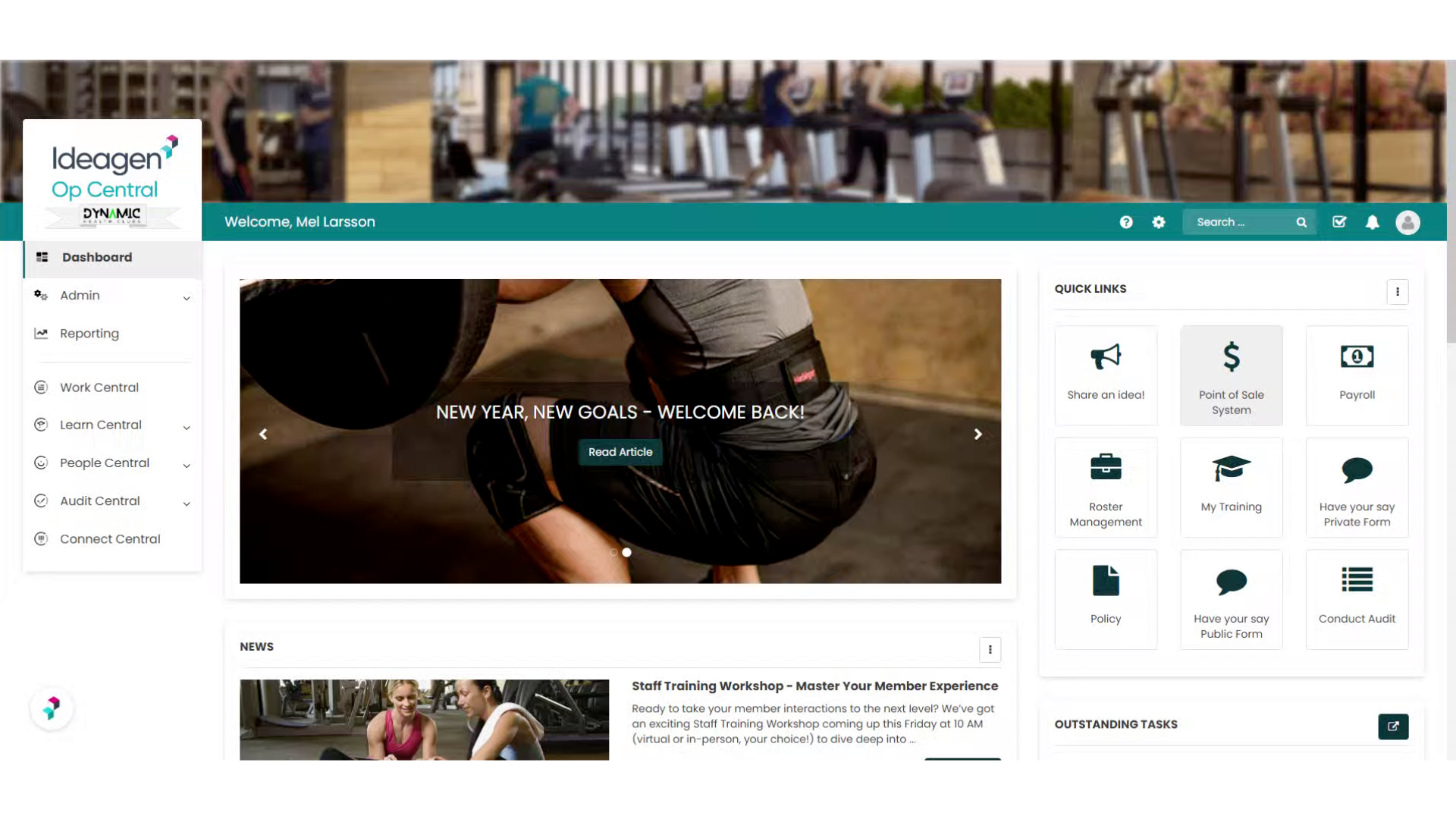
This guide walks you through the functionality available when approval workflows are enabled.
2. Click "Work Central"
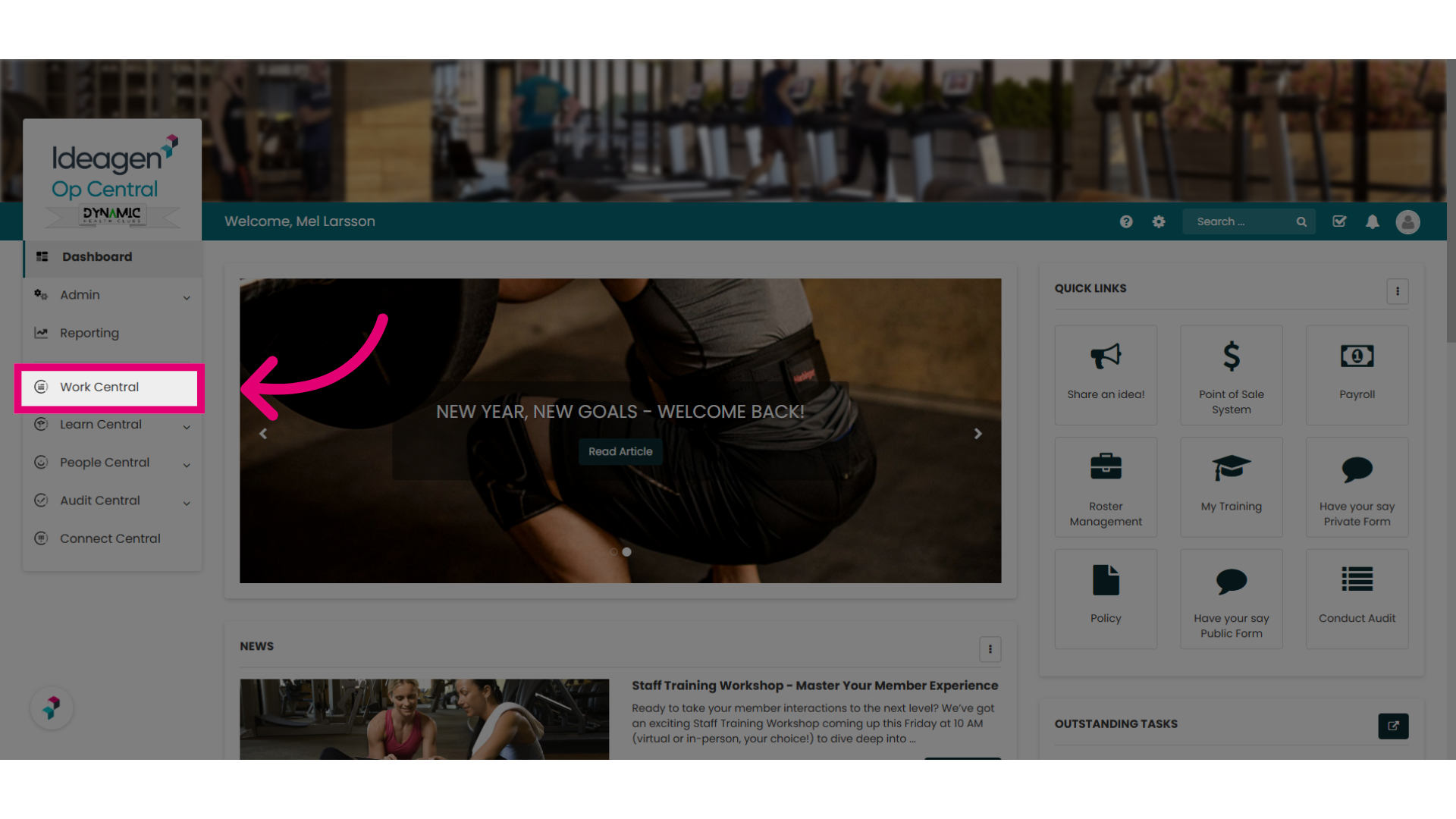
To access the workflows approval menu, select Work Central. This may be called Operations Manual or something similar depending on how your Ideagen Procedure Management site is set up.
3. Click "Manage Policy Approvals"
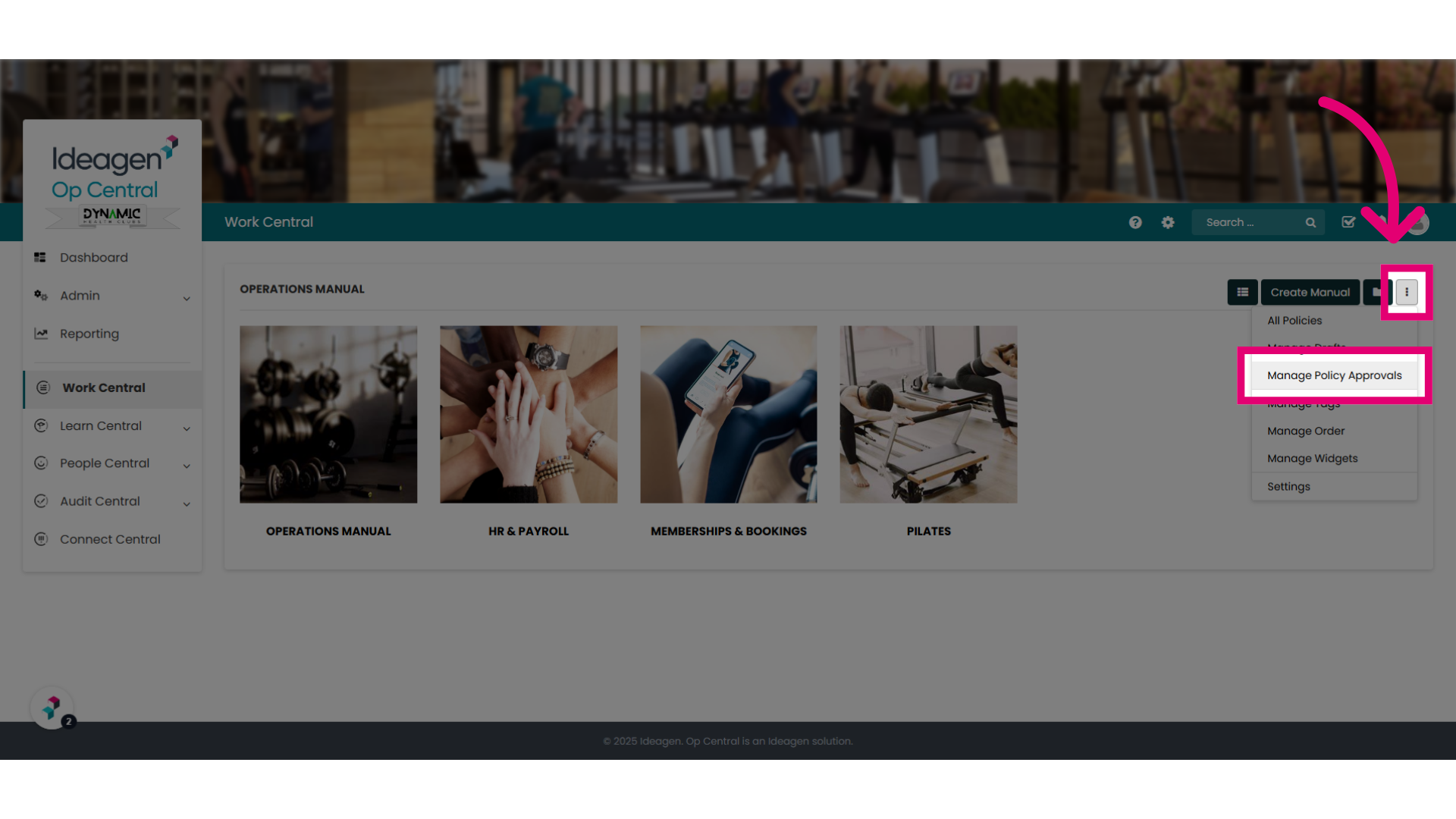
Go to the ellipses and select the Manage Policy Approvals option to access the Approval Workflows pages and menus
4. This is your Approval Workflows Menu.
This is your Approval Workflows Dashboard.
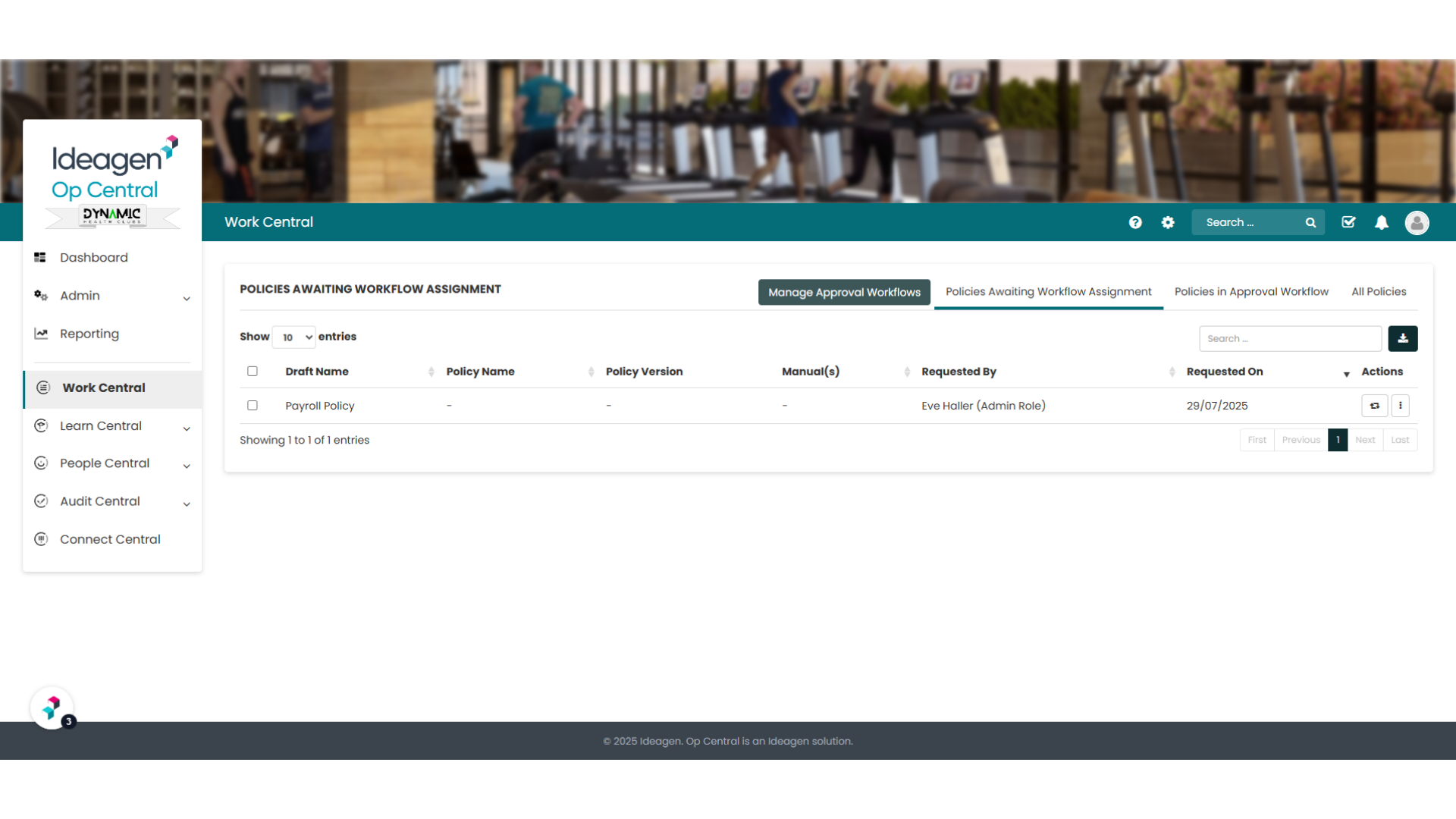
5. There are four key functions to this space.
We are going to explore these four buttons or tabs and show you their key functionality.
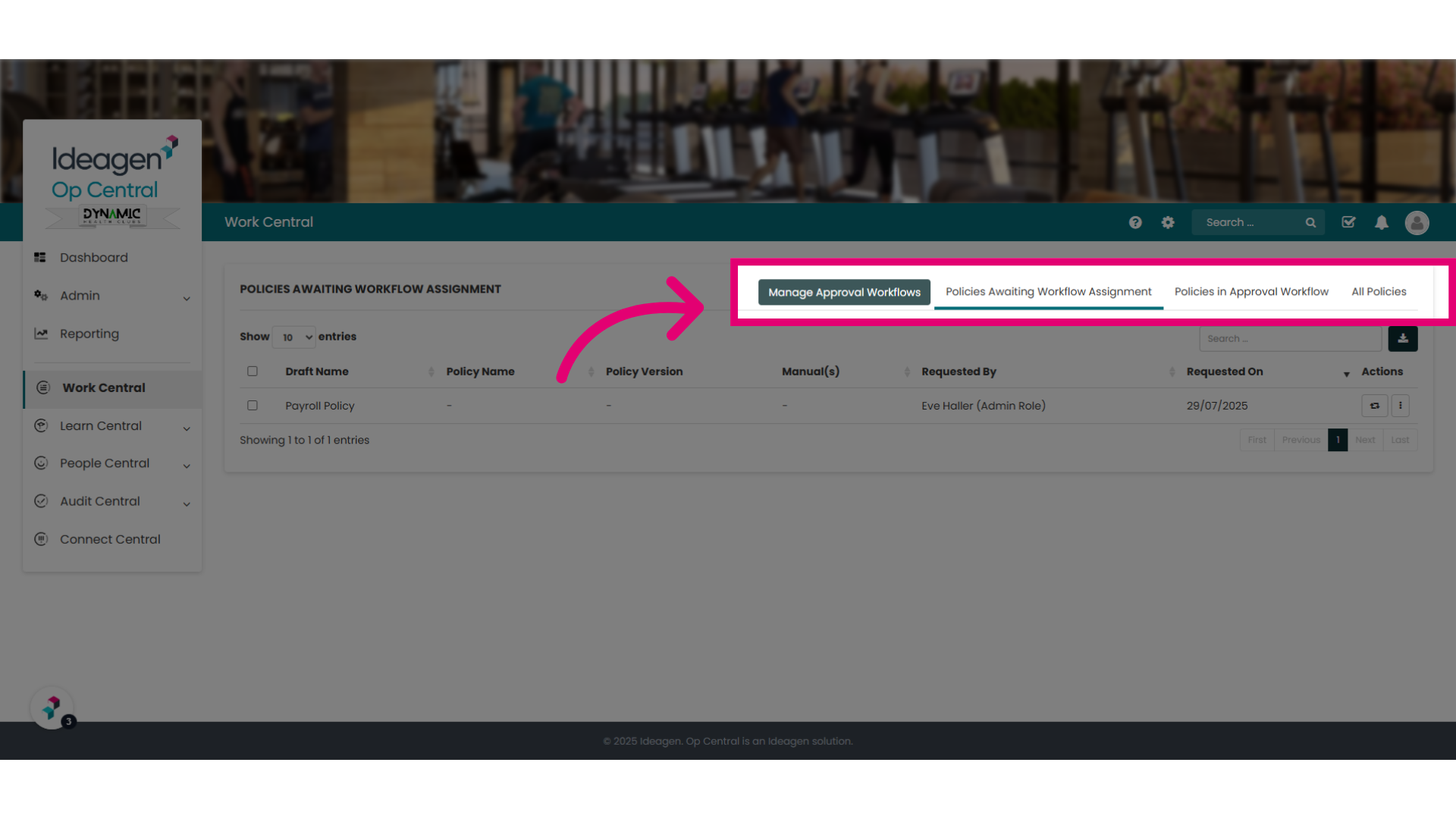
6. "Manage Approval Workflows"
First let's take a look at the "Manage Approval Workflows" menu.
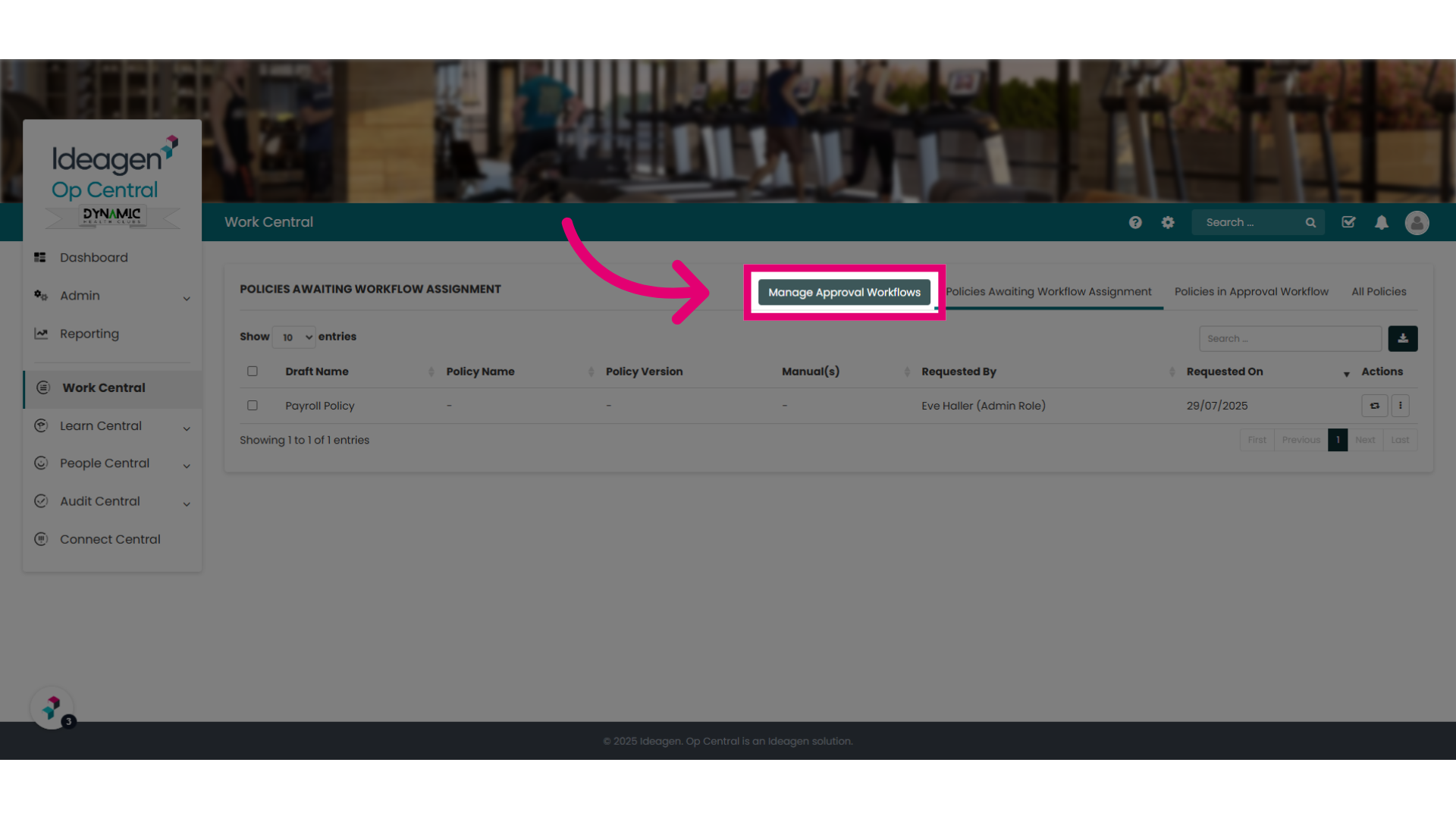
7. Here you can see all the workflows that have been set up
In this menu you can see all the workflows that have been set up. You can also create a workflow here.
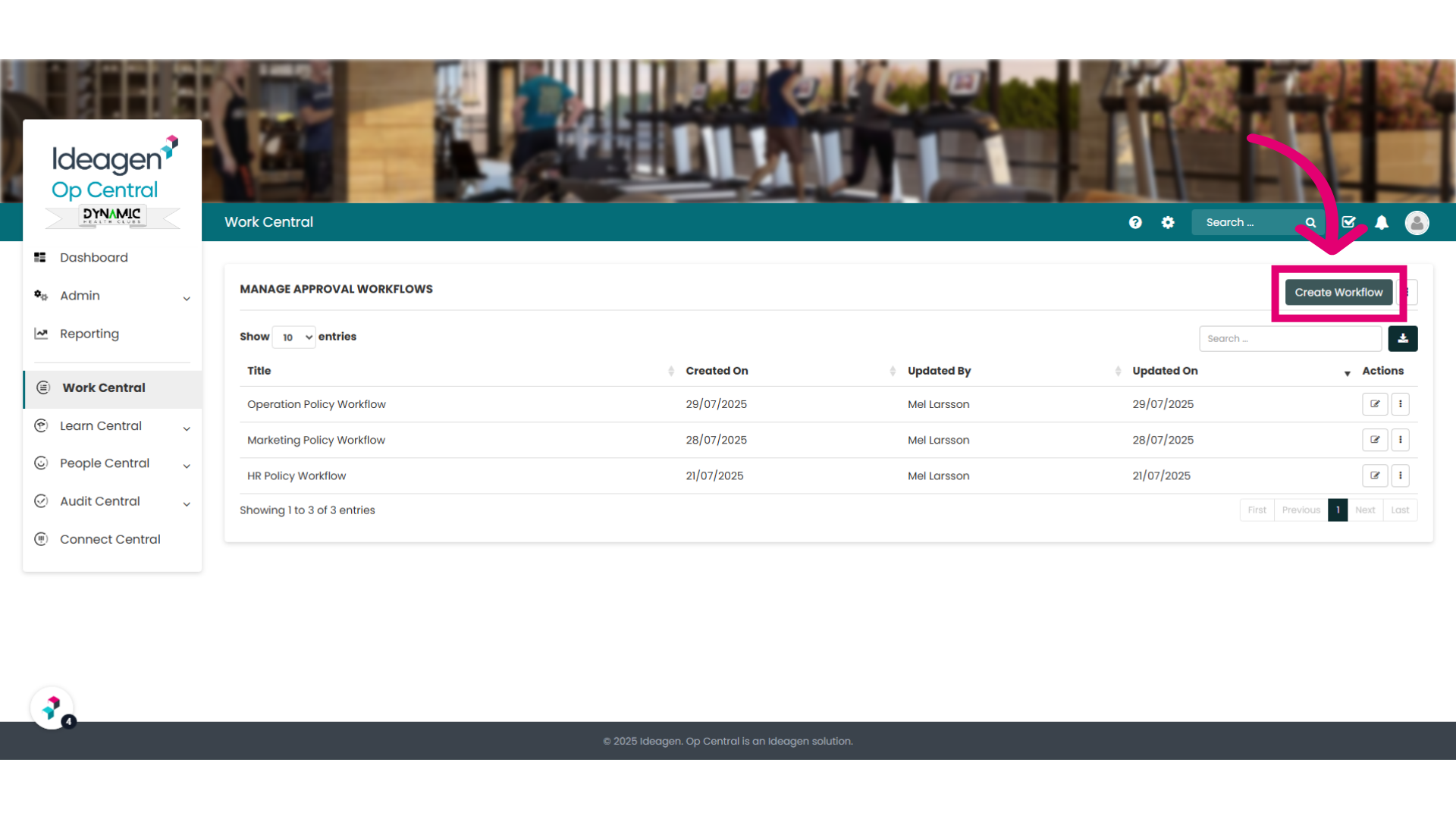
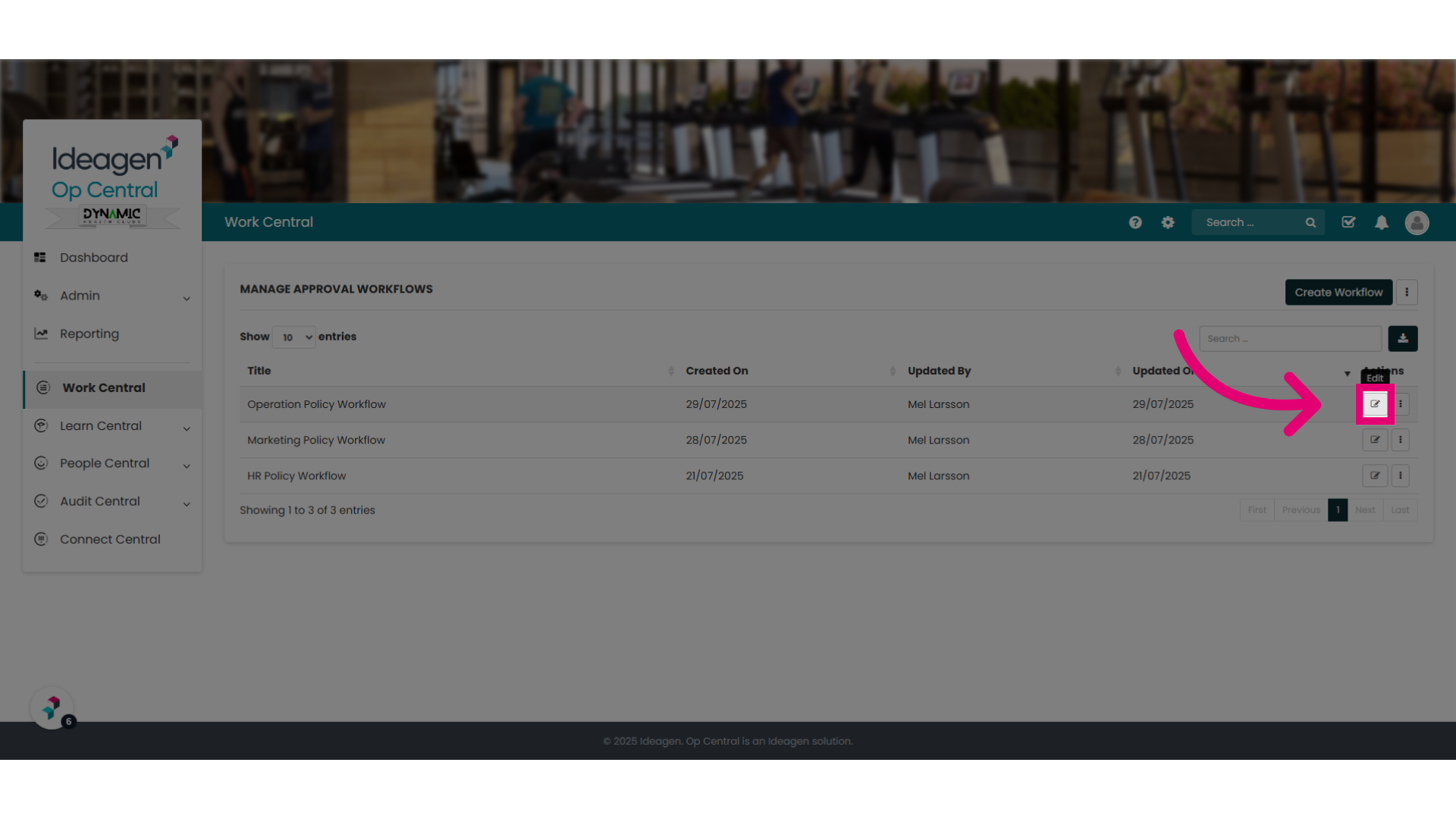
8. Edit a workflow
The edit icon will allow you to edit a workflow you have set up.
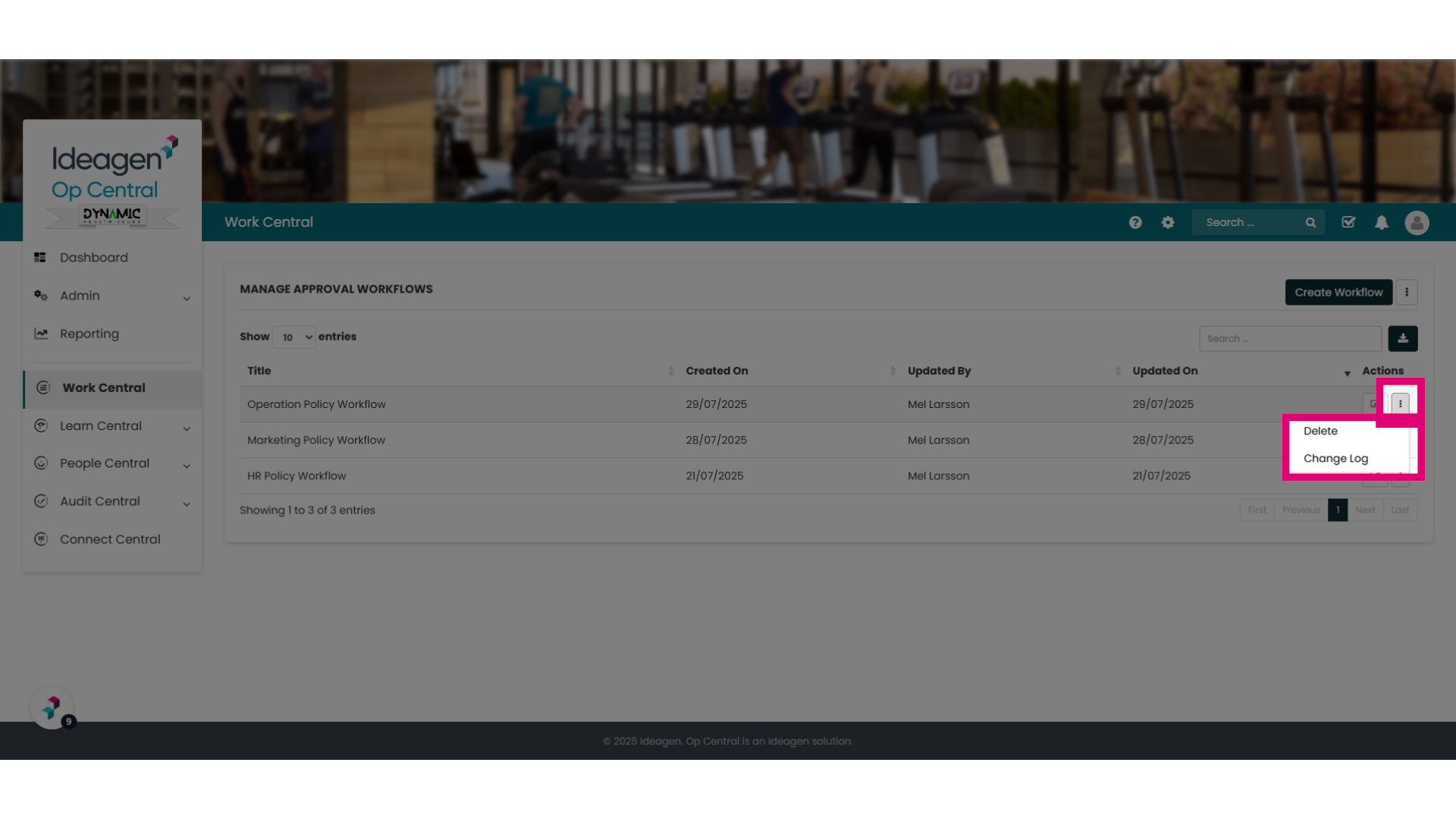
9. Ellipses Options
Or select the ellipses which gives you options to delete a workflow or view the change log for that workflow.
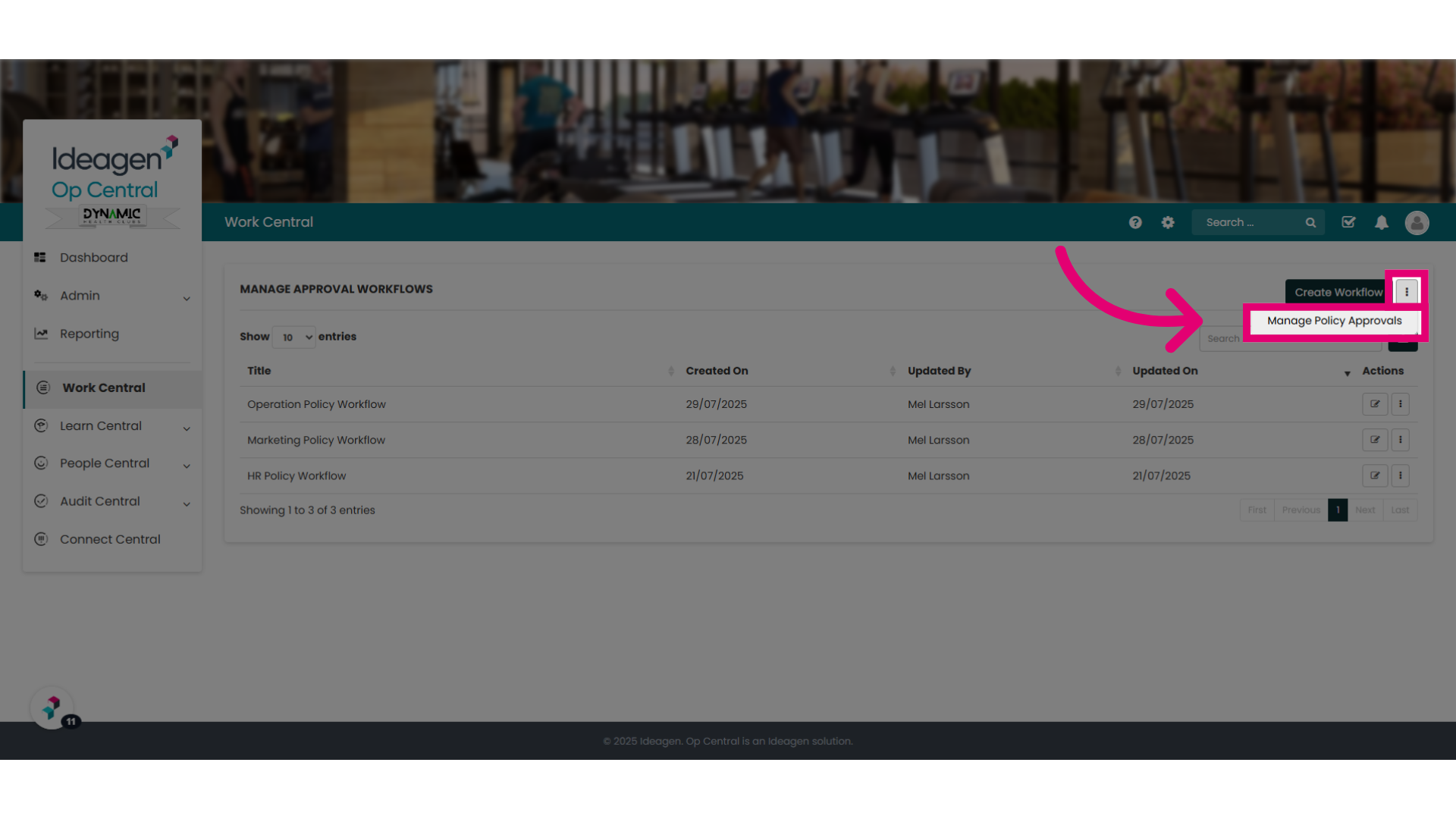
10. To return to the Manage Policy Approvals screen
To return to the previous screen from this page, select the ellipses and "Manage Policy Approvals"
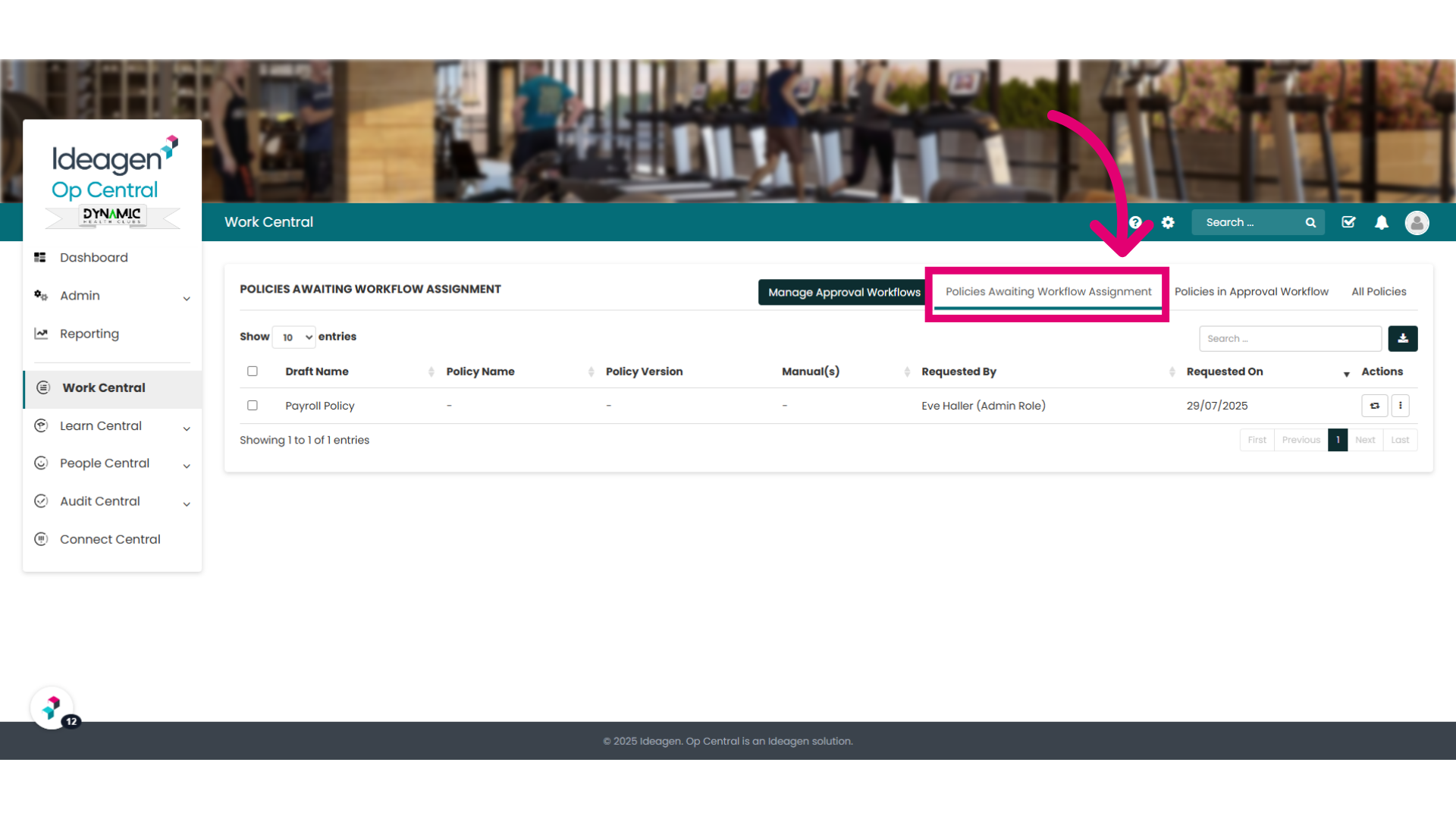
11. "Policies Awaiting Workflow Assignment"
Let's take a look at the "Policies Awaiting Workflow Assignment" tab.
This page will show you any policies submitted to approval that are yet to be assigned a workflow.
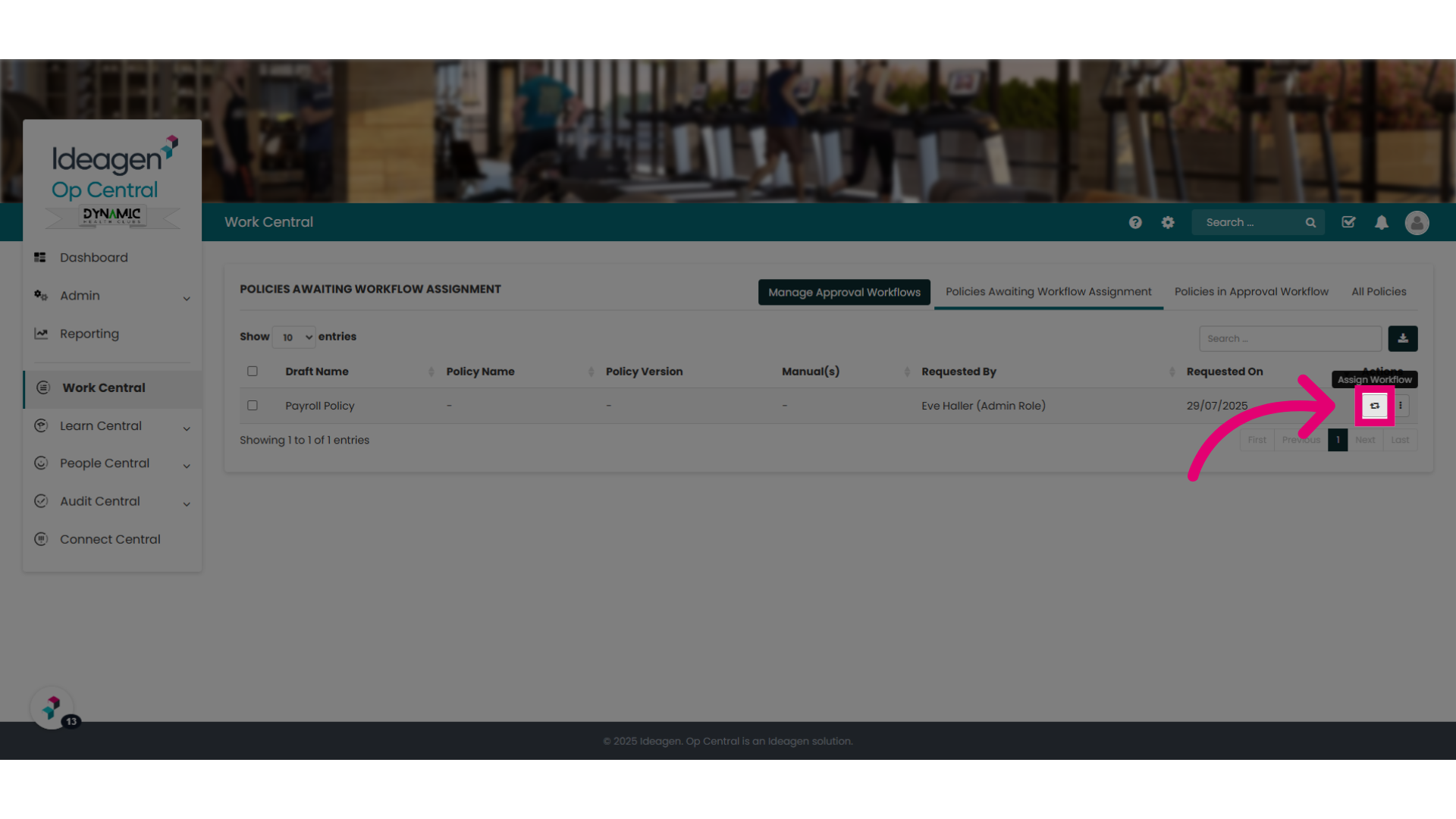
12. Assign a workflow to a policy
Here you can assign a workflow to a policy by selecting the assign button. You can also create a new workflow if an appropriate one hasn't been set up yet.
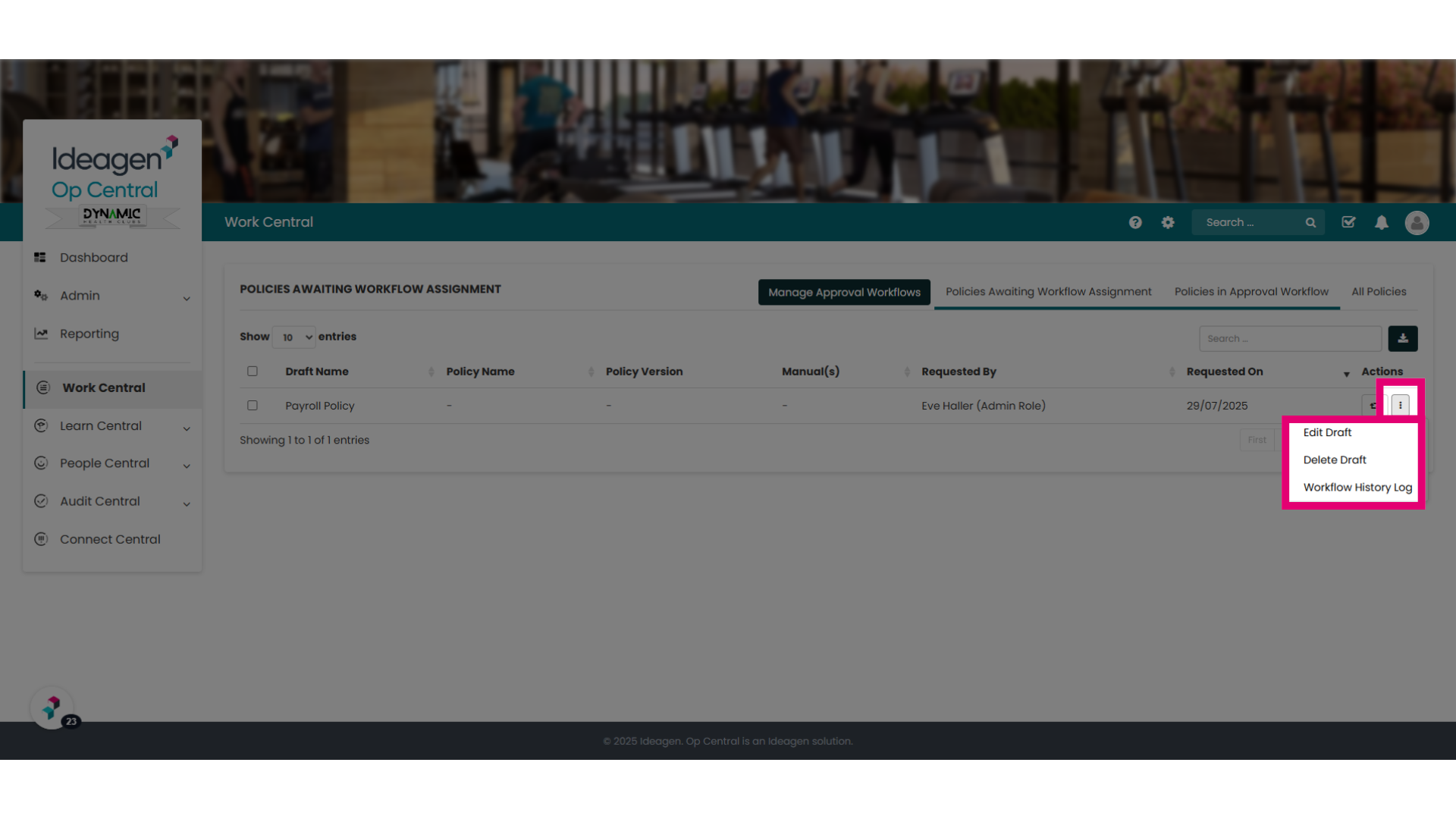
13. Ellipses Options
Or by selecting the ellipses have the ability to edit or delete a draft, or view the workflow history log for that policy.
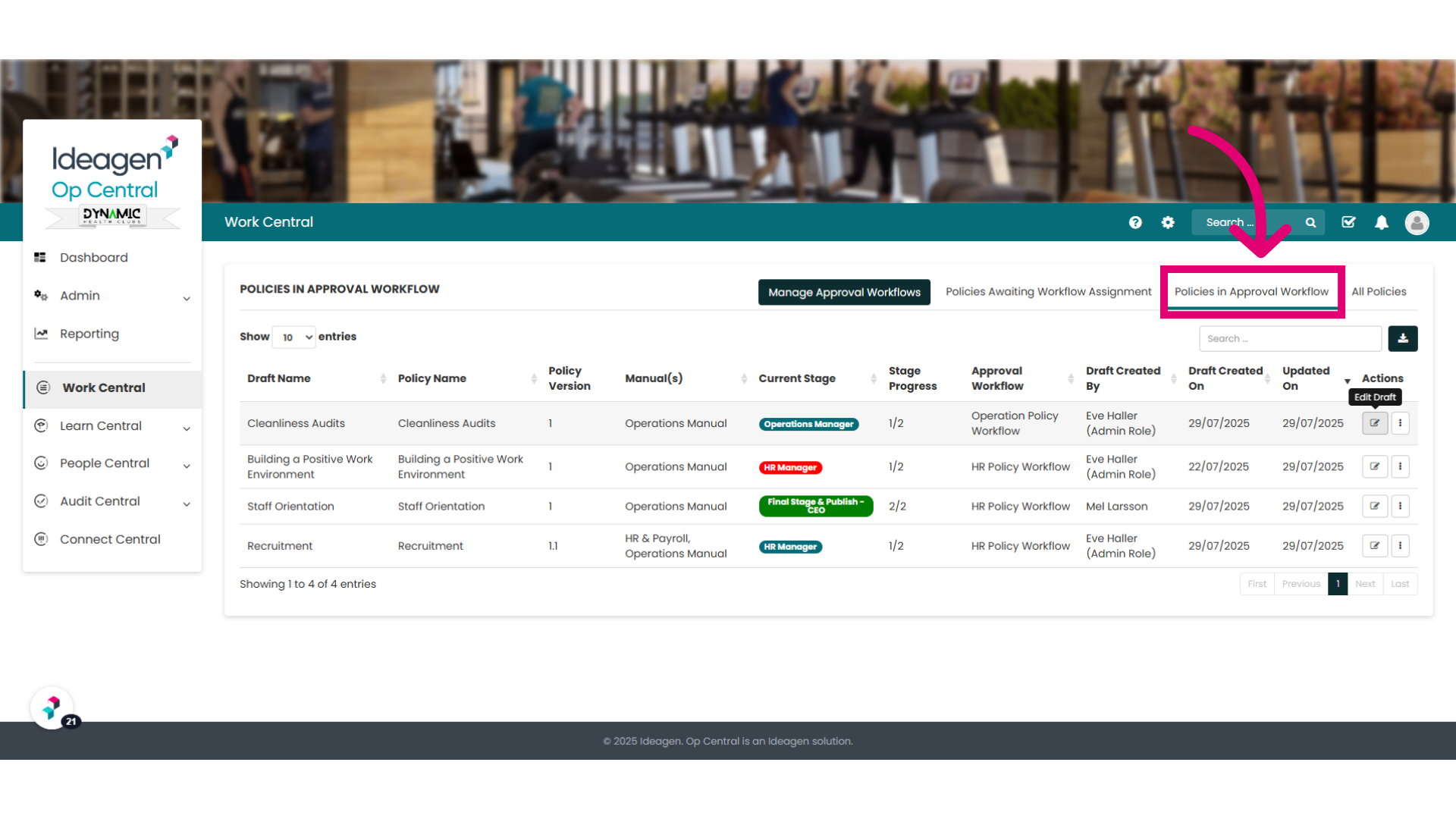
14. Let's now take a look at the "Policies in Approval Workflow" tab
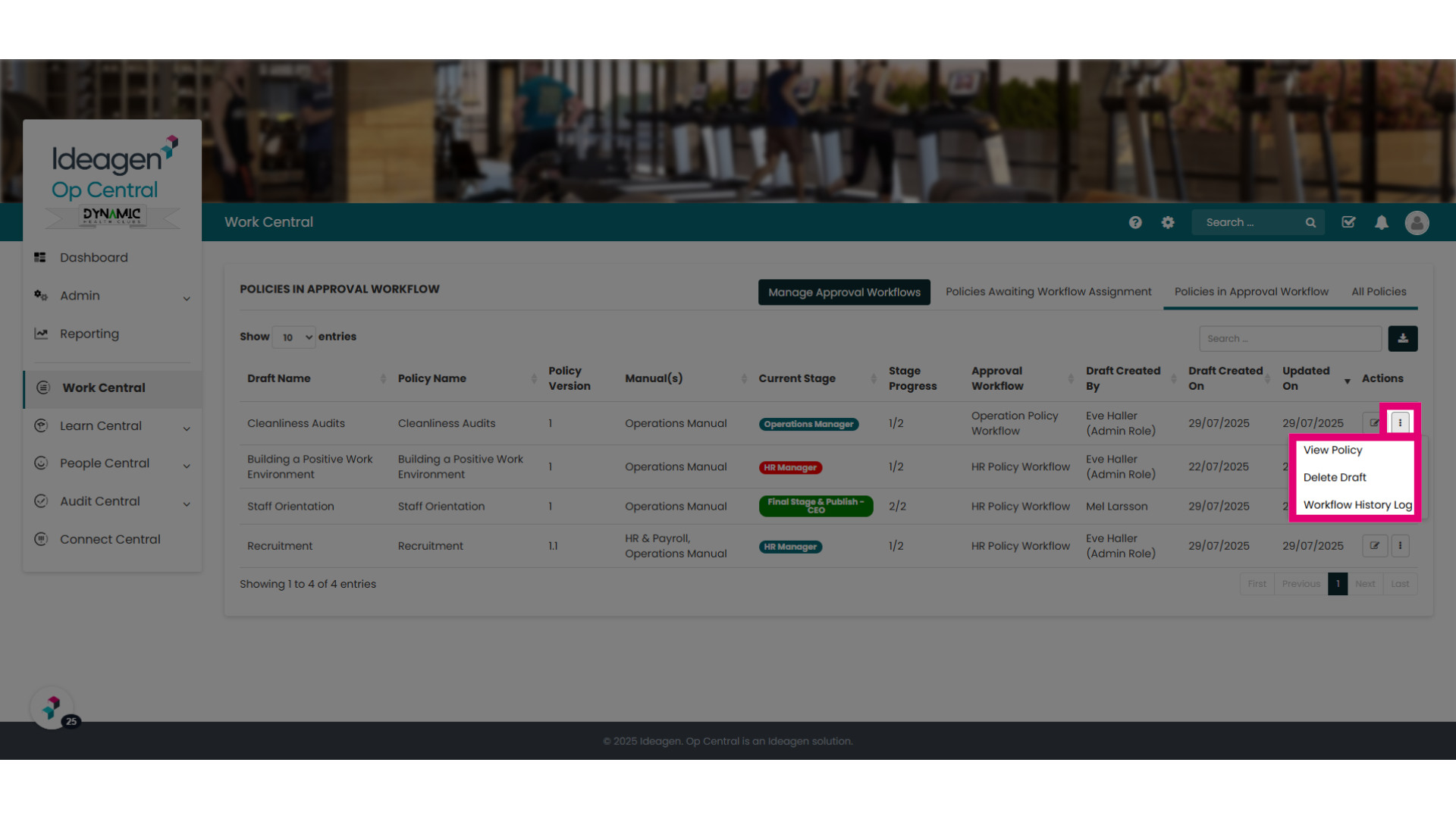
This tab will show you all policies that are currently in a workflow. It includes information about the workflow status, what workflow has been assigned and when it was last updated. There is lots of information on this page, designed to help you find what you need quickly. Do hover over any new functionality to see the additional information available to you.
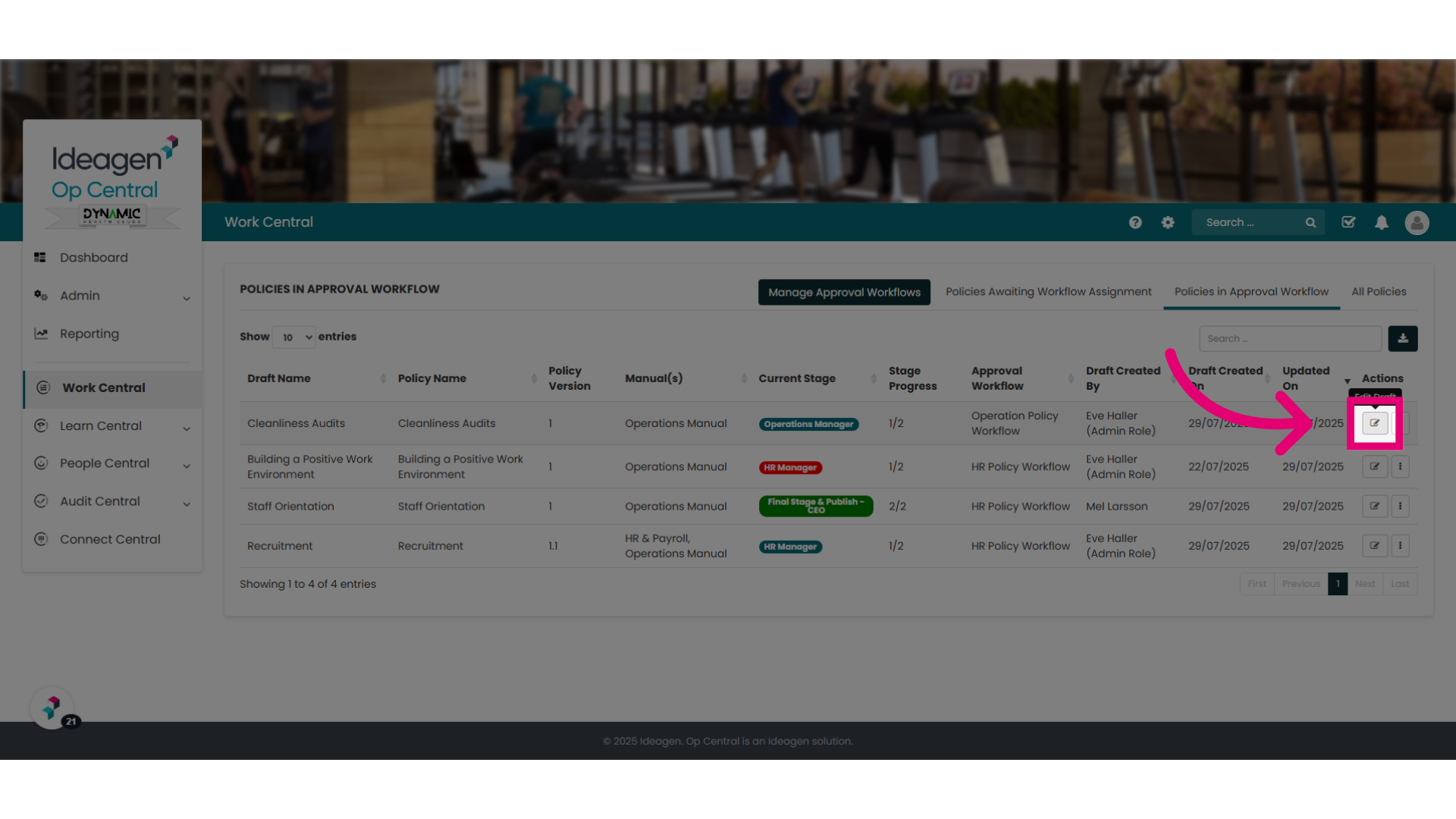
15. The edit button
From this tab you can also edit a policy. This is where an Admin could override or action a stage of the workflow.
16. Ellipses Options
Or from the ellipses menu choose to view the policy, delete the draft policy (and cancel the workflow) or view the Workflow History Log for that policy.
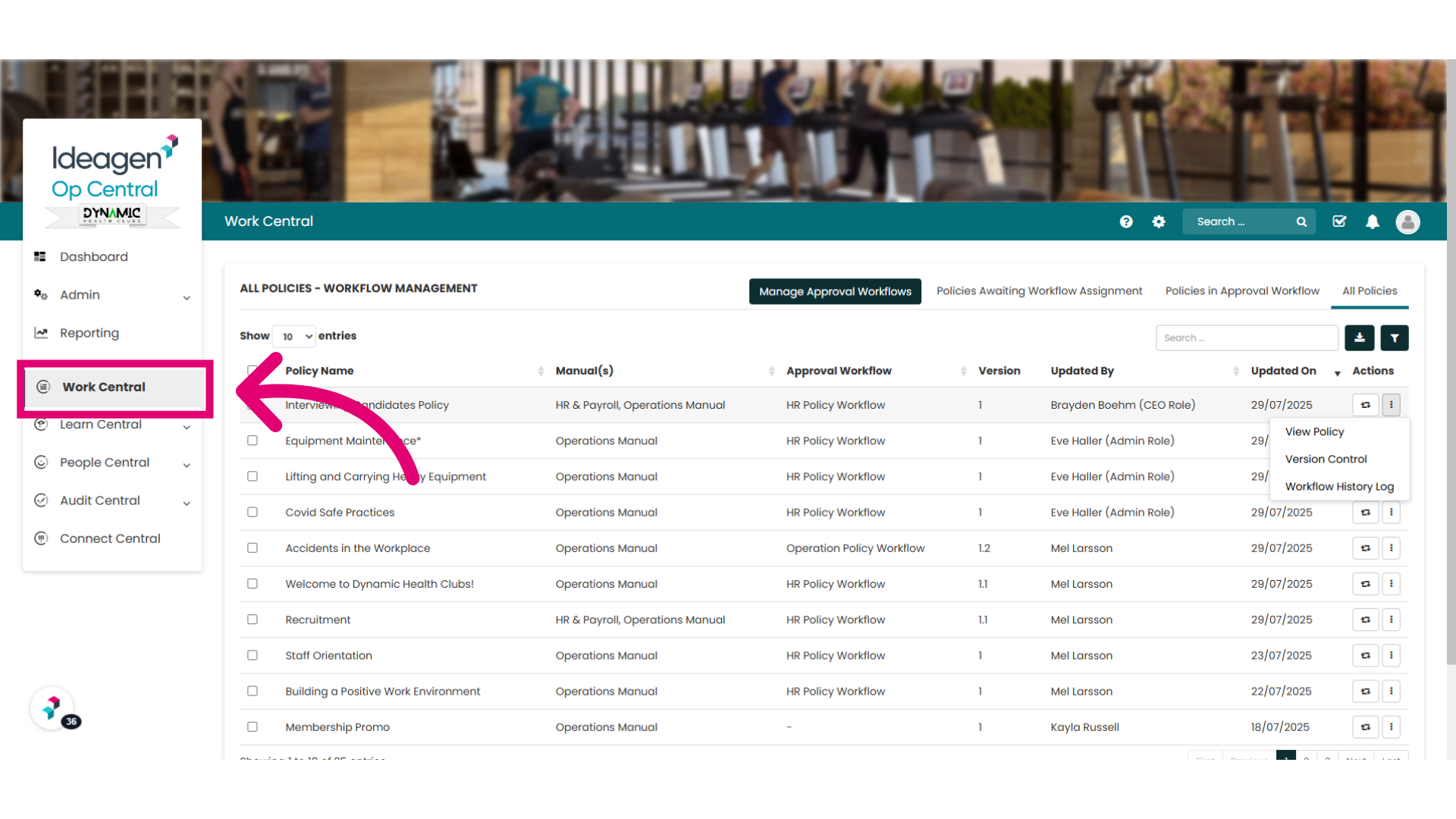
17. "All Policies"
Now, let's take a look at the "All Policies" tab. This tab provides you with a list of all published policies you have in Work Central, and functionality to complete tasks in bulk
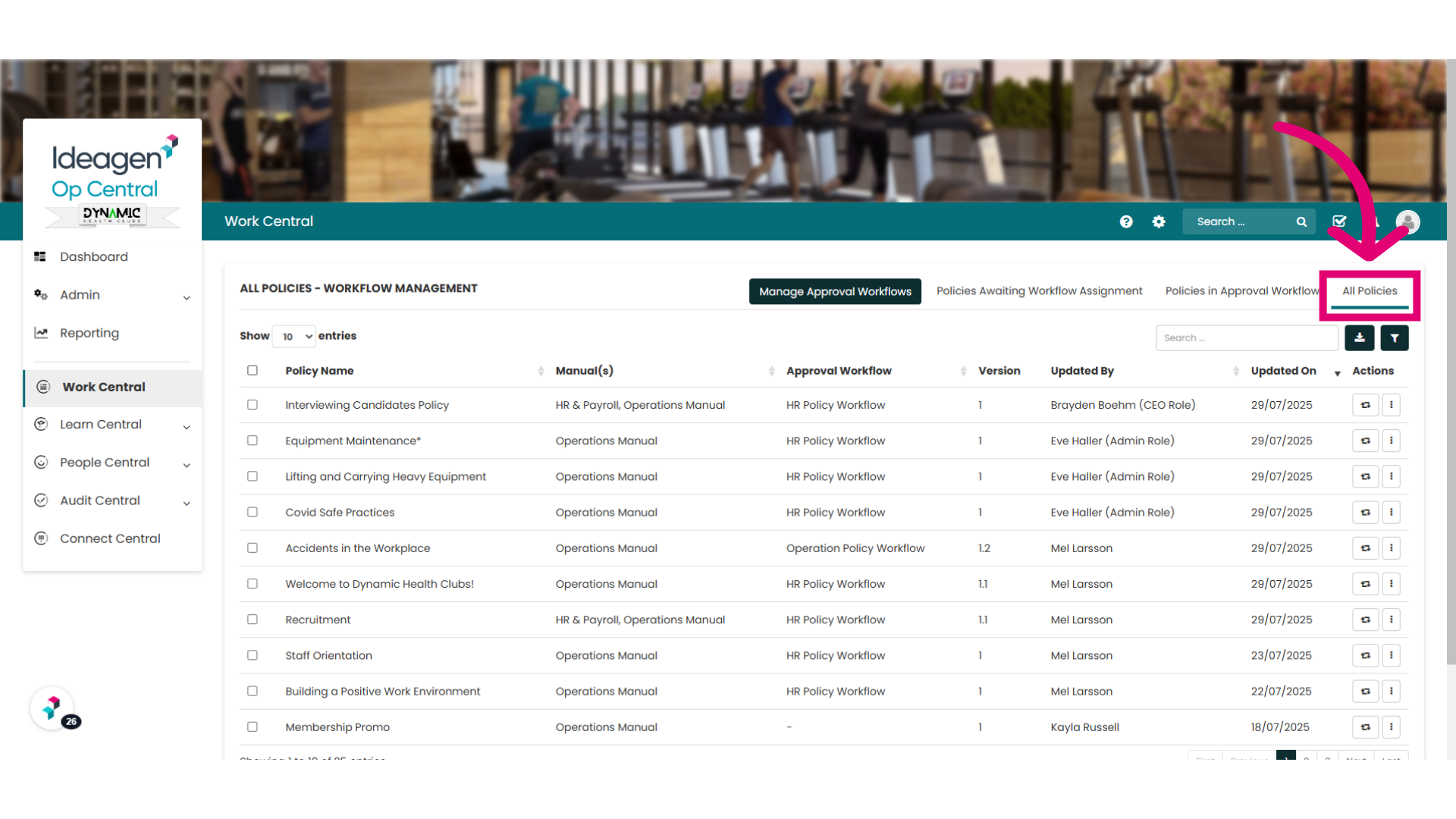
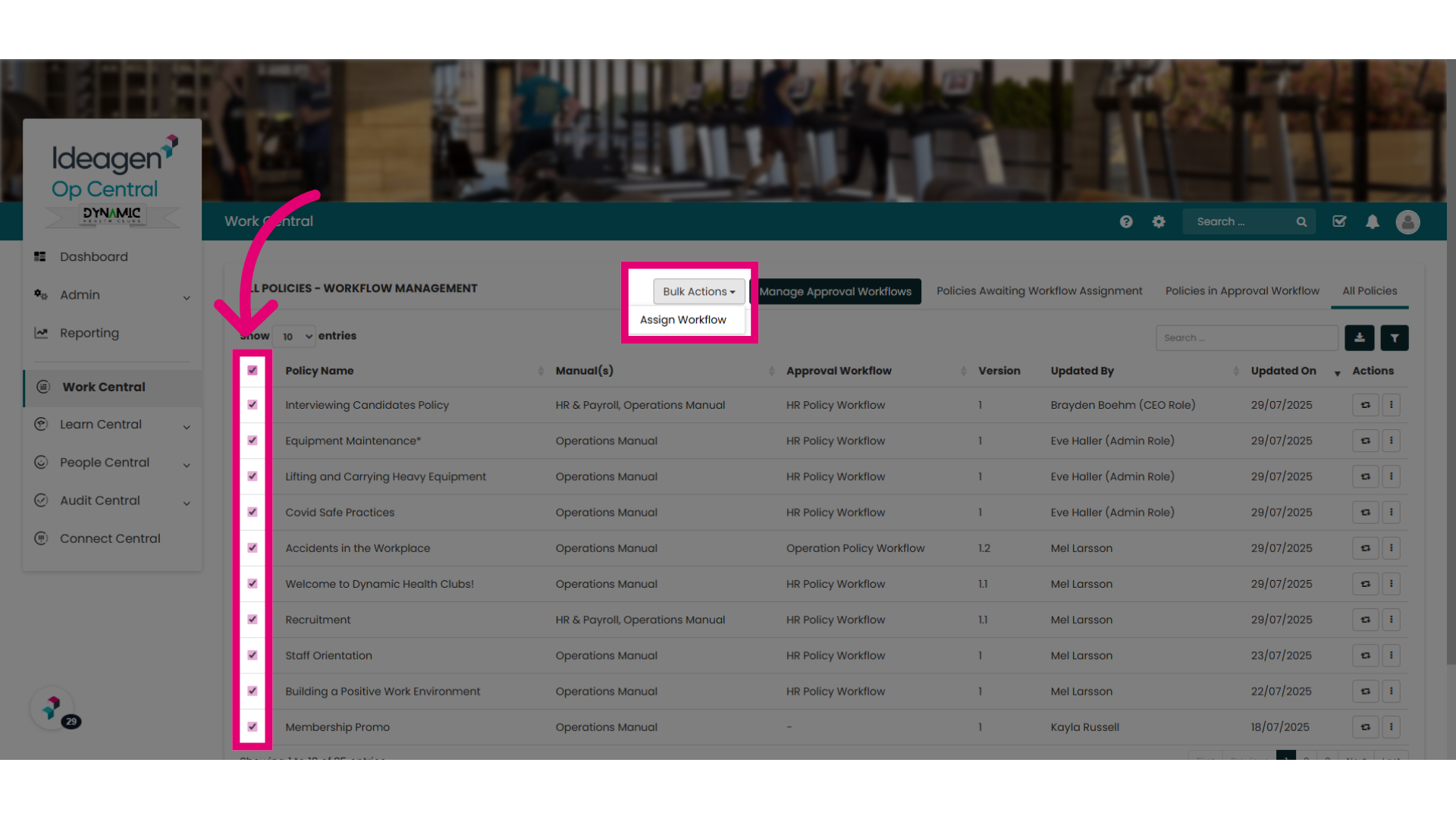
18. Bulk assigning of a workflow
Firstly, if you select any checkbox, a "Bulk Actions" button will appear which allows you to assign a workflow in bulk.
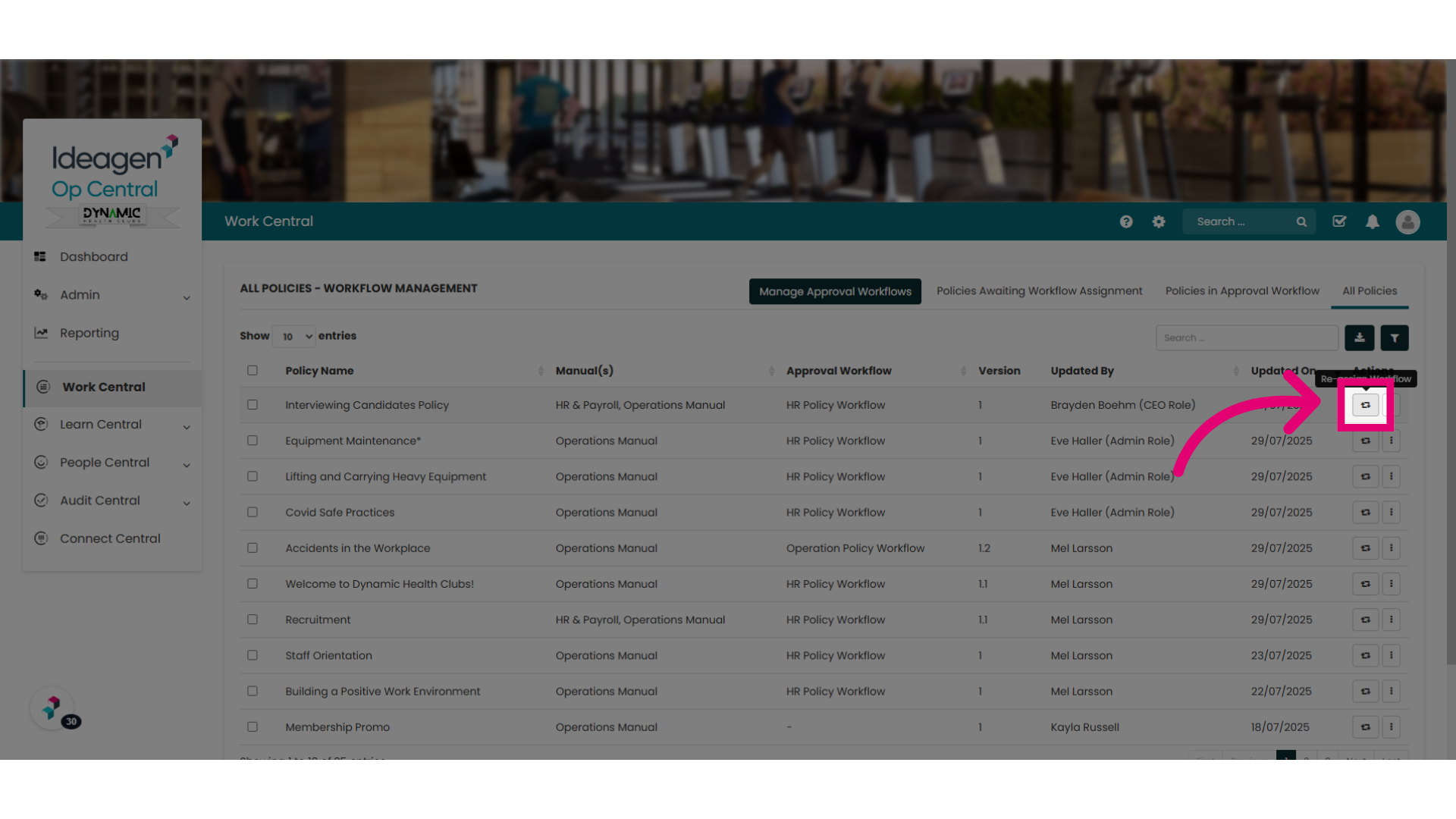
19. Assign or Reassign a workflow
You can also assign or reassign a workflow per policy
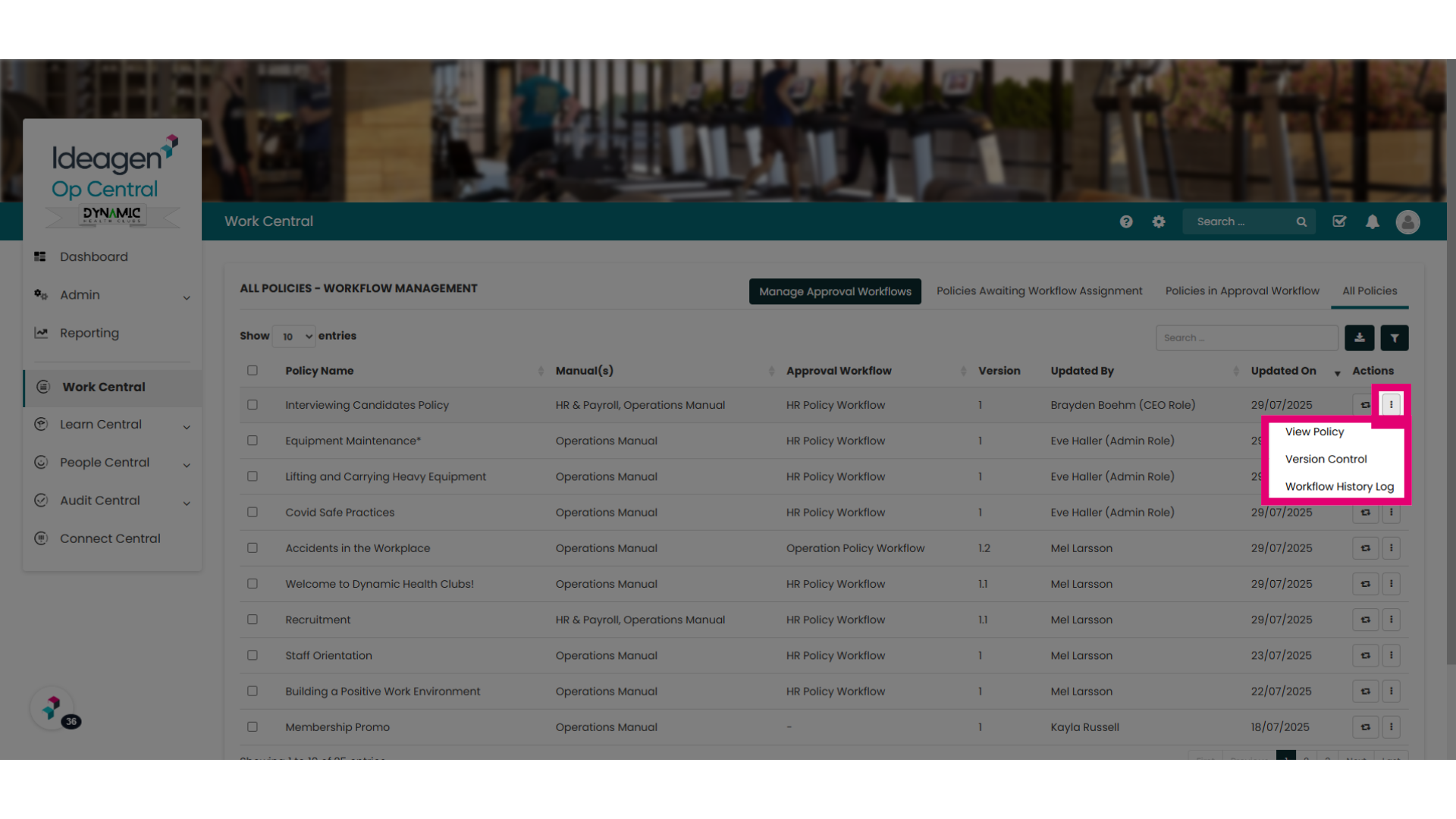
20. Ellipses Options
Or from the ellipses, view the policy or see it's Version History (this is the information that all users can see about a policy) or the Workflow History Log
21. Return to the Work Central landing page
You have now been introduced to all the key functionality of the new "Manage Policy Approvals" pages and menus. At anytime you can return to your main Work Central or Operations Manual menu from selecting "Work Central from your left-hand navigation menu